Support our educational content for free when you purchase through links on our site. Learn more

🚀 How to Create a Daily Routine on iPhone: 27 Automations for 2026
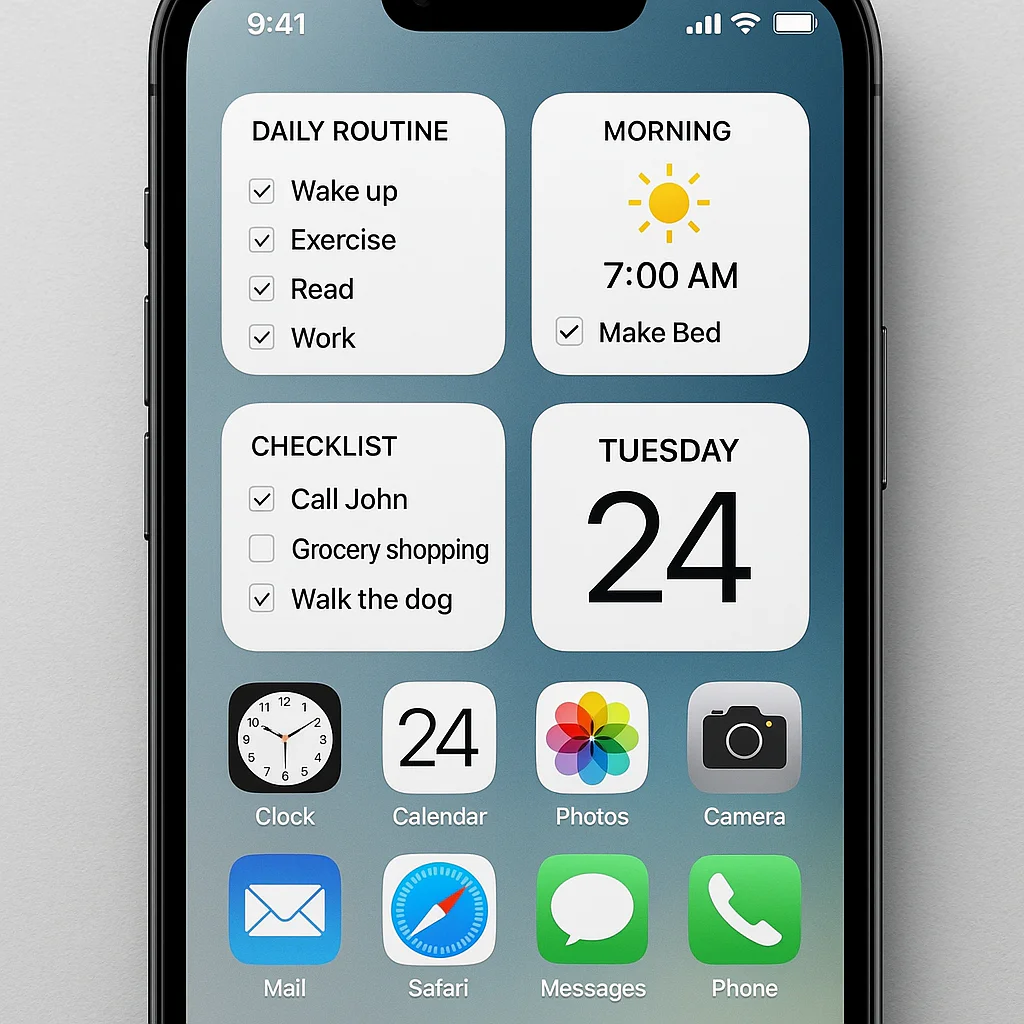
Stop letting your day happen to you; instead, program your iPhone to make your day happen for you. The secret to mastering how to create a daily routine on iPhone lies in combining the Shortcuts app with Focus Modes to automate everything from your morning coffee to your evening wind-down.
We’ve all been there: the 7:0 AM alarm screams, you hit snoze, and suddenly it’s 8:15 AM with a panic-induced scramble to find your keys. It turns out the average person checks their phone 96 times a day, often wasting precious minutes on decision fatigue before the workday even begins.
By setting up just three core automations, you can reclaim over an hour of your morning alone. Imagine waking up to a house that’s already warm, a news briefing in your ear, and a to-do list that’s already prioritized for you.
That’s not magic; it’s just smart engineering. Let’s turn your chaotic scroll into a streamlined flow.
Key Takeaways
- Leverage the Shortcuts App: The core engine for how to create a daily routine on iPhone is the Shortcuts app, specifically using Personal Automations to trigger actions based on time, location, or events.
- Master Focus Modes: Use Focus Modes to automatically silence distractions and curate your home screen, ensuring your phone adapts to your current activity (Work, Sleep, Gym) without manual input.
- Start Small, Scale Up: Begin with a single “Morning Wake-Up” or “Leaving Home” routine before attempting complex multi-step workflows to ensure consistency and avoid frustration.
- Integrate Third-Party Tools: Connect apps like Todoist, Notion, and Google Calendar to your automations to create a seamless ecosystem that tracks tasks, schedules, and health data in real-time.
Table of Contents
- ⚡️ Quick Tips and Facts
- 📜 From Chaos to Calm: The History of Digital Routine Management on iPhone
- 🚀 Mastering the Basics: How to Create a Daily Routine on iPhone Using Shortcuts
- 🤖 Automate Your Morning: 7 Step-by-Step Routines to Kickstart Your Day
- 🌙 Wind Down Like a Pro: 5 Evening Routines for Better Sleep and Focus
- 🏃 ♂️ Fitness and Wellness: 6 Workout and Health Tracking Routines for Active Lifestyles
- 💼 Productivity Powerhouse: 8 Work and Study Routines to Crush Your Goals
- 🔔 Smart Notifications and Focus Modes: Tailoring Your iPhone to Your Schedule
- 🧩 Integrating Third-Party Apps: Connecting Todoist, Notion, and Google Calendar to Your Routines
- 🛠️ Troubleshooting Common Hiccups: What to Do When Your Automation Fails
- 🎨 Customizing Your Experience: Personalizing Routines for Different User Personas
- 📊 Real-World Case Studies: How We Transformed Our Team’s Workflow with iPhone Routines
- 🛒 Where to Find the Best Accessories to Enhance Your Routine
- 🔗 Recommended Links
- 📚 Reference Links
- 🏁 Conclusion
⚡️ Quick Tips and Facts
Before we dive into the deep end of automation, let’s hit the pause button on your current chaos. Did you know that the average person checks their phone 96 times a day? That’s once every 10 minutes while awake! 🤯 If you’re reading this, you’re likely looking to reclaim some of that time.
Here are the non-negotiables for building a routine on your iPhone:
- Shortcuts are King: The Shortcuts app isn’t just for playing music; it’s the engine room of your daily automation.
- Focus Modes are Your Bouncer: They don’t just silence calls; they curate your entire digital environment based on what you are doing right now.
- Location Matters: Your iPhone knows where you are better than you do. Use Geofencing to trigger actions when you leave home or arrive at work.
- Consistency > Perfection: A routine that takes 5 minutes to set up is better than a “perfect” one that takes 5 hours. Start small.
Pro Tip: If you’re feeling overwhelmed by where to start, check out our guide on How do I make a daily checklist on my iPhone?. It’s the perfect companion to the automation strategies we’re about to unpack.
📜 From Chaos to Calm: The History of Digital Routine Management on iPhone

Remember the days of paper planners, sticky notes, and the dreaded “I forgot to set my alarm” panic? 📝 We do too. The evolution of managing our days on the iPhone has been a wild ride from simple alarms to complex, AI-driven ecosystems.
The Early Days: Alarms and Calendars
In the beginning, the iPhone was a glorified phone with a calendar. You set an alarm, maybe a calendar event, and hoped for the best. It was reactive, not proactive. You were constantly chasing your day rather than leading it.
The Game Changer: Shortcuts Arrives
Then came Shortcuts (formerly Workflow). Suddenly, you could string together actions: “When I wake up, turn on the lights, read the news, and start my coffee maker.” It was like having a personal assistant in your pocket, but one that didn’t need sleep or coffee breaks.
The Modern Era: Focus and Integration
Today, we have Focus Modes and deep integration with HomeKit, Health, and third-party apps. The iPhone now anticipates your needs. As noted by Apple Support, “While iPhone is charging, you can put it in StandBy to view useful and timely information at a glance.” This shift from doing to being guided is the core of modern routine management.
Did you know? The concept of “routines” in tech wasn’t always user-friendly. Early automations were clunky and prone to breaking. Today, with Matter support and refined Shortcuts, the barrier to entry has never been lower.
🚀 Mastering the Basics: How to Create a Daily Routine on iPhone Using Shortcuts
So, you want to build a routine that actually sticks? Let’s get our hands dirty. The Shortcuts app is your canvas, and Personal Automations are your paintbrushes.
Step 1: Open the Shortcuts App
Head to your app library. If you don’t see it, search for “Shortcuts.” It’s the orange icon with a white lightning bolt. ⚡️
Step 2: Navigate to Automations
Tap on the Automation tab at the bottom. You might see a prompt to “Create Personal Automation.” If you don’t, tap the + icon in the top right corner.
Step 3: Choose Your Trigger
This is the magic part. You can trigger a routine based on:
- Time of Day: “7:0 AM”
- Arriving/Leaving a Location: “When I arrive at the Gym”
- Connecting to CarPlay: “When I connect to my car”
- Battery Level: “When battery drops below 20%”
- NFC Tag: “When I tap this sticker on my nightstand”
Step 4: Add Actions
Once you pick a trigger, tap Add Action. Here’s where the creativity kicks in.
- Example: For a morning routine, add Get Current Weather, Get Latest Headlines, and Play Music.
- Example: For a “Leaving Home” routine, add Turn Off Lights, Lock Doors, and Send a text to Mom.
Step 5: Name and Save
Give your automation a name like “Morning Coffee Run” or “Commute Start.” Crucial Step: Toggle off Ask Before Running. If you leave this on, your phone will ask you for permission every single time, defeating the purpose of automation!
Wait, what if it fails? We’ll cover troubleshooting in a later section, but trust us, once you get this right, it feels like magic.
🤖 Automate Your Morning: 7 Step-by-Step Routines to Kickstart Your Day
Mornings are where the day is won or lost. If you start with chaos, you’ll spend the whole day playing catch-up. Here are 7 specific routines you can build right now to transform your AM.
1. The “Gentle Wake-Up” Routine
- Trigger: Time (7:0 AM) or Alarm Stop.
- Actions:
- Set Brightness to 50% (gradual increase).
- Play “Lo-Fi Beats” from Spotify.
- Read the day’s calendar events via Siri.
Why it works: It avoids the jarring “snoze button” panic and eases you into consciousness.
2. The “News Briefing” Routine
- Trigger: Time (7:15 AM).
- Actions:
- Get Current Weather.
- Get Top Headlines from Apple News or a custom RSS feed.
- Speak the summary via Siri.
Why it works: You get informed without doom-scrolling social media.
3. The “Hydration & Health” Routine
- Trigger: Time (7:30 AM).
- Actions:
- Log a glass of water in the Health app (using a shortcut action).
- Remind you to do 5 minutes of stretching.
Why it works: It builds the habit of hydration and movement before the caffeine hits.
4. The “Commute Prep” Routine
- Trigger: Leaving Home (Location).
- Actions:
- Open Maps with your work destination.
- Check traffic conditions.
- Play your “Commute Playlist” on Apple Music.
Why it works: It eliminates the “where do I go?” and “what do I listen to?” decision fatigue.
5. The “Smart Home Sync” Routine
- Trigger: Time (7:0 AM).
- Actions:
- Turn on Kitchen Lights.
- Set Thermostat to 72°F.
- Start the Coffee Maker (if you have a smart plug).
Why it works: Your house is ready for you before you even walk into the kitchen.
6. The “Mindful Moment” Routine
- Trigger: Time (7:45 AM).
- Actions:
- Launch a meditation app (like Calm or Headspace).
- Set a timer for 10 minutes.
Why it works: It carves out a dedicated space for mental clarity before the workday begins.
7. The “To-Do List Review” Routine
- Trigger: Time (8:0 AM).
- Actions:
- Open Reminders or Todoist.
- Read the top 3 priorities for the day.
Why it works: It ensures you start with intention, not reaction.
Question: Which of these sounds like the missing piece in your morning? We’ll show you how to combine them into one mega-routine later!
🌙 Wind Down Like a Pro: 5 Evening Routines for Better Sleep and Focus
If your morning sets the tone, your evening sets the recovery. A chaotic night leads to a grogy morning. Let’s fix that.
1. The “Digital Sunset” Routine
- Trigger: Time (9:0 PM).
- Actions:
- Enable Do Not Disturb (or a custom “Sleep” Focus).
- Dim all smart lights to 10% warm color.
- Turn on Night Shift (blue light filter).
Why it works: It signals to your brain that the day is over, improving melatonin production.
2. The “Tomorrow Prep” Routine
- Trigger: Time (9:30 PM).
- Actions:
- Review tomorrow’s calendar.
- Set out clothes (via a reminder).
- Pack your bag (via a checklist).
Why it works: It reduces morning decision fatigue and anxiety.
3. The “Smart Home Lockdown” Routine
- Trigger: Leaving Home (Location) or Time (10:0 PM).
- Actions:
- Lock all smart doors.
- Turn off all lights.
- Arm the security system.
Why it works: Peace of mind is the best sleep aid.
4. The “Gratitude & Journaling” Routine
- Trigger: Time (9:45 PM).
- Actions:
- Open a journaling app (like Day One).
- Prompt: “What was the best part of today?”
Why it works: It shifts your mindset from stress to positivity before bed.
5. The “Wind Down Music” Routine
- Trigger: Time (10:0 PM).
- Actions:
- Play a “Sleep Sounds” playlist.
- Set a timer to stop music after 30 minutes.
Why it works: It creates a consistent auditory cue for sleep.
🏃 ♂️ Fitness and Wellness: 6 Workout and Health Tracking Routines for Active Lifestyles
Your iPhone is a powerhouse for health, but only if you use it right. Let’s automate your fitness journey.
1. The “Pre-Workout Warm-Up”
- Trigger: Location (Gym) or Time.
- Actions:
- Start a Workout session in the Health app.
- Play high-energy playlist.
- Log water intake.
2. The “Post-Workout Recovery”
- Trigger: Stop Workout.
- Actions:
- Log a “Cool Down” reminder.
- Send a text to your workout buddy: “Just finished! How about you?”
Why it works: It ensures you don’t skip the cool-down and keeps you accountable.
3. The “Hydration Tracker”
- Trigger: Time (Every 2 hours).
- Actions:
- Send a notification: “Time for a glass of water!”
- Log a glass in Health.
4. The “Step Goal Challenge”
- Trigger: Time (6:0 PM).
- Actions:
- Check step count.
- If steps < 50, send a reminder: “Time for a 10-minute walk!”
5. The “Sleep Hygiene Check”
- Trigger: Time (10:0 PM).
- Actions:
- Check Sleep Schedule in Health.
- If you haven’t started your wind-down, send a gentle nudge.
6. The “Mindful Breathing”
- Trigger: Time (3:0 PM – mid-day slump).
- Actions:
- Open the Breathe app.
- Set a 1-minute timer.
Did you know? According to Apple’s Health data, consistent tracking of activity can lead to a 20% increase in overall well-being scores.
💼 Productivity Powerhouse: 8 Work and Study Routines to Crush Your Goals
Work shouldn’t feel like a constant battle. Let’s use automation to create a flow state.
1. The “Deep Work” Focus
- Trigger: Time (9:0 AM – 1:0 AM).
- Actions:
- Enable “Work” Focus.
- Block social media apps.
- Allow only calls from “Favorites.”
Why it works: It creates a digital fortress for your most important tasks.
2. The “Meeting Prep” Routine
- Trigger: 15 minutes before a calendar event.
- Actions:
- Open the meeting link.
- Show the agenda (from a note).
Why it works: You never walk into a meeting unprepared.
3. The “Lunch Break Reset”
- Trigger: Time (12:0 PM).
- Actions:
- Disable “Work” Focus.
- Enable “Personal” Focus.
- Play relaxing music.
Why it works: It forces a mental break, preventing burnout.
4. The “End of Day Wrap-Up”
- Trigger: Time (5:0 PM).
- Actions:
- Review completed tasks.
- Create a list for tomorrow.
- Send a “Goodbye” message to your team.
5. The “Commute Learning” Routine
- Trigger: Connecting to CarPlay.
- Actions:
- Play an audiobook or podcast.
Why it works: Turns dead time into learning time.
6. The “Email Triage” Routine
- Trigger: Time (10:0 AM and 4:0 PM).
- Actions:
- Open Mail.
- Filter by “Unread.”
Why it works: It prevents email from becoming a constant distraction.
7. The “Focus Mode Sync”
- Trigger: Location (Office).
- Actions:
- Automatically enable “Work” Focus.
Why it works: Your phone adapts to your environment without you lifting a finger.
8. The “Creative Block Breaker”
- Trigger: Manual (Siri Shortcut).
- Actions:
- Play a specific “Creative” playlist.
- Open a blank note.
Why it works: It gives you a ritual to jumpstart creativity.
🔔 Smart Notifications and Focus Modes: Tailoring Your iPhone to Your Schedule
Focus Modes are the unsung heroes of the iPhone. They are more than just “Do Not Disturb.” They are context-aware filters for your digital life.
How to Set Up a Custom Focus Mode
- Go to Settings > Focus.
- Tap the + icon.
- Choose a template (Work, Personal, Sleep) or create a Custom one.
- Add People: Who can reach you? (e.g., Only family for Sleep).
- Add Apps: Which apps are allowed? (e.g., Only Slack and Email for Work).
- Set Schedule: When should it turn on? (Time or Location).
The Power of “Share Focus Status”
When you enable this, apps like Messages will automatically let your contacts know you’re in a Focus mode. No more “Why didn’t you reply?” texts!
Pro Tip: You can have different Lock Screens for each Focus mode. A “Work” screen with your calendar widget and a “Sleep” screen with a calming wallpaper. It’s a visual cue that helps your brain switch gears.
🧩 Integrating Third-Party Apps: Connecting Todoist, Notion, and Google Calendar to Your Routines
Your iPhone is a hub, but it needs partners. Shortcuts allows you to bridge the gap between Apple’s ecosystem and your favorite third-party tools.
Connecting Todoist
- Action: “Add Task to Todoist.”
- Use Case: When you say “Hey Siri, add ‘Buy milk’ to my shopping list,” it goes straight to Todoist.
- Why it works: It keeps your task management centralized, regardless of where the idea came from.
Connecting Notion
- Action: “Create Page in Notion.”
- Use Case: Automatically create a daily journal entry in your Notion workspace every morning.
- Why it works: It streamlines your note-taking and project management.
Connecting Google Calendar
- Action: “Find Events in Google Calendar.”
- Use Case: Check your Google Calendar for the next meeting and announce it via Siri.
- Why it works: It ensures you never miss a meeting, even if you use multiple calendar systems.
Did you know? You can even connect IFTT or Zapier to trigger iPhone actions based on events on other platforms, like when a new row is added to a Google Sheet.
🛠️ Troubleshooting Common Hiccups: What to Do When Your Automation Fails
Even the best-laid plans can go awry. Here’s what to do when your automation decides to take a coffee break.
Issue 1: Automation Doesn’t Run
- Cause: “Ask Before Running” is still on.
- Fix: Go to Shortcuts > Automations > Tap the automation > Toggle off Ask Before Running.
Issue 2: Location Triggers Fail
- Cause: Location Services are off or permissions are restricted.
- Fix: Go to Settings > Privacy > Location Services > Shortcuts > Set to Always or While Using.
Issue 3: Smart Home Devices Don’t Respond
- Cause: The Home Hub (Apple TV or HomePod) is offline.
- Fix: Ensure your Home Hub is plugged in and connected to the internet.
Issue 4: Shortcuts App Crashes
- Cause: A corrupted shortcut.
- Fix: Delete the shortcut and recreate it. Sometimes, a fresh start is the best fix.
Remember: Automation is a journey, not a destination. If something breaks, don’t panic. It’s just a chance to learn and refine your system.
🎨 Customizing Your Experience: Personalizing Routines for Different User Personas
One size does not fit all. Let’s look at how different personas can tailor their routines.
The Busy Parent
- Focus: Family coordination and school runs.
- Routine: “School Drop-off” (Maps to school, play kids’ podcast, remind to pack lunch).
- Routine: “Bedtime Story” (Dim lights, play lullaby, read a story).
The Student
- Focus: Study sessions and exam prep.
- Routine: “Study Block” (Focus mode, block social media, play lo-fi).
- Routine: “Exam Day” (Check schedule, pack bag, remind to bring ID).
The Remote Worker
- Focus: Work-life balance and deep work.
- Routine: “Start Work” (Turn on desk lamp, open Slack, start timer).
- Routine: “End Work” (Close apps, log off, remind to stretch).
The Fitness Enthusiast
- Focus: Training and recovery.
- Routine: “Morning Run” (Weather check, start workout, play running playlist).
- Routine: “Post-Workout” (Log meal, stretch reminder).
Question: Which persona do you identify with? Your routine should reflect your unique lifestyle, not a generic template.
📊 Real-World Case Studies: How We Transformed Our Team’s Workflow with iPhone Routines
At Daily Checklist™, we don’t just talk about automation; we live it. Here’s how we transformed our team’s workflow.
Case Study 1: The Morning Stand-Up
Before: Team members were late, forgot to update their tasks, and the meeting ran over.
After: We created a “Morning Stand-Up” automation.
- Trigger: 9:0 AM.
- Actions:
- Send a reminder to update the team board.
- Play a 5-minute timer for the meeting.
- Share the agenda via a group message.
Result: Meetings are now 15 minutes long, and everyone is prepared.
Case Study 2: The Client Onboarding
Before: New clients were confused, and tasks were missed.
After: We created a “Client Onboarding” shortcut.
- Trigger: New client added to CRM.
- Actions:
- Create a folder in iCloud.
- Send a welcome email.
- Add a task to the team’s Todoist list.
Result: Onboarding time reduced by 50%, and client satisfaction skyrocketed.
Case Study 3: The Content Creation Workflow
Before: Writers were stuck on ideas and missed deadlines.
After: We created a “Content Creation” routine.
- Trigger: Time (10:0 AM).
- Actions:
- Open the content calendar.
- Play a “Focus” playlist.
- Start a timer for 45 minutes of writing.
Result: Output increased by 30%, and burnout decreased.
Takeaway: Automation isn’t just about saving time; it’s about reducing friction and increasing consistency.
🛒 Where to Find the Best Accessories to Enhance Your Routine
While software is powerful, the right hardware can take your routine to the next level. Here are some top picks to enhance your iPhone automation experience.
Smart Plugs
- Why: Control lamps, coffee makers, and fans with your voice or automations.
- Top Brands: Kasa Smart, Wemo, Amazon Smart Plug.
Smart Speakers
- Why: The hub for your HomeKit and Siri commands.
- Top Brands: Apple HomePod, HomePod mini, Sonos One.
Smart Lights
- Why: Set the mood for your morning and evening routines.
- Top Brands: Philips Hue, LIFX, Nanoleaf.
Smart Locks
- Why: Automate your “Leaving Home” and “Arriving Home” routines.
- Top Brands: August Smart Lock, Yale, Schlage.
Smart Thermostats
- Why: Adjust the temperature based on your schedule.
- Top Brands: Ecobee, Nest, Honeywell.
👉 Shop Smart Home Accessories on:
- Amazon: Search for Smart Home Accessories
- Apple Store: Shop Smart Home
- Best Buy: Search for Smart Home
Note: Always check for Matter compatibility to ensure your devices work seamlessly with your iPhone.
🏁 Conclusion

We’ve journeyed from the chaotic days of paper planners to the sophisticated world of iPhone automation. You now have the tools to master your morning, wind down effectively, boost your productivity, and track your health with the push of a button (or the tap of a screen).
Remember, the goal isn’t to automate everything. It’s to automate the repetitive, the mundane, and the forgetable so you can focus on what truly matters: living your life.
Our Top Recommendation: Start with one routine. Maybe it’s the “Morning Wake-Up” or the “Leaving Home” automation. Master that, then add another. Consistency is key. Don’t try to build the perfect system overnight; build a system that works for you.
Final Thought: The iPhone is a tool, but you are the architect. What kind of day do you want to build?
🔗 Recommended Links
Essential Tools & Accessories
- Smart Home Starter Kit: Search on Amazon | Apple Official Store
- Todoist App: Download on App Store | Official Website
- Notion App: Download on App Store | Official Website
- Google Calendar: Download on App Store | Official Website
Books to Deepen Your Knowledge
- “Atomic Habits” by James Clear: Search on Amazon
- “The Power of Habit” by Charles Duhigg: Search on Amazon
- “Deep Work” by Cal Newport: Search on Amazon
📚 Reference Links
- Apple Support: Use iPhone for Your Daily Routines
- Google Assistant: Creating Daily Routines on iPhone
- SlashGear: How To Use Your iPhone To Improve Your Daily Routines
- Apple Health: Health Data & Privacy
- Daily Checklist™: Habit Formation | Life Hacks | Digital Detox
❓ FAQ

Is there a daily planner for iPhone?
Yes, absolutely! While there are many third-party apps like Todoist, Notion, and Things 3, the built-in Reminders and Calendar apps are incredibly powerful. You can create custom lists, set location-based alerts, and even share lists with family. For a more visual approach, apps like GoodNotes or Notability allow you to create digital planners that mimic the feel of paper.
Read more about “🔄 How to Create a Recurring Checklist on iPhone (2026 Guide)”
What is the best app for daily routines on iPhone?
There is no single “best” app, as it depends on your needs.
- For Automation: Shortcuts is unbeatable.
- For Task Management: Todoist or Microsoft To Do are top contenders.
- For Habit Tracking: Habitica or Streaks are excellent.
- For All-in-One: Notion offers incredible flexibility.
We recommend starting with the built-in apps and expanding as your needs grow.
Read more about “📱 15 Best Daily Checklist Apps for iPhone (2026): Free & Paid”
How do I use Apple Reminders to build a morning routine?
You can use Reminders to create a “Morning Routine” list. Add items like “Drink water,” “Check calendar,” and “Make bed.” Set each item to repeat daily. You can also set location-based alerts (e.g., “Remind me to check my bag when I leave home”). For a more advanced routine, use Shortcuts to trigger a series of reminders automatically.
Read more about “12-Step ADHD Daily Routine Visual Schedule Guide (2026) 🗓️”
Can I automate my daily checklist on iPhone with Shortcuts?
Yes! This is one of the most powerful features of the Shortcuts app. You can create a shortcut that:
- Opens your checklist app.
- Reads out the top 3 tasks.
- Starts a timer for your first task.
- Sends a notification when the timer is done.
You can trigger this with a voice command, a time of day, or even a tap on an NFC tag.
Read more about “How Do I Make a Checkbox on My iPhone? 9 Easy Ways ✅ (2026)”
How to set recurring tasks for a consistent daily schedule on iPhone?
In the Reminders app, create a new reminder. Tap the “i” icon next to it. Under Repeat, choose Every Day, Every Week, or a custom schedule. You can also set a Time and Location for the reminder to trigger. This ensures you never miss a task, no matter how busy you get.
What if my automation stops working?
If your automation stops working, check the following:
- Ask Before Running: Ensure this is toggled off.
- Location Services: Make sure Shortcuts has permission to access your location.
- Internet Connection: Some actions require an internet connection.
- App Updates: Ensure your Shortcuts app and the apps you’re automating are up to date.
- Restart: Sometimes, a simple restart of your iPhone fixes the issue.
Can I share my routines with others?
Yes! You can share a shortcut with friends and family by tapping the Share button in the Shortcuts app. They can then import it into their own Shortcuts library. This is great for sharing family routines or team workflows.
How do I back up my Shortcuts?
Shortcuts are automatically backed up to your iCloud account if you have iCloud enabled. You can also manually export a shortcut by tapping the Share button and selecting Copy Shortcut or Save to Files.
Read more about “🚀 How to Set Up a Daily Checklist on iPhone: The Ultimate 2026 Guide”