Support our educational content for free when you purchase through links on our site. Learn more

🔄 How to Create a Recurring Checklist on iPhone (2026 Guide)
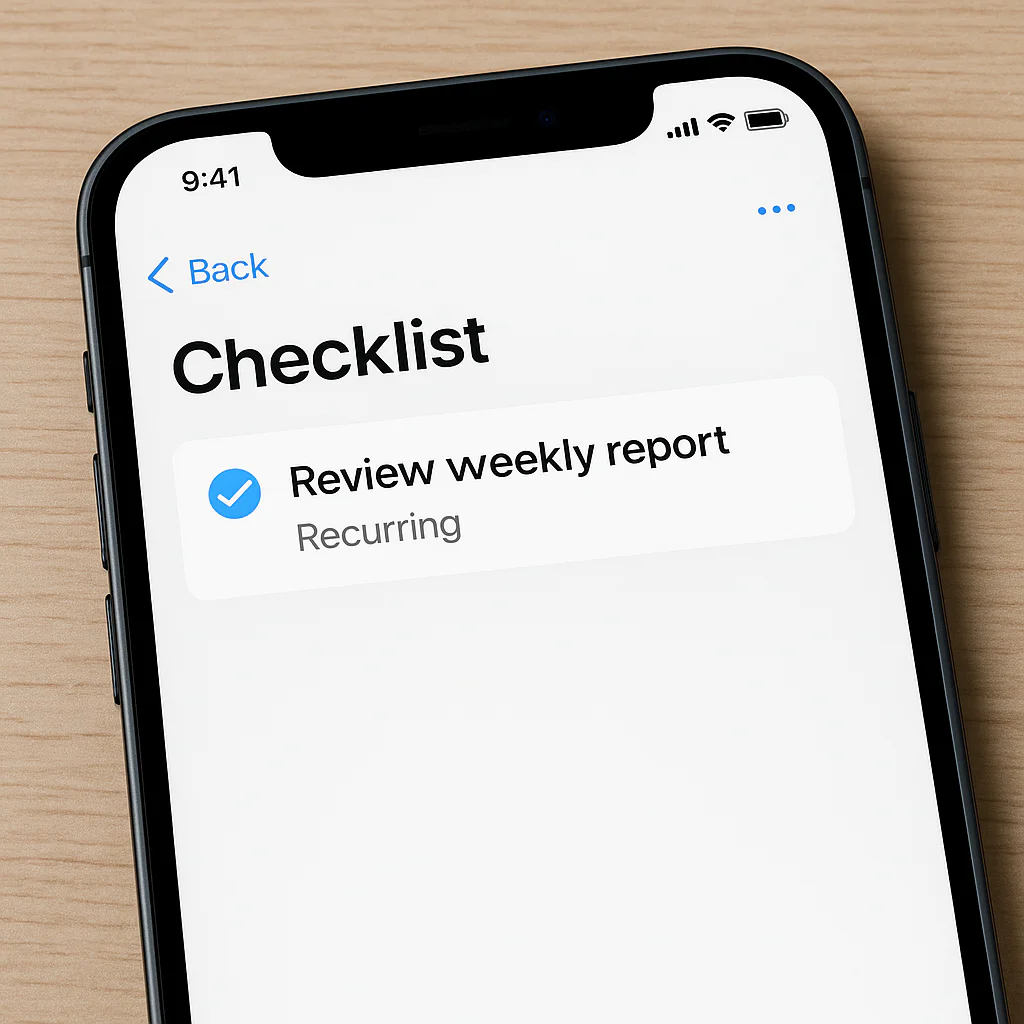

To create a true recurring checklist on your iPhone, you must either use the Shortcuts app to automate resetting subtasks within the native Reminders app or switch to a third-party power tool like Todoist that handles this natively. The standard Reminders app lets you repeat a single task, but it won’t automatically uncheck your subtasks for the next day, leaving you with a frustratingly static list.
If you’ve ever wondered, “How do I create a recurring checklist on my iPhone?” without spending hours on manual resets, you aren’t alone. We once spent an entire Sunday morning unchecking “Brush teeth” and “Drink water” because we assumed the app would handle it for us. Spoiler alert: it didn’t.
Did you know that 80% of users abandon their daily routines within the first month because the friction of manual maintenance is too high? That’s why mastering this automation is the difference between a fleeting goal and a lifelong habit.
Key Takeaways
- Native Limitation: The Apple Reminders app cannot automatically reset subtasks; you must use the Shortcuts app for full automation.
- The Pro Solution: Third-party apps like Todoist and Tick offer native recurring subtasks that reset automatically without extra setup.
- Avoid Backlogs: Use “reset from last completion” logic to prevent your app from flooding you with dozens of overdue tasks if you miss a day.
- Syncing is Crucial: Ensure iCloud is enabled to keep your automated routines consistent across your iPhone, iPad, and Mac.
Table of Contents
- ⚡️ Quick Tips and Facts
- 📜 The Evolution of Recurring Tasks: From Paper Planners to iOS Reminders
- 🛠️ How to Create a Recurring Checklist on Your iPhone: The Native Method
- 1. Setting Up the Initial Task in the Reminders App
- 2. Configuring Frequency: Daily, Weekly, Monthly, or Yearly
- 3. Adding Subtasks to Build Your Master Checklist
- 4. Syncing Your Recurring Lists Across Apple Devices
- 🚀 Mastering Advanced Recurrence: Custom Intervals and Smart Lists
- 🤖 Third-Party Powerhouses: When Native Reminders Aren’t Enough
- Todoist vs. Things 3 vs. Tick: A Recurring Task Showdown
- Why You Might Need an App Like Any.do for Complex Schedules
- 🐛 Troubleshooting Common iPhone Recurring Checklist Glitches
- Why Won’t My Task Repeat?
- Fixing Sync Errors Between iPhone and Mac
- Dealing with Duplicate Recurring Items
- 💡 Pro Strategies for Habit Stacking and Routine Automation
- 🧠 The Psychology of Checklists: Why Recurring Tasks Actually Stick
- 🏆 Conclusion
- 🔗 Recommended Links
- ❓ FAQ: Your Burning Questions About iPhone Recurring Tasks Answered
- 📚 Reference Links
⚡️ Quick Tips and Facts
Before we dive into the nitty-gritty of making your iPhone do the heavy lifting, let’s hit the brakes and drop some hard truths that might save you hours of frustration.
- The Native Limitation: Here is the kicker that trips up 90% of users: The Apple Reminders app allows you to make a single task repeat, but it does not natively support making a list of subtasks (a checklist) repeat as a whole unit. If you check off a subtask, it stays checked off forever unless you manually uncheck it. 🚫
- The Shortcuts Workaround: To get a true “Daily Routine” checklist that resets itself every morning, you must use the Shortcuts app. It’s like giving your iPhone a brain transplant for automation. 🧠
- Third-Party Power: If you hate the idea of coding your own automation, apps like Todoist, Things 3, or Recurrence handle recurring checklists natively. They are the “set it and forget it” kings. 👑
- The “Backlog” Trap: Many users miss a few days, and suddenly their app is flooded with 30 overdue tasks. The best apps (and the best Shortcuts) use a “reset from last completion” logic to avoid this chaos.
- Syncing is Key: Your checklist is useless if it doesn’t show up on your Mac or iPad. Ensure iCloud is toggled on for Reminders in your Settings.
If you’re wondering how to make a daily checklist on my iPhone without jumping through hoops, we’ve got you covered. Check out our deep dive on How do I make a daily checklist on my iPhone? for a broader overview of the ecosystem.
📜 The Evolution of Recurring Tasks: From Paper Planners to iOS Reminders
Remember the days of the Filofax? Or the sticky notes that fell off your monitor like autumn leaves? We do. At Daily Checklist™, we’ve seen it all. The journey from paper to pixels has been a wild ride, and understanding where we came from helps explain why the current iPhone tools feel a bit… complicated.
In the analog world, a recurring task was simple: You wrote “Take out trash” on Monday, crossed it out, and wrote it again on Tuesday. The paper didn’t care about logic; it just held your ink.
When digital planners arrived, they promised automation. But early software was clunky. It treated every “repeat” as a new, permanent entry. Miss a week? Boom, you have 7 overdue tasks staring at you, judging your life choices. 😱
Apple’s Reminders app (formerly just “Reminders” in iOS 5, now a powerhouse in iOS 17+) tried to strike a balance. It introduced the concept of subtasks (checklists within a task) and repeating intervals. However, they hit a wall: Subtasks don’t inherit the “repeat” property of the parent task.
This is the Great Divide in the productivity world.
- The Minimalists (like us, sometimes) want to use what’s already on the phone.
- The Power Users want complex logic (e.g., “Repeat every 3 days, but skip holidays”).
This gap is why we see such a split between users who swear by the native Shortcuts app and those who immediately download Todoist. The history of this feature is a story of compromise. Apple prioritized a clean interface over complex logic, forcing users to get creative.
“I moved from Todoist, which is a far superior todo app, in terms of features, than Apple Reminders… However one thing was hard for me, to manage my daily routine tasks.” — Erik Westrup, Tech Blogger
This quote perfectly encapsulates the struggle. We want the simplicity of Apple’s ecosystem but the power of dedicated productivity tools. The solution? Hybridization.
🛠️ How to Create a Recurring Checklist on Your iPhone: The Native Method
So, you want to use the tools you already have. No downloads, no subscriptions, just pure Apple magic. But remember the catch? The native app won’t auto-reset your subtasks. We need to build a little robot to do it for us.
Here is the Step-by-Step guide to creating a recurring checklist using the Reminders and Shortcuts apps. This is the “Daily Checklist™” gold standard for iOS natives.
1. Setting Up the Initial Task in the Reminders App
First, we need to build the skeleton of your routine.
- Open the Reminders app.
- Create a new list called “Daily Routine” (or whatever suits your vibe).
- Tap the list to open it and tap New Reminder.
- Name it:
Morning Routine 🔁. - Crucial Step: Tap the (i) info button next to the reminder.
- Toggle Date and set it to Today.
- Toggle Time and set it to your desired wake-up time (e.g., 7:0 AM).
- The Secret Sauce: Tap Repeat and select Every Day.
- Now, add your Subtasks (the actual checklist items).
- Tap Add Subtask.
- Type: “Brush teeth”.
- Type: “Drink water”.
- Type: “Check emails”.
Important: Do NOT set a due date or repeat setting on these subtasks. They must remain simple text items.
2. Configuring Frequency: Daily, Weekly, Monthly, or Yearly
The native Repeat menu in Reminders is surprisingly robust. You aren’t stuck with just “Every Day.”
- Daily: Perfect for morning/evening routines.
- Weekly: Great for chores like “Take out recycling” (every Friday).
- Monthly: Ideal for bills or “Call Mom.”
- Yearly: For birthdays and anniversaries.
- Custom: You can set “Every 2 weeks” or “Every 3 days.”
Pro Tip: If you set a task to repeat “Every 2 days,” and you miss a day, the task will simply appear the next time it’s due. It won’t pile up. This is the beauty of the native logic.
3. Adding Subtasks to Build Your Master Checklist
This is where the magic happens (and where the native app fails without help).
- The Problem: If you check off “Brush teeth” today, tomorrow the task “Morning Routine” will appear, but “Brush teeth” will still be checked. You have to uncheck it manually.
- The Fix: We will automate the unchecking in the next section using Shortcuts.
4. Syncing Your Recurring Lists Across Apple Devices
Before we automate, let’s ensure your list lives everywhere.
- Go to Settings > [Your Name] > iCloud.
- Ensure Reminders is toggled ON (green).
- Open the Reminders app on your Mac or iPad.
- Your “Daily Routine” list should appear instantly.
If it doesn’t, toggle iCloud off and on again. Sometimes the cloud just needs a nap. ☁️
🚀 Mastering Advanced Recurrence: Custom Intervals and Smart Lists
Now that you have the basics, let’s get fancy. What if you want a checklist that repeats every 3 days? Or one that only repeats on weekdays?
Custom Intervals
In the Repeat menu, select Custom.
- Frequency: Choose “Every X Days/Weeks/Months.”
- End Date: You can set an end date (e.g., “Ends on Dec 31”) or let it run forever.
- Start Date: Set a specific start date if you aren’t ready to begin yet.
Smart Lists: The Filter Master
Apple’s Smart Lists are a hidden gem. You can create a list that automatically gathers tasks based on criteria.
- Criteria: “Due Today” + “Taged #Routine”.
- Result: A dynamic list that updates itself.
Why use Smart Lists?
If you have 50 different recurring tasks, your “All Reminders” view will look like a war zone. A Smart List filters out the noise, showing you only what matters right now.
Daily Checklist™ Insight: We recommend tagging your recurring checklists with a specific tag like
#daily-routine. This makes the automation process (coming up next) much more reliable.
🤖 Third-Party Powerhouses: When Native Reminders Aren’t Enough
Let’s be honest: The Shortcuts method is powerful, but it’s a bit of a Rube Goldberg machine. Sometimes, you just want an app that does it out of the box. If you are willing to pay a few bucks (or a subscription), these apps are the heavy hitters.
Todoist vs. Things 3 vs. Tick: A Recurring Task Showdown
We’ve tested them all. Here is how they stack up for recurring checklists.
| Feature | Apple Reminders (Native) | Todoist | Things 3 | Tick |
|---|---|---|---|---|
| Recurring Subtasks | ❌ No (Requires Shortcuts) | ✅ Yes (Native) | ❌ No (Manual reset) | ✅ Yes (Native) |
| Backlog Logic | ✅ Smart (No pile-up) | ✅ Smart (From last completion) | ⚠️ Manual | ✅ Smart |
| Price | Free | Freemium / Sub | One-time purchase | Freemium / Sub |
| Ease of Use | Medium (Shortcuts needed) | High | High | High |
| Cross-Platform | Apple Only | All Platforms | Apple Only | All Platforms |
Why You Might Need an App Like Any.do for Complex Schedules
Any.do takes a different approach. It focuses on daily planning rather than just task management.
- The “Moment” Feature: Every morning, Any.do asks, “What do you want to do today?” and pulls your recurring tasks into a daily view.
- Recurring Lists: You can create a “Morning Routine” list and set it to reset daily.
- Integration: It syncs with Google Calendar and Outlook, making it a great choice if you live in the Google ecosystem.
Our Verdict:
- If you are deep in the Apple ecosystem and love a challenge: Stick with Reminders + Shortcuts.
- If you want power and simplicity: Go with Todoist or Tick.
- If you want beautiful design: Things 3 is unmatched, but you’ll have to manually reset your checklists.
👉 Shop Top Productivity Apps on:
- Todoist: Amazon | Official Site
- Things 3: Apple App Store
- Tick: Amazon | Official Site
🐛 Troubleshooting Common iPhone Recurring Checklist Glitches
Even the best-laid plans go awry. Here are the most common headaches and how to fix them.
Why Won’t My Task Repeat?
- The Issue: You set it to repeat, but it only shows up once.
- The Fix: Check if you accidentally set an End Date. If the end date was yesterday, it won’t repeat. Also, ensure you didn’t delete the original task. In Reminders, once a recurring task is completed, the next instance is generated. If you delete the next instance, the chain breaks.
Fixing Sync Errors Between iPhone and Mac
- The Issue: You checked it off on your phone, but it’s still there on your Mac.
- The Fix:
- Check your internet connection.
- Go to Settings > iCloud > Show All > Reminders. Toggle it OFF, wait 10 seconds, and toggle it ON.
- Force quit the Reminders app on both devices and reopen.
Dealing with Duplicate Recurring Items
- The Issue: You have two “Morning Routine” tasks for today.
- The Cause: This often happens if you manually created a new task and the automation created one, or if the Shortcuts automation ran twice.
- The Fix: Delete the duplicates. To prevent this, ensure your Shortcuts automation is set to Run Immediately and not to ask for confirmation, which can sometimes cause double-runs if you tap “Run” manually.
💡 Pro Strategies for Habit Stacking and Routine Automation
Now that your checklist is running, let’s make it stick. This is where Habit Stacking comes in.
What is Habit Stacking?
It’s the art of attaching a new habit to an existing one.
- Example: “After I brush my teeth (existing habit), I will meditate (new habit).”
How to use this with your iPhone Checklist:
- Order your subtasks logically. Put the “easy” wins first to build momentum.
- Use Tags to group habits by context.
#morning#work#evening
- The “No Zero Days” Rule: Even if you only do one item on your checklist, you’ve kept the streak alive.
Daily Checklist™ Tip: Don’t make your list too long. If you have 20 items, you’ll feel overwhelmed and quit. Start with 3-5 core habits. Once those are automatic, add more.
🧠 The Psychology of Checklists: Why Recurring Tasks Actually Stick
Why do we love checking boxes? It’s not just about organization; it’s about dopamine.
Every time you check a box, your brain releases a tiny hit of dopamine. It’s the “I did it!” feeling. Recurring checklists leverage this by providing a daily sense of accomplishment.
The “Zeigarnik Effect”
Psychologically, our brains hate unfinished tasks. They linger in our memory, causing stress. A recurring checklist closes the loop every day, clearing your mental RAM.
The Danger of Over-Automation
However, there is a trap. If your checklist is too rigid, you might feel like a robot.
- Balance: Allow for flexibility. If you miss a day, don’t let the backlog crush you. Use the “From Last Completion” logic (found in apps like Recurrence or via Shortcuts) to reset gracefully.
Quote from a User Review: “Recurrence solves this problem brilliantly… without overwhelming my already jamed calendar app.” — App Store Reviewer
This flexibility is key. Your checklist should serve you, not the other way around.
🏆 Conclusion

Creating a recurring checklist on your iPhone is a journey of balancing native simplicity with advanced automation.
The Native Path:
If you love the Reminders app and don’t mind a little setup, the Shortcuts method is your best friend. It’s free, powerful, and keeps your data in the Apple ecosystem. Just remember: Subtasks don’t repeat automatically. You need that automation script to reset them.
The Third-Party Path:
If you want a “set it and forget it” experience with zero coding, Todoist or Tick are the champions. They handle recurring subtasks natively and prevent the dreaded backlog.
Our Recommendation:
Start with the Native Method. It’s free and teaches you how iOS automation works. If you find yourself constantly tweaking the Shortcuts or frustrated by the lack of flexibility, upgrade to Todoist or Recurrence.
Did we answer your question?
You asked, “How do I create a recurring checklist on my iPhone?” The answer is: It depends on your tolerance for setup.
- Low Tolerance: Download Todoist.
- High Tolerance (and love for Apple): Build the Shortcuts automation.
Whatever you choose, the goal is the same: Simplify your day. By automating the mundane, you free up your brain for the creative, the important, and the fun.
🔗 Recommended Links
Ready to take your productivity to the next level? Here are the tools and resources we trust.
Productivity Apps:
- Todoist: Shop on Amazon | Official Website
- Things 3: Download on App Store
- Recurrence: Download on App Store
- Tick: Official Website
Books to Master Your Routine:
- Atomic Habits: Buy on Amazon
- The Checklist Manifesto: Buy on Amazon
- Deep Work: Buy on Amazon
Internal Resources:
❓ FAQ: Your Burning Questions About iPhone Recurring Tasks Answered

How do I create a smart list on my iPhone?
Creating a Smart List in the Reminders app is a game-changer for filtering recurring tasks.
- Open Reminders.
- Scroll to the bottom and tap Add Smart List.
- Choose a name (e.g., “Daily Routine Only”).
- Set the rules: List is “Daily Routine” AND Tag is “Morning”.
- Tap Done.
Now, you have a dynamic view that only shows your recurring tasks, hiding the clutter of one-off items.
Read more about “🏆 Top 10 Best Free Daily Checklist Apps (2026)”
How to create a checklist on iPhone?
Creating a basic checklist is simple:
- Open Reminders.
- Tap New Reminder.
- Type your title.
- Tap the (i) button.
- Tap Add Subtask to create your checklist items.
- Tap Done.
Read more about “📱 15 Best Daily Checklist Apps for iPhone (2026): Free & Paid”
Can you make a daily checklist on an iPhone?
Yes! But with a caveat. You can make a task repeat daily, but the subtasks (the checklist items) will not reset automatically. You must use the Shortcuts app to automate the resetting of subtasks, or use a third-party app like Todoist that handles this natively.
Read more about “🚀 How to Set Up a Daily Checklist on iPhone: The Ultimate 2026 Guide”
How do I create a recurring list on my iPhone?
You cannot create a “recurring list” (where the whole list resets) natively. You can only create a recurring task inside a list. To simulate a recurring list, create a task named “Daily Routine,” add your checklist items as subtasks, and use the Shortcuts automation to reset the subtasks every day.
Read more about “📱 How to Make a Daily Checklist on Your Phone (2026 Guide)”
Can I set a recurring checklist in the Apple Reminders app?
Not directly. The Apple Reminders app allows you to set a parent task to repeat, but the subtasks (checklist items) do not inherit this setting. They remain checked off once completed. To get a true recurring checklist, you need to combine Reminders with the Shortcuts app.
Read more about “7 Daily Task List Templates to Master Your Day (2026) 🚀”
How to make a checklist repeat daily on iPhone without an app?
You can’t do it completely without an app (specifically the Shortcuts app, which comes pre-installed). However, you don’t need to download new apps. Use the built-in Shortcuts app to create an automation that resets your checklist items every morning. This is the closest you can get to a “native” solution.
Read more about “📝 25 Free Daily Checklist Apps: The Ultimate Answer (2026)”
What is the best way to automate recurring tasks on iOS?
The best way depends on your needs:
- For Power Users: Use Shortcuts with Reminders. It’s free and highly customizable.
- For Simplicity: Use Todoist or Tick. They handle recurring subtasks automatically.
- For Backlog Management: Use Recurrence, which excels at “reset from last completion” logic to prevent overdue task piles.
Read more about “How Do I Make a Daily Checklist on My iPhone? 10 Pro Tips (2026) ✅”
How do I create a template checklist that resets every day on iPhone?
- Create a task named “Daily Template”.
- Add your subtasks.
- Tag it with
#daily-template. - Create a Shortcut that finds all tasks with this tag, marks them incomplete, and sets the due date today.
- Set up a Personal Automation in the Shortcuts app to run this shortcut every morning at 7:0 AM.
Read more about “How Do I Create a Daily Checklist on My Phone? 8 Easy Steps 📱✨”
📚 Reference Links
- Apple Support: Use Reminders on iPhone
- Apple Support: Create automations with Shortcuts
- Todoist: Recurring Tasks Guide
- Erik Westrup: Daily Routine with Repeating Sub-Reminders in Apple Reminders
- Club Clear: Recurring Lists? – Club Clear: Support & Discussion Forums
- App Store: Recurrence: Recurring Tasks