Support our educational content for free when you purchase through links on our site. Learn more

Excel
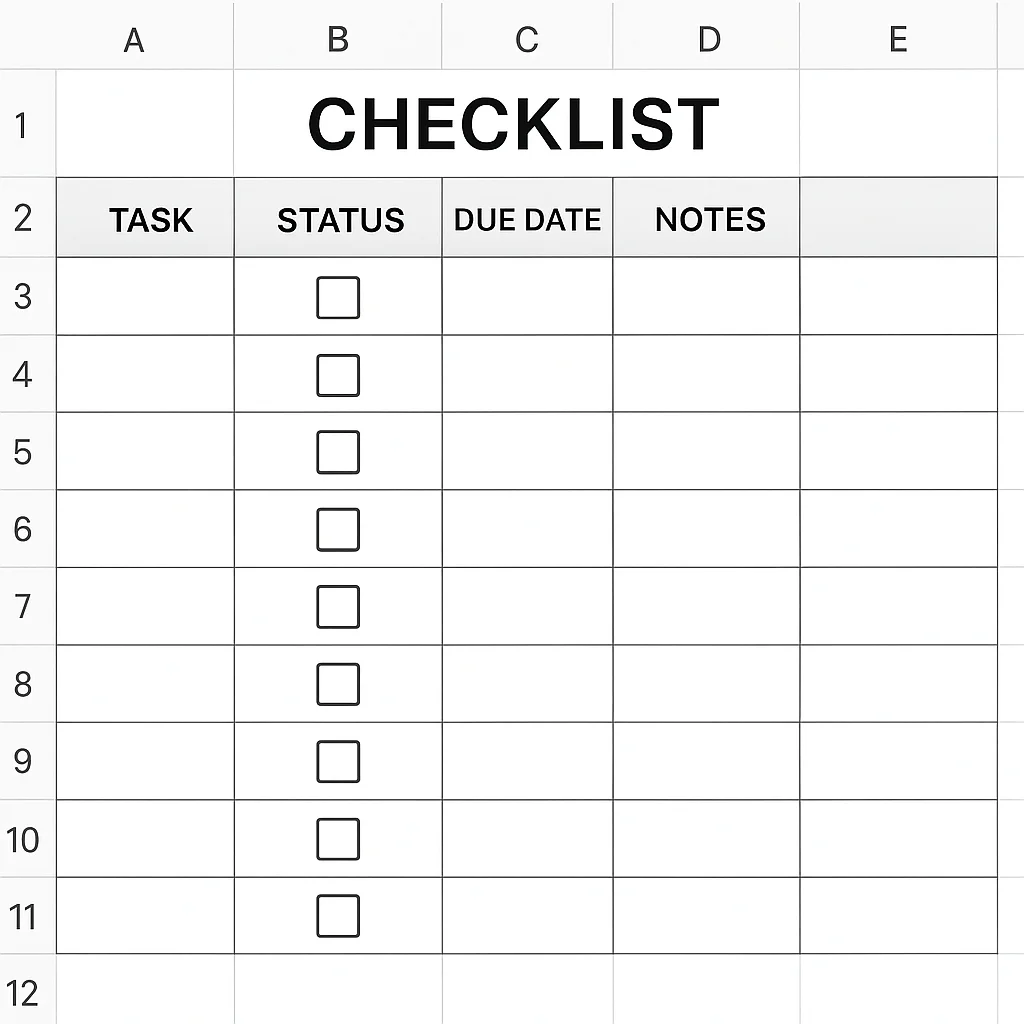
Checklists: Your Ultimate Guide! ✅
“Is there a checklist template in Excel?”
It’s a question we hear all the time at Daily Checklist™, and here’s the straight answer: while Excel doesn’t have a single, pre-made “checklist” button, it offers an incredibly powerful toolkit to build *
any* checklist you can imagine, often far superior to a generic template. Think of Excel not as a template provider, but as a robust platform for crafting your perfect, personalized task management system.
I remember a frantic Monday morning when our
team was juggling three major client projects. Our old paper checklists were a chaotic mess, and a quick search for “Excel checklist template” left us feeling a bit deflated. That’s when we realized the real magic wasn’t in
finding a template, but in creating one tailored to our exact workflow using Excel’s built-in features. It transformed our project tracking from a headache into a streamlined, almost enjoyable process.
This guide will walk you through everything
you need to know, from simple text lists to interactive, “smart” checklists that track progress and automate tasks. You’ll discover how to leverage checkboxes, conditional formatting, and even advanced formulas to turn a blank spreadsheet into your ultimate productivity companion
. Get ready to simplify your day and conquer your to-do list with Excel!
Key Takeaways
-
No single “Checklist Template” exists in Excel, but the platform provides all the tools to build custom, dynamic checklists.
-
The Developer Tab is crucial for adding interactive checkboxes that link to cells, displaying
TRUEorFALSEvalues. -
Conditional Formatting transforms your checklist, allowing tasks to change color or get a striketh
rough upon completion for instant visual feedback. -
Data Validation enables powerful dropdown lists for tracking nuanced task statuses like “In Progress” or “On Hold.”
-
Advanced users can leverage formulas and Excel 365
features (like theFILTERfunction) to create “smart” checklists that calculate progress and dynamically display relevant tasks.
Table of Contents
-
📜 The Evolution of Excel Checklists: From Simple Cells to Dynamic Spreadsheet Solutions
-
🔍 Unveiling the Truth: Are There Built-in Checklist Templates in Excel?
-
✅ Exploring Microsoft’s Official Template Gallery for Productivity Tools
-
🌐 Discovering Community-Driven Excel Checklist Resources and Spreadsheet Solutions
-
🛠️ Crafting Your Own: How to Build a Custom Checklist in Excel from Scratch
-
1. The Bare Bones: Simple Text-Based Checklists for Quick Task Management
-
2. Adding Interactivity: Mastering Excel Checkboxes (Developer Tab Demystified)
-
3. Visual Feedback: Enhancing Checklists with Conditional Formatting for Clarity
-
4. Smart Selections: Leveraging Data Validation for Dropdown Checklists
-
5. Advanced Automation: Building “Smart” Checklists with Formulas and VBA (Beyond Excel 365 Basics)
-
🌟 Top 7 Versatile Excel Checklist Template Ideas for Every Need
-
1. The Daily Productivity Powerhouse: Your Ultimate To-Do List Tracker
-
2. Project Management Pro: Keeping Complex Tasks on Track with a Project Tracker
-
3. Event Planning Perfection: From Concept to Celebration with Workflow Management
-
4. Inventory Management Maestro: Never Miss a Stock Item Again
-
5. Onboarding New Hires: A Seamless Welcome Experience with Digital Checklists
-
6. Quality Control Champion: Ensuring Standards and Excellence
-
7. Home Maintenance & Renovation: Your DIY Project Companion
- 🔗 Linking Checklists to Other Spreadsheets and Dashboards for Comprehensive Reporting
- ☁️ Collaborative Checklists: Sharing and Co-editing in Excel Online for Team Productivity
- 🤖 Automating Reminders and Progress Tracking with Excel Functions and Macros
- ⚖️ The Great Debate: Pros and Cons of Using Excel for Task Management and Checklists
- 💡 Expert Tips for Maximizing Your Excel Checklist Productivity
- 🩹 Troubleshooting Common Excel Checklist Headaches and Their Fixes
- ✨ Beyond Excel: When to Consider Dedicated Checklist and Project Management Software
- 🔚 Conclusion: Your Journey to Excel Checklist Mastery Starts Now
- 🔗 Recommended Links for Excel Templates and Productivity Tools
- ❓ FAQ: Your Burning Questions About Excel Checklists Answered
- 📚 Reference Links: Citing Our Sources and Further Reading
⚡️ Quick Tips and Facts About Excel Checklists
Ever feel like your to-do list is a tangled mess, a
digital spaghetti of tasks and forgotten deadlines? We’ve all been there! That’s why, here at Daily Checklist™, we’re obsessed with finding ways to simplify your day with daily checklists. And guess what? Your trusty old friend, Microsoft Excel
, might just be the unsung hero you need for creating incredibly effective and even fun checklists. Forget fancy, expensive software for a moment; Excel offers a surprisingly robust platform for task management, project tracking, and habit formation. In
fact, you can even grab a daily checklist template free to kickstart your journey!
Did you know that while Excel doesn’t have a single
“one-click” built-in checklist button, it provides all the necessary tools – from interactive checkboxes to clever formulas and conditional formatting – to build a truly dynamic and personalized checklist? It’s like having a
LEGO set for productivity; you just need to know how to snap the pieces together!
📜 The Evolution of Excel Checklists: From Simple Cells to Dynamic Spreadsheet Solutions
Remember the good old days (or perhaps, the slightly less efficient days) when a “checklist” in Excel was just a column of tasks with an adjacent column where
you’d manually type “X” or “Done”? Ah, simpler times! While perfectly functional for basic needs, these static lists lacked the pizzazz and interactivity we crave in our modern, fast-paced lives. They were like flip
phones in a smartphone world – they got the job done, but where was the flair?
Over the years, as Excel itself evolved, so too did our ability to transform those humble spreadsheets into powerful, dynamic task managers. The introduction and
popularization of features like the Developer Tab with its Form Controls (hello, checkboxes!), Conditional Formatting, and more sophisticated formulas truly revolutionized how we could approach checklist creation. What started as a simple digital notepad has blossomed into
a versatile tool capable of tracking progress, automating visual feedback, and even filtering tasks based on due dates. It’s a testament to Excel’s enduring flexibility that it continues to adapt to our ever-growing productivity demands, proving that sometimes
, the best solutions are the ones you build yourself with familiar tools.
🔍
Unveiling the Truth: Are There Built-in Checklist Templates in Excel?
This is the million-dollar question, isn’t it? You open Excel, eager to find that magical “Checklist Template” button, only to be met with
… well, a lot of blank cells. It’s a bit like searching for a specific spice in a well-stocked pantry – you know it should be there, but where is it hiding? The short answer, and perhaps a slightly
disappointing one, is no, not a dedicated, one-click “checklist” template in the way you might imagine.
But don’t despair! This isn’t a dead end; it’s merely a fork in the road.
While Microsoft Excel doesn’t offer a template explicitly named “Checklist,” it provides a treasure trove of other templates and robust features that, with a little ingenuity, serve the exact same purpose, often even better!
✅ Exploring Microsoft’s Official Template Gallery for Productivity Tools
When you head over to the official Microsoft Excel template gallery (accessible via excel.cloud.microsoft), you’ll find a fantastic array of planners and trackers. These are designed to help you “stay organized with templates designed to monitor goals, habits, progress, and performance across any area of your life or work.”
While they might not scream “CHECKLIST!” from the rooftops, many of them function as excellent task-oriented lists.
Think about it: a project tracker is essentially a checklist for project milestones. A **
habit tracker** is a daily checklist for your personal goals. You’ll find templates for:
- Timelines: Great for visualizing project phases and ensuring tasks are completed sequentially.
- Schedules: Perfect for managing time
and resources, breaking down larger tasks into manageable chunks. - Gantt charts: A visual powerhouse for project management, where each task is a checklist item against a timeline.
- Student trackers: Ideal for monitoring
assignments and study tasks. - Personal budgeting: Even managing your finances involves checking off expenses and income!
These templates are “easy-to-update” and designed to “suit any need,” proving that Microsoft provides the building blocks,
even if they’re not explicitly labeled “checklist.”
🌐 Discovering Community-Driven
Excel Checklist Resources and Spreadsheet Solutions
Since Microsoft’s official gallery doesn’t have that direct “Checklist” button, where do we turn for inspiration and ready-made solutions? The answer, my friends, lies in the vibrant and generous
Excel community! YouTube creators, independent bloggers, and spreadsheet gurus have stepped up to fill this gap, offering fantastic tutorials and downloadable templates.
For instance, channels like Blue Pecan Training and The Excel Trainer have dedicated videos showing
you exactly how to construct interactive checklists from the ground up, often providing downloadable files to get you started. These community-driven resources are often where you’ll find the most innovative and practical applications
of Excel for checklist purposes, tailored to real-world problems. They demonstrate that with a little know-how, Excel is incredibly powerful for creating custom, dynamic checklists that perfectly fit your unique workflow.
🛠️ Crafting Your Own: How to Build a Custom Checklist in Excel from Scratch
Alright, enough talk about what isn’t there! Let’s roll up our sleeves and dive into what you can create. Building your own custom checklist in Excel is incredibly empowering. It means you get exactly what you need,
without any unnecessary bells and whistles. Think of it as designing your dream car, rather than settling for a rental. Ready to become an Excel checklist architect? Let’s go!
1. The Bare Bones: Simple Text-Based Checklists for Quick Task Management
Before we get fancy with checkboxes and formulas, let’s start with the
absolute basics. Sometimes, all you need is a quick list to jot down tasks. This is your digital sticky note, your brain dump, your “don’t forget the milk!” list.
How to do it:
Open a new Excel workbook.
2. In Column A, simply type your tasks. One task per cell.
- Example:
- A1: Call client X
A2: Draft report Y
- A3: Schedule team meeting
- In Column B, you can add a simple status. “Done,” “In Progress,” “Pending.”
-
Example:
-
B1: Pending
-
B2: In Progress
-
B3: Done
- Optional: Add a “Due Date” column (Column C). This makes it easy to sort
and prioritize.
Why it works: It’s fast, requires no special features, and is perfect for quick, informal lists. It’s the foundation upon which all other Excel checklists are built.
2. Adding Interactivity: Mastering Excel Checkboxes (Developer Tab Demystified)
Now, let’s inject
some life into our list! Nothing beats the satisfying click of a checkbox to mark a task complete. This is where the Developer Tab comes into play. Don’t worry, it sounds intimidating, but it’s just a hidden gem waiting
to be unearthed.
First, enable the Developer Tab:
- Go to File > Options.
- In the Excel Options dialog box, select Customize Ribbon.
- On the right-
hand side, under “Main Tabs,” check the box next to Developer. - Click OK. Voila! The Developer tab now appears in your Excel ribbon.
Next, insert and link your checkboxes:
1
. Go to the Developer tab.
2. In the “Controls” group, click Insert.
3. Under “Form Controls,” select the Checkbox icon (it looks like a small square with a checkmark).
4. Click anywhere on your worksheet to insert the checkbox. It will likely appear with default text like “Check Box 1.”
5. Right-click on the checkbox and select Edit Text to delete
the default text, leaving just the checkbox.
6. Resize and position the checkbox to fit neatly next to your task in Column A (e.g., in Column B).
7. Right-click the
checkbox again and select Format Control…
8. In the “Format Control” dialog box, go to the Control tab.
9. Under “Cell link:”, click the small up arrow, then select the cell *
adjacent* to your checkbox (e.g., if your checkbox is in B1 for task A1, link it to C1). This is crucial! When you check the box, the linked cell will display TRUE; when unchecked
, it will display FALSE.
10. Click OK.
11. To quickly add more checkboxes, select the checkbox you just configured, then drag the fill handle (the small square at the bottom-right corner of the selected cell/object) down to copy it to other rows. You’ll need to re-link each new checkbox to its corresponding adjacent cell (e.g., B2 checkbox links to C2, B3 to C3, and so on).
Why it works: This adds a fantastic layer of interactivity. The TRUE/FALSE values in the linked cells are the secret sauce that allows us to build even more advanced
features, which we’ll explore next!
3. Visual Feedback: Enhancing Checklists with Conditional
Formatting for Clarity
A checklist that visually responds to your actions? Now we’re talking! Conditional formatting is your best friend here, transforming those TRUE/FALSE values into striking visual cues. Imagine a task automatically turning green when
completed, or getting a satisfying strikethrough. It’s like a little celebration every time you tick something off!
How to set it up:
- Select the range of cells that contain your tasks (e.g., A1:A10) and any other columns you want to format (e.g., B1:B10 for due dates).
- Go to the Home tab.
In the “Styles” group, click Conditional Formatting > New Rule…
4. Select “Use a formula to determine which cells to format.”
5. In the “Format values where this formula is true:”
box, enter a formula that references the linked cell of your first checkbox.
- Example: If your first checkbox (for task A1) is linked to cell C1, your formula would be:
=C1= TRUE - Important: Make sure the column reference is absolute (
$C1) but the row reference is relative (C$1) if you want the formatting to apply correctly to each row based on its own linked
cell. For applying to the entire row, use=$C1=TRUE.
- Click the Format… button.
- Go to the Font tab to choose a strikethrough effect
or change the font color. - Go to the Fill tab to choose a background color (e.g., a light gray or green).
- Click OK twice to apply the rule.
Now
, when you check a box, the corresponding task row will magically update! The first YouTube video summary highlights this beautifully, showing how to change a row’s background color when the linked cell is TRUE.
Why it works: Instant visual gratification! It makes your checklist intuitive, easy to scan, and incredibly motivating. You can immediately see what’s done and what still needs your attention.
4. Smart Selections: Leveraging Data Validation for Dropdown Checklists
While checkboxes are fantastic, sometimes you need more than a simple “done
” or “not done.” What if you want to track progress with “Not Started,” “In Progress,” “Completed,” or even “On Hold”? This is where Data Validation shines, allowing you to create dropdown lists for consistent
and controlled status updates.
How to implement dropdowns:
- Select the cell or range of cells where you want your dropdown list to appear (e.g., Column B for “Status”).
- Go to
the Data tab. - In the “Data Tools” group, click Data Validation.
- In the “Data Validation” dialog box, under the Settings tab:
- For
“Allow:”, choose List. - For “Source:”, type your desired options, separated by commas (e.g.,
Not Started,In Progress,Completed,On Hold).
- Click OK.
Now, when you click on a cell in your selected range, a small dropdown arrow will appear, letting you choose from your predefined list. You can even combine this with conditional formatting to color-code tasks based on their status (e.g., “Completed” turns green, “On Hold” turns yellow).
Why it works: It ensures consistency, prevents typos, and makes your checklist more robust for tracking nuanced progress. It’s particularly useful for project management or team task
lists where clear status updates are essential.
- Advanced Automation: Building “Smart” Checklists with Formulas and VBA (Beyond Excel 365 Basics)
Ready to take your Excel checklist from great to genius? This is where formulas and, for the truly adventurous
, VBA (Visual Basic for Applications) come into play. We’re talking about automatically calculating progress, dynamically filtering tasks, and even having checkboxes appear as if by magic!
Calculating Progress (% Complete):
This is a fantastic
way to visualize your overall progress. The first YouTube video demonstrates this perfectly.
- Identify your linked cells: These are the cells that show
TRUEorFALSEwhen your checkboxes are clicked
(e.g., C1:C10). - Count completed tasks: Use the
COUNTIFfunction. For example,=COUNTIF(C1:C10,TRUE)will count how
many checkboxes are checked. - Count total tasks: Use
COUNTAon your task list (e.g.,=COUNTA(A1:A10)). - Calculate percentage: Divide
completed by total.
- Example:
=COUNTIF(C1:C10,TRUE)/COUNTA(A1:A10)
- Format as Percentage: Select the cell with your
formula and apply “Percentage” formatting from the Home tab. You can even add Data Bars for a visual progress bar!
Automated Checkboxes (Excel 365 Feature):
If
you’re lucky enough to be on Microsoft Excel 365, you have access to a newer, even smarter checkbox feature! The Excel Trainer’s video highlights how this can automate checkbox insertion. Instead
of manually inserting Form Controls, Excel 365 allows you to use the Insert Checkbox feature directly, and these checkboxes can even be set to automatically appear as new items are added to a table. This is a huge time-
saver and makes your checklist incredibly dynamic.
Dynamic Filtering for “Today’s Tasks”:
Imagine a separate sheet that only shows you tasks due today and still pending. This is not only possible but incredibly useful for focusing
your efforts. The Excel Trainer’s “smart” checklist tutorial shows how to achieve this using the FILTER function.
- Example Formula (simplified):
=FILTER(Tasks[Details],(Tasks[Due Date]=TODAY()) * (Tasks[Complete]=FALSE)) - This formula assumes you have a table named “Tasks” with columns like “Details,” “Due Date,” and “Complete” (where “Complete” is linked to your checkboxes). It filters to show only tasks where the Due Date is today AND the task is not yet complete.
VBA for Ultimate Customization:
For those who truly want to push the boundaries, **
VBA (Visual Basic for Applications)** allows you to write custom macros. This can automate almost anything:
-
Archiving completed tasks to a separate sheet.
-
Sending email reminders for overdue tasks.
-
Resetting daily checklists at the start of each day.
While VBA has a steeper learning curve, the possibilities are endless for creating a truly bespoke and automated checklist system.
Why it works: These advanced techniques transform your checklist
from a static list into a living, breathing productivity hub. You get real-time insights, automated actions, and a system that truly works for you, not against you.
🌟 Top 7 Versatile Excel Checklist Template Ideas for Every Need
Now that you’re armed with the knowledge to build incredible checklists, let’s spark
some inspiration! Excel isn’t just for numbers; it’s a blank canvas for organizing any aspect of your life or work. Here are seven versatile ideas that our team at Daily Checklist™ swears by, proving that a well-crafted Excel
checklist can be your secret weapon.
1. The Daily Productivity Powerhouse: Your Ultimate To-
Do List Tracker
Forget scattered sticky notes and forgotten tasks! A daily to-do list in Excel is a game-changer for personal productivity. We use ours to map out our day, ensuring we hit all our key objectives.
Features:
- Task Column: What needs to be done?
- Priority Column: High, Medium, Low (using data validation dropdowns!).
- Due Time: For time
-sensitive tasks. - Checkbox: To mark completion.
- Conditional Formatting: Strikethrough completed tasks, highlight urgent ones in red.
- Progress Bar: A simple formula to
show how much of your day’s work is done. - Benefit: Provides clarity, reduces mental clutter, and gives a satisfying visual representation of your accomplishments. It’s a fantastic tool for Habit Formation!
2
. Project Management Pro: Keeping Complex Tasks on Track with a Project Tracker
Managing a project, big or small, involves a gazillion moving parts. An Excel-based project checklist (or tracker, as Microsoft calls them) can be your command center, ensuring nothing falls through the cracks.
- Features:
- Project Phases: Break down your project into logical stages.
- Task Name: Specific actions required.
Assigned To: Who is responsible? (Use data validation for team members).
- Start Date & Due Date: Crucial for timelines.
- Status: Not Started, In Progress, On
Hold, Completed (dropdown). - Dependencies: Which tasks rely on others being finished?
- Checkbox: For final sign-off.
- Gantt Chart Integration: Use conditional formatting to create a
simple visual timeline. - Benefit: Centralizes project information, improves team accountability, and provides a clear overview of progress.
3. Event Planning Perfection: From Concept to Celebration with Workflow Management
Planning a wedding, a corporate event, or even a big birthday bash? The sheer volume of details can be overwhelming.
An Excel checklist for event planning is like having a personal assistant, ensuring every tiny detail is accounted for.
- Features:
- Category: Venue, Catering, Entertainment, Invitations, etc.
Item/Task: Book DJ, Send out RSVPs, Confirm menu.
- Vendor Contact: Name, Phone, Email.
- Budget Allocated: Keep track of spending.
- Deadline
: When does it need to be done? - Status: (Dropdown: Researching, Quoted, Booked, Paid).
- Checkbox: For final confirmation.
- Benefit: Reduces stress, prevents
last-minute panics, and ensures a smooth, memorable event.
4. Inventory Management
Maestro: Never Miss a Stock Item Again
Whether you’re tracking office supplies, personal collectibles, or small business inventory, an Excel checklist can be invaluable. Microsoft’s official templates even include dedicated inventory trackers.
Features:
- Item Name: What is it?
- SKU/ID: Unique identifier.
- Quantity In Stock: Current count.
- Reorder Point
: When should you buy more? - Supplier: Where do you get it?
- Last Checked Date: When was the inventory last verified?
- Checkbox: For “item verified” during
a stocktake. - Benefit: Prevents stockouts, helps with budgeting, and keeps your assets organized.
5. Onboarding New Hires: A Seamless Welcome Experience with Digital Checklists
Bringing a new team member on board involves a mountain of administrative tasks. An onboarding checklist ensures a smooth, welcoming, and efficient process,
making a great first impression.
- Features:
- Task Category: HR, IT, Department Specific.
- Task Description: Set up email, Order laptop, Introduce to team.
Responsible Party:** Who needs to do it?
- Due Date: When should it be completed?
- Completion Date: When was it actually done?
- Checkbox: For each completed step
. - Benefit: Standardizes the onboarding process, ensures compliance, and helps new hires feel supported and integrated quickly.
6. Quality Control Champion: Ensuring Standards and Excellence
From manufacturing processes to content creation, quality control is paramount. An Excel checklist can serve as a robust framework for ensuring every standard is met, every step is followed, and every output
is top-notch.
- Features:
- Inspection Point: Specific item or process to check.
- Standard/Requirement: What is the expected quality?
- Pass/Fail (Dropdown): Or a simple checkbox for “Meets Standard.”
- Notes: Any observations or issues.
- Date Inspected: When was the check performed?
- Inspector: Who performed the check
? - Benefit: Maintains consistency, identifies potential issues early, and ensures adherence to quality benchmarks.
- Home Maintenance & Renovation: Your DIY Project Companion
Our homes are our castles, but they require constant upkeep! Whether it’s seasonal maintenance or a full-blown renovation, an Excel checklist can keep your domestic projects on track. This
is a fantastic Life Hack!
- Features:
- Area: Kitchen, Bathroom, Exterior, Garden.
Task: Clean gutters, Check smoke detectors, Paint living room.
- Frequency: Annually, Monthly, One-time.
- Tools Needed: Ladder, Paintbrush, Screwdriver.
Budget: Estimated cost.
- Completion Date: When was it last done?
- Checkbox: To mark completion.
- Benefit: Ensures regular maintenance, helps plan renovation steps, and saves
money by preventing costly neglect.
🚀 Elevating Your Excel Checklists: Advanced Features and Integrations
You
‘ve mastered the basics, you’ve built some fantastic templates, but why stop there? Excel is a powerhouse, and with a few advanced tricks, your checklists can become truly indispensable. We’re talking about making your checklists not just functional,
but integrated into your wider workflow.
🔗 Linking Checklists to Other Spread
sheets and Dashboards for Comprehensive Reporting
Imagine having a master dashboard that pulls completion percentages from multiple project checklists, giving you an instant, high-level overview of your entire workload. This isn’t science fiction; it’s smart Excel usage
!
How it works:
- Create separate checklist sheets: Keep individual project or daily checklists on their own tabs within the same workbook.
- Build a “Summary” or “Dashboard” sheet: This
sheet will house your overview. - Use cell references and formulas: On your dashboard, you can link directly to the “completion %” cell on each individual checklist sheet.
- Example: If Project A’s completion
is inSheet1!$F$10, then on your dashboard, you’d simply type=Sheet1!$F$10into a cell.
- Aggregate data: Use functions like
SUM,
AVERAGE, orMAXto combine data from multiple checklists. - Visualize with charts: Turn those numbers into compelling pie charts or bar graphs to quickly see overall progress.
Why it’s powerful: This
approach creates a hierarchical system, allowing you to drill down into details while maintaining a bird’s-eye view. It’s perfect for managers, team leads, or anyone juggling multiple complex projects.
☁️ Collaborative Checklists: Sharing and Co-editing in Excel Online for Team Productivity
In today’s interconnected
world, teamwork makes the dream work! Gone are the days of emailing Excel files back and forth, leading to version control nightmares. Excel Online (part of Microsoft 365) is your collaborative superhero.
How to collaborate
:
- Save your Excel checklist to OneDrive or SharePoint.
- Share the file: Use the “Share” button in Excel (desktop or online) to invite team members. You can grant them editing or viewing
permissions. - Co-edit in real-time: Multiple people can open and edit the same checklist simultaneously. You’ll see their cursors and changes happening live!
- Version History: Excel Online automatically
saves versions, so you can always revert to an earlier state if needed.
Why it’s a game-changer: This fosters seamless teamwork, eliminates confusion, and ensures everyone is working from the most up-to-date information
. It’s essential for remote teams or any project requiring collective input.
🤖 Automating
Reminders and Progress Tracking with Excel Functions and Macros
Want your checklist to practically manage itself? This is where automation steps in, saving you precious time and mental energy.
Automated Reminders (using Conditional Formatting and Formulas):
You
can set up conditional formatting to highlight tasks that are overdue or due soon.
- Add a “Due Date” column.
- Create a conditional formatting rule:
- Formula for overdue tasks:
=$[Due Date Column] < TODAY()(e.g.,=$C2 < TODAY()) – format red. - Formula for tasks due in the next 3 days:
AND($[Due Date Column] >= TODAY(), $[Due Date Column] <= TODAY()+3)(e.g.,AND($C2 >= TODAY(), $C2 <= TODAY()+3)) – format yellow. - Remember to apply these rules to the entire row
and ensure the linked checkbox cell is not TRUE.
Progress Tracking (beyond simple percentage):
- Gantt Chart Visualization: As mentioned earlier, conditional formatting can create simple Gantt charts to visually track task durations against
a timeline. - Burn-down/Burn-up Charts: For project managers, you can create simple charts that show remaining work (burn-down) or completed work (burn-up) over time, pulling data directly
from your checklist’s completion status.
Macros (VBA) for Advanced Automation:
For truly bespoke automation, VBA macros are the answer. While requiring some coding knowledge, they can:
- Archive completed tasks: Move
checked items to a “Completed” sheet with a single button click. - Reset daily checklists: Clear all checkboxes and status updates at the end of the day.
- Generate reports: Automatically create summary reports based on your checklist data
.
Why it’s next-level: Automation reduces manual effort, minimizes errors, and ensures you never miss a beat. It transforms your checklist from a passive list into an active, intelligent assistant.
⚖️ The Great Debate: Pros and Cons of Using Excel for Task Management and Check
lists
So, is Excel the ultimate checklist tool, or is it just a glorified spreadsheet trying to be something it’s not? Like any tool, it has its strengths and weaknesses. Here at Daily Checklist™, we believe in balancing perspectives, so let
‘s weigh the good against the not-so-good.
| Feature / Aspect | ✅ Pros of Excel Checklists
A B C D E F G H I J K L M N O P Q R S T U V W X Y Z
| — | — | — | — | — | — | — | — | — |
|---|---|---|---|---|---|---|---|---|
| 1 | Pros | |||||||
| Cons | ||||||||
| 2 | ✅ Accessibility & Familiarity: Most people already have Excel and know how to use basic | |||||||
| functions. |
|
| 3 | Customization:
Excel offers unparalleled flexibility to tailor checklists to specific needs, from simple to highly complex.
|
| **