Support our educational content for free when you purchase through links on our site. Learn more

🗓️ 15 Best Weekly Schedule Planners for 2026: Plan Smarter, Not Harder
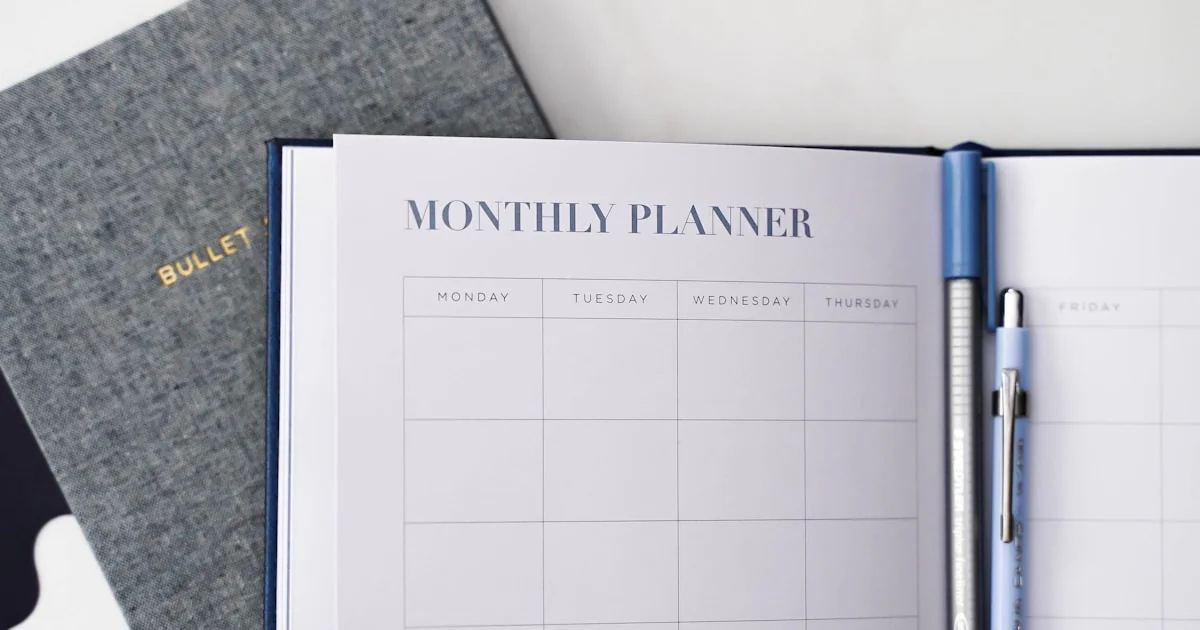
Ever feel like your week is a runaway train, hurtling toward Friday while you desperately cling to the side? You’re not alone. At Daily Checklist™, we’ve seen brilliant minds crumble under the weight of a chaotic calendar, only to soar once they found the right weekly schedule planner. It’s not just about listing tasks; it’s about reclaiming your time, reducing stress, and actually living your life with intention. Did you know that simply externalizing your plans can lower cortisol levels and significantly boost your productivity? That’s the magic of a well-crafted schedule!
In this comprehensive guide, we’ve tested, reviewed, and analyzed the top 15 tools on the market, from the tactile joy of paper planners like the Erin Condren LifePlanner to the AI-powered brilliance of Motion and SkedPal. Whether you’re a visual learner who thrives on Canva templates, a digital minimalist who loves Google Calendar, or a busy parent needing a shared family hub, we’ve got the perfect match for you. We’ll also reveal the common planning mistakes that sabotage even the best intentions and share our secret “Weekly Reset” ritual that guarantees consistency. Ready to transform your chaos into clarity? Let’s dive in and find the planner that will change your 2026.
Key Takeaways
- The Right Tool Matters: Whether you prefer paper for memory retention or digital for seamless syncing, the best weekly schedule planner is the one you’ll actually use consistently.
- AI is the Future: Modern tools like Motion and SkedPal use artificial intelligence to automatically optimize your time blocks, reducing decision fatigue and maximizing productivity.
- Flexibility is Crucial: A rigid schedule often leads to burnout; successful planning involves buffer time, regular weekly resets, and the willingness to adapt to life’s curveballs.
- Visuals Drive Motivation: Incorporating color-coding, icons, and even personal photos can transform a dry to-do list into an inspiring roadmap for your week.
- Start Small: You don’t need a complex system to begin; even a simple Google Calendar with color-coded categories can revolutionize your work-life balance.
👉 Shop Top Planner Categories:
- Paper Planners: Amazon | Erin Condren Official
- Digital Apps: Notion | Todoist | Motion
- Printable Templates: Canva Weekly Templates | Etsy Printable Planners
Table of Contents
- ⚡️ Quick Tips and Facts
- 📜 The Evolution of Time: A Brief History of Weekly Schedule Planners
- 🧠 Why Your Brain Craves a Weekly Schedule Planner (The Science of Planning)
- 📝 Top 15 Best Weekly Schedule Planners for Every Lifestyle in 2024
- 1. The Classic Paper Planner: Erin Condren LifePlanner
- 2. The Digital Powerhouse: Notion Weekly Templates
- 3. The Minimalist’s Dream: Google Calendar with Color Coding
- 4. The Visual Masterpiece: Canva Weekly Schedule Templates
- 5. The Productivity Obsessed: Todoist with Weekly Views
- 6. The Hybrid Hero: Motion AI Scheduling
- 7. The Student’s Best Friend: PlanWith Weekly Layouts
- 8. The ADHD-Friendly Option: Focusmate & Structured Apps
- 9. The Bullet Journal Enthusiast: Custom Weekly Spreads
- 10. The Corporate Climber: Microsoft Outlook Calendar Blocks
- 1. The Family Organizer: Cozi Family Calendar
- 12. The Freelancer’s Freedom: Trello Board Weekly Views
- 13. The Time-Blocking Guru: SkedPal
- 14. The Aesthetic Lover: Happy Planner Weekly Inserts
- 15. The All-in-One Workspace: ClickUp Weekly Dashboards
- 🆚 Paper vs. Digital: Which Weekly Schedule Planner Wins the Battle?
- 🎨 Design Your Perfect Week: Digital Design Trends for Planners
- 🖨️ Print Perfection: How to Create Stunning Physical Weekly Planners
- 📸 Visualizing Success: Using Images and Photos to Motivate Your Schedule
- 🎥 Video Tutorials and Audio Guides for Mastering Your Planner
- 🛠️ Essential Features to Look for in a Weekly Schedule Planner Tool
- 💰 Pricing Plans and Value: What You Actually Get for Your Money
- 🏢 Solutions for Business: Weekly Planning for Teams and Enterprises
- 🎓 Education Edition: Weekly Planners for K-12 Teachers and Higher Ed Students
- 🤖 AI-Powered Planning: The Future of Weekly Scheduling
- 🚀 How to Build a Weekly Routine That Actually Sticks (Step-by-Step)
- ❓ Common Mistakes That Sabotage Your Weekly Planning (And How to Fix Them)
- 💡 Quick Wins: 7 Hacks to Instantly Boost Your Weekly Productivity
- 🔗 Recommended Links: Tools and Resources We Love
- 📚 Reference Links: Sources and Further Reading
- 🏁 Conclusion: Is Your Week Ready for a Makeover?
⚡️ Quick Tips and Facts
Ever feel like your week is a runaway train, hurtling towards Friday with
you desperately clinging on? You’re not alone! At Daily Checklist™, we believe in simplifying your day with daily checklists, but the true magic happens when you zoom out and embrace a weekly schedule planner. It’s not just about
ticking boxes; it’s about reclaiming your time, reducing stress, and actually living your life with intention. Did you know that studies show planning legitimately lowers our anxiety levels? That’s right, simply
putting pen to paper (or fingers to keyboard!) can calm your nervous system.
Here are some lightning-fast facts to get your planning gears turning:
- Boost Productivity: People who plan their weeks are significantly more likely to achieve their goals
. ✅ - Reduce Stress: A clear roadmap for your week minimizes last-minute panic and decision fatigue.
- Improve Work-Life Balance: Dedicated time blocks for personal life ensure you don’t
just “work, work, work.” ⚖️ - Enhance Focus: Knowing what to do and when helps you avoid distractions and stay on task. 🎯
- Flexibility is Key: A good weekly
schedule isn’t rigid; it’s a living document that adapts to life’s curveballs. 🔄
Ready to transform your chaotic calendar into a masterpiece of mindful living? Let’s dive in!
📜 The Evolution of Time: A Brief History of Weekly Schedule Planners

Before the sleek digital interfaces and customizable templates
we adore today, weekly scheduling was, well, a bit more rudimentary. Imagine ancient civilizations tracking lunar cycles or agrarian societies planning their planting and harvesting by the seasons. These were the earliest forms of long-term planning, driven by necessity and survival
.
Fast forward to the industrial revolution, and the concept of a “work week” truly took hold. Factories and businesses needed to coordinate shifts, production, and deliveries, leading to the development of basic ledgers and appointment books. These
early planners were often functional, not fancy, focusing purely on utility.
The 20th century saw the rise of personal organizers, from simple diaries to more structured day planners like the FranklinCovey Planner, which popularized time management
systems. These systems introduced concepts like prioritizing tasks and setting goals, moving beyond just recording appointments to actively managing one’s time. The advent of personal computers and, later, smartphones, completely revolutionized the landscape. Suddenly, your schedule
wasn’t confined to a physical book; it was accessible anywhere, anytime. From basic digital calendars to sophisticated project management software, the evolution has been relentless, all driven by our innate human desire to gain control over that most precious commodity: time
.
🧠 Why Your Brain Craves a Weekly Schedule Planner (The Science of Planning)
Ever wonder why simply thinking about your to-do list can feel exhausting? It’s not just you! Our brains are incredible problem-solvers, but they’re not designed to hold an infinite number of open loops
. When you keep all your tasks, appointments, and aspirations swirling around in your head, you’re creating what psychologists call decision fatigue and cognitive load. It’s like having 50 browser tabs open at once – eventually
, your system slows down, and you feel overwhelmed.
This is where a weekly schedule planner swoops in like a superhero! When you externalize your plans, you free up valuable mental bandwidth. As the first YouTube video on this topic aptly
puts it, “Our to-do list is not our plan; our to-do list is more of a brain dump.” Your brain needs to offload those “brain dumps” so it can focus on actually
doing the work, not just remembering it.
Here’s the scientific lowdown:
- Reduces Anxiety: Planning provides a sense of control. When you know what’s coming, your brain perceives less threat, leading
to lower cortisol levels and reduced anxiety. It’s a powerful tool for Habit Formation and mental well-being.
Boosts Dopamine:** Successfully completing a planned task triggers a hit of dopamine, the “reward” chemical. This positive feedback loop encourages you to keep planning and achieving!
- Improves Focus: By pre-deciding what
you’ll work on and when, you eliminate the constant internal debate about “what next?” This allows for deeper, more focused work sessions. You spend less time making decisions and more time implementing them.
Enhances Memory:** Writing things down physically or digitally helps solidify them in your memory, making you less likely to forget important appointments or tasks.
So, when you sit down to plan your week, you’re not just organizing tasks; you’re
actively engaging in a powerful cognitive exercise that benefits your mental health and productivity. It’s a fundamental Life Hack we swear by!
📝 Top 15 Best Weekly Schedule Planners for Every Lifestyle in 2
024
Choosing the “perfect” weekly schedule planner is like finding your soulmate – it’s deeply personal! What works wonders for a busy parent might not cut it for a freelance designer. That’s why we’ve scoured the
market, tested countless options, and gathered insights to bring you our top 15 recommendations for 2024. Whether you’re a paper purist, a digital devotee, or somewhere in between, we’ve got you
covered.
1. The Classic Paper Planner: Erin Condren LifePlanner
For those who love the tactile experience of pen on paper, the Erin Condren LifePlanner is often the gold standard. Known for its vibrant designs
, high-quality paper, and customizable layouts, it’s a joy to use. Our team members often rave about the weekly spreads that offer ample space for appointments, to-dos, and even gratitude journaling. It truly feels like a
personal keepsake.
| Aspect | Rating (1-10) |
|---|---|
| Design | 10 |
| Functionality | 9 |
| Customization | |
| 9 | |
| Ease of Use | 9 |
| Value | 8 |
Why We Love It:
- Aesthetic Appeal: Seriously, these planners are beautiful! The covers
are interchangeable, and the interior designs are always fresh and inspiring. - Quality Materials: Thick, bleed-resistant paper means you can use your favorite pens without worry.
- Layout Variety: Choose from vertical, horizontal
, or hourly weekly layouts to match your planning style. - Goal Setting Sections: Dedicated pages for goal setting and reflection help you stay aligned with your long-term vision.
Drawbacks:
- Can be bulky
to carry around compared to digital options. - The initial investment might be higher than a basic notebook.
👉 CHECK PRICE on:
- Erin Condren LifePlanner: Amazon | Erin Condren Official Website
2. The Digital Powerhouse: Notion Weekly Templates
If you live and
breathe in the digital realm, Notion is a game-changer. It’s not just a planner; it’s an all-in-one workspace where you can create highly customized weekly schedule templates. Our planners at Daily Checklist™ use
Notion extensively for project management, content calendars, and yes, personal weekly planning. The flexibility is unparalleled – you can build databases for tasks, link them to a weekly calendar view, and even integrate notes and resources.
| Aspect | Rating (1-10) |
|---|---|
| Design | 9 |
| Functionality | 10 |
| Customization | 10 |
| Ease of Use | |
| 7 | |
| Value | 9 |
Why We Love It:
- Ultimate Flexibility: Design your weekly view exactly how you want it with databases, boards, calendars, and more.
Integrated Workspace: Keep your tasks, notes, projects, and schedule all in one place.
- Collaboration Features: Perfect for team planning or sharing your schedule with others.
- Rich Media Support: Embed links,
images, and even videos directly into your weekly plan.
Drawbacks:
- Steep learning curve for beginners; it takes time to master.
- Can become overly complex if not managed carefully.
👉 Shop Notion on
:
- Notion: Notion Official Website
3. The Minimalist’s Dream: Google Calendar with Color Coding
Sometimes, less is more. For
those who prefer a clean, straightforward approach, Google Calendar is a fantastic free option. Its strength lies in its simplicity, ubiquity, and powerful color-coding capabilities. Our team often recommends it for individuals looking for a no-fuss digital solution
that syncs across all devices.
| Aspect | Rating (1-10) |
|---|---|
| Design | 8 |
| Functionality | 9 |
| Customization | 7 |
| Ease of Use | 10 |
| Value | 10 |
Why We Love It:
- Free and Accessible: Available to
anyone with a Google account, accessible on any device. - Seamless Syncing: Your schedule is always up-to-date across your phone, tablet, and computer.
- Color-Coding Magic: Assign different colors
to categories (work, personal, appointments, fitness) for an instant visual overview of your week. - Event Reminders: Customizable notifications ensure you never miss a beat.
Drawbacks:
- Lacks advanced
task management features found in dedicated planners. - Visual customization is limited to colors.
👉 Shop Google Calendar on:
- Google Calendar: Google Calendar Official Website
- The Visual Masterpiece: Canva Weekly Schedule Templates
If you’re a visual learner or just love a beautiful design, Canva’s Weekly Schedule Templates are a dream come true. Canva offers hundreds of free weekly schedule planner templates
designed to help users manage appointments and obligations efficiently. You can customize a stylish seven-day agenda in just a few minutes, keeping you motivated and organized. Our Daily Checklist™ designers
often use Canva to create stunning, personalized weekly layouts that are both functional and inspiring.
| Aspect | Rating (1-10) |
|---|---|
| Design | 10 |
| Functionality | 8 |
| Customization | 9 |
| Ease of Use | 9 |
| Value | 9 |
Why We Love It:
- Stunning Templates: Access to hundreds of professionally designed templates for every style and need.
- Easy Customization: Drag-and-drop interface makes it simple to change colors, fonts, add
images, and personalize your schedule. - Printable & Digital: Create beautiful planners you can print or use digitally.
- Collaboration: Share your designs and collaborate with others.
Drawbacks:
*
Primarily a design tool; actual scheduling functionality is limited compared to dedicated calendar apps.
- Some premium features and templates require a Canva Pro subscription.
👉 Shop Canva Templates on:
- Canva Weekly Schedule Templates: Canva Official Website
5. The Productivity Obsessed: Todoist with Weekly Views
For those whose planning revolves around tasks, **
Todoist** is an absolute powerhouse. While primarily a task manager, its robust weekly view and natural language input make it an excellent choice for weekly scheduling. Our team uses Todoist for managing complex projects, and the ability to see tasks due this
week, next week, or even recurring tasks, is invaluable for maintaining momentum.
| Aspect | Rating (1-10) |
|---|---|
| Design | 8 |
| Functionality | 10 |
| Customization | 8 |
| Ease of Use | 9 |
| Value | 9 |
Why We Love It:
*
Powerful Task Management: Easily add, prioritize, and organize tasks with due dates and recurring options.
- Natural Language Input: Type “meeting tomorrow 3pm” and Todoist understands!
- Weekly Overview
: The “Upcoming” view gives you a clear picture of your week’s commitments. - Integrations: Connects with numerous other apps and calendars.
Drawbacks:
- Not a traditional calendar app,
so time-blocking specific hours can be less intuitive. - Some advanced features are locked behind the premium plan.
👉 Shop Todoist on:
- Todoist: Todoist Official Website
6. The Hybrid Hero: Motion AI Scheduling
Imagine an AI assistant that not only schedules your meetings but also blocks out time for your tasks, considering your priorities and deadlines. That’s Motion AI Scheduling.
This innovative tool aims to optimize your day by intelligently arranging your schedule. It’s a fascinating blend of calendar, task manager, and AI-powered automation.
| Aspect | Rating (1-10) |
|---|---|
| :— | :— |
| Design | 8 |
| Functionality | 10 |
| Customization | 8 |
| Ease of Use | 7 |
| Value | |
| 8 |
Why We Love It:
- AI-Powered Optimization: Motion attempts to find the best time for your tasks and meetings, reducing manual scheduling effort.
- Smart Time Blocking: Automatically blocks time
for your to-dos based on their importance and deadlines. - Meeting Scheduler: Simplifies the process of finding mutually available times for meetings.
Drawbacks:
- Requires a subscription, which might be a barrier
for some. - Relinquishing some control to AI might not appeal to everyone.
👉 Shop Motion AI Scheduling on:
- Motion AI Scheduling: Motion Official Website
7. The Student’s Best Friend: PlanWith Weekly Layouts
For students juggling classes, assignments, exams, and a social life, a dedicated planner is a lifesaver. PlanWith offers a range of
planners, including weekly layouts specifically designed with academic needs in mind. From assignment trackers to study block sections, they help students stay on top of their demanding schedules.
| Aspect | Rating (1-10) |
|---|---|
| :— | :— |
| Design | 8 |
| Functionality | 9 |
| Customization | 7 |
| Ease of Use | 9 |
| Value | 8 |
Why We Love It:
- Student-Centric Design: Features like assignment due date trackers, project breakdowns, and semester overviews.
- Clear Weekly Spreads: Ample space for class
schedules, study times, and extracurriculars. - Goal Setting: Helps students set and track academic and personal goals.
Drawbacks:
- May be too specialized for non-students.
- Primarily paper-based
, which might not suit all students.
👉 Shop PlanWith on:
- PlanWith: Amazon | PlanWith Official Website
8. The ADHD-Friendly Option: Focusmate & Structured Apps
For individuals with ADHD, traditional planners can sometimes feel overwhelming. Tools that promote focus, break down tasks, and offer visual
clarity are crucial. Focusmate isn’t a planner in itself, but a virtual co-working platform that helps you commit to tasks. Paired with a visually “structured” app like Structured – Daily Planner (iOS), which uses color-coded blocks and a clean interface, it can be incredibly effective.
| Aspect | Rating (1-10) |
|---|---|
| Design | 9 |
| Functionality | 9 |
| Customization | 8 |
| Ease of Use | 8 |
| Value | 9 |
Why We Love It:
- Account
ability (Focusmate): Virtual co-working sessions provide external accountability to start and complete tasks. - Visual Clarity (Structured): Uses clear, color-coded time blocks to make your schedule easy to digest.
Task Breakdown:** Encourages breaking down large tasks into smaller, manageable chunks.
- Gentle Reminders: Helps keep you on track without being overly intrusive.
Drawbacks:
- Focusmate requires scheduling sessions,
which might be an extra step for some. - Structured is currently iOS-only.
👉 Shop Focusmate & Structured on:
- Focusmate: Focusmate Official Website
- Structured – Daily Planner: Apple App Store
- The Bullet Journal Enthusiast: Custom Weekly Spreads
The Bullet Journal (BuJo) system is less a product and more a methodology, but its adaptability makes it a fantastic choice for creating custom weekly spreads. For those who love creative
freedom and a highly personalized approach, a simple dotted notebook and a good pen are all you need. Our team members who bullet journal swear by the therapeutic process of designing their own week.
| Aspect | Rating (1-10) |
|---|---|
| Design | 10 |
| Functionality | 9 |
| Customization | 10 |
| Ease of Use | |
| 6 | |
| Value | 10 |
Why We Love It:
- Infinite Customization: Design your weekly layout exactly to your needs, from minimalist to elaborate.
- Creative
Outlet: Combines planning with artistic expression. - Adaptable: Easily change your system week-to-week if something isn’t working.
- Mindful Planning: The act of creating your spread can be a
meditative practice.
Drawbacks:
- Requires a time investment to set up each week.
- Can be intimidating for those who aren’t naturally artistic.
- No digital backup unless you manually photograph pages.
Shop
Bullet Journal Supplies on:
- Leuchtturm1917 Notebooks: Amazon | Leuchtturm1917 Official Website
- Sakura Pigma Micron Pens: Amazon
10. The Corporate Climber: Microsoft Outlook Calendar Blocks
In many corporate environments, Microsoft Outlook Calendar is the default. While it might not have the aesthetic flair of some other options, its integration
with email, contacts, and meeting scheduling makes it indispensable for professionals. Effective use of time-blocking within Outlook can transform a chaotic work week into a highly productive one.
| Aspect | Rating (1-10) |
|---|---|
| :— | :— |
| Design | 7 |
| Functionality | 9 |
| Customization | 7 |
| Ease of Use | 8 |
| Value | |
| 8 |
Why We Love It:
- Seamless Integration: Works perfectly with Microsoft Office Suite, email, and contacts.
- Meeting Scheduling: Easy to send invitations, check availability, and manage RSVPs.
Shared Calendars: Essential for team collaboration and visibility.
- Reliable: A robust and widely adopted platform.
Drawbacks:
- Interface can feel dated compared to newer apps.
- Less
focus on personal task management within the calendar view.
👉 Shop Microsoft Outlook on:
- Microsoft Outlook: Microsoft Official Website
11. The Family Organizer: Cozi Family Calendar
Managing a family’s schedule can feel like a full-time job! Between school events, doctor’s
appointments, sports practices, and grocery runs, it’s easy for things to fall through the cracks. Cozi Family Calendar is specifically designed to bring order to family chaos, offering a shared calendar, shopping lists, to-do lists, and
even meal planning.
| Aspect | Rating (1-10) |
|---|---|
| Design | 8 |
| Functionality | 10 |
| Customization | |
| 7 | |
| Ease of Use | 9 |
| Value | 9 |
Why We Love It:
- Shared Family Calendar: Everyone can see and add to the schedule
, reducing miscommunication. - Shopping & To-Do Lists: Keep track of groceries and household chores in one place.
- Meal Planner: Plan meals for the week, saving time and stress.
Accessible Anywhere: Syncs across all family members’ devices.
Drawbacks:
- The free version has ads; the premium version removes them and adds more features.
- Less robust for individual professional planning.
👉 Shop Co
zi Family Calendar on:
- Cozi Family Calendar: Cozi Official Website
12. The Freelancer’s Freedom: Trello Board Weekly Views
Freelancers often juggle multiple clients, projects, and deadlines. Trello, with its visual board-based system, can be adapted beautifully for weekly planning. Each card can represent a task or project, and lists can be used for “To
Do This Week,” “In Progress,” and “Done.” It’s incredibly intuitive for visual thinkers.
| Aspect | Rating (1-10) |
|---|---|
| Design | 9 |
| Functionality | 9 |
| Customization | 9 |
| Ease of Use | 9 |
| Value | 9 |
Why We Love It
:
- Visual Project Management: See all your weekly tasks at a glance on a Kanban-style board.
- Flexible Card System: Add checklists, due dates, attachments, and comments to each task.
Collaboration: Easily share boards with clients or collaborators.
- Power-Ups: Extend functionality with integrations for calendars, time tracking, and more.
Drawbacks:
- Not a traditional calendar, so time-specific
appointments need to be managed separately or integrated via Power-Ups. - Can become cluttered if not organized regularly.
👉 Shop Trello on:
- Trello: Trello Official Website
13. The Time-Blocking Guru: SkedPal
For those serious about time-blocking and optimizing their schedule, SkedPal is a powerful tool. It takes your tasks and appointments and intelligently schedules them into your calendar
, automatically adjusting as new events arise. It’s like having a personal scheduling assistant that constantly optimizes your week.
| Aspect | Rating (1-10) |
|---|---|
| Design | 7 |
| Functionality | 10 |
| Customization | 8 |
| Ease of Use | 7 |
| Value | 8 |
Why We Love
It:
- Intelligent Scheduling: SkedPal’s algorithm finds the best time for your tasks based on your availability and priorities.
- Automatic Rescheduling: If something changes, SkedPal automatically adjusts your
remaining schedule. - Integrates with Calendars: Syncs with Google Calendar, Outlook, and other popular calendar services.
- Focus on Deep Work: Helps you carve out uninterrupted blocks for important tasks.
**
Drawbacks:**
- Has a steeper learning curve due to its advanced features.
- Requires a subscription.
👉 Shop SkedPal on:
- SkedPal: SkedPal Official Website
14. The Aesthetic Lover: Happy Planner Weekly Inserts
If you adore decorating your planner and making it a true reflection of your personality, the Happy Planner system is for
you. While they offer full planners, their weekly inserts are incredibly popular for their vibrant designs, encouraging quotes, and ample space for creative expression. It’s a planner, a scrapbook, and a mood board all rolled into one!
| Aspect
| Rating (1-10) |
| :————- | :———— |
| Design | 10 |
| Functionality | 8 |
| Customization | 9 |
| Ease of
Use | 9 |
| Value | 8 |
Why We Love It:
- Highly Decorative: Beautiful designs, stickers, and accessories make planning fun and inspiring.
- Disc
-Bound System: Allows you to easily add, remove, and rearrange pages and inserts. - Variety of Layouts: Choose from vertical, horizontal, dashboard, and other weekly layouts.
- Community: A huge
online community for inspiration and sharing ideas.
Drawbacks:
- Can become expensive with all the accessories.
- The disc-bound system might not appeal to everyone.
👉 Shop Happy Planner on:
- Happy Planner
: Amazon | The Happy Planner Official Website
15. The All-in-One Workspace: Click
Up Weekly Dashboards
For teams and individuals who need a comprehensive project management tool that also excels at weekly planning, ClickUp is a top contender. While known for its robust features, its customizable dashboards and various views (including calendar and list views) make it excellent for weekly scheduling and task oversight. Our Daily Checklist™ team utilizes ClickUp for larger projects, and the ability to see weekly tasks across different projects is a lifesaesaver.
| Aspect | Rating |
|---|---|
| (1-10) | |
| Design | 8 |
| Functionality | 10 |
| Customization | 10 |
| Ease of Use | 7 |
| Value | 9 |
Why We Love It:
- Comprehensive Features: Combines tasks, docs, goals, chat, and calendars in one platform.
Customizable Dashboards: Create personalized weekly dashboards to see exactly what you need to.
- Multiple Views: Switch between calendar, list, board, and other views to suit your preference.
- Team Collaboration:
Excellent for managing team schedules and project deadlines.
Drawbacks:
- Can be overwhelming due to the sheer number of features.
- Steeper learning curve for new users.
👉 Shop ClickUp on:
*
ClickUp: ClickUp Official Website
🆚 Paper vs. Digital
: Which Weekly Schedule Planner Wins the Battle?
Ah, the age-old debate! It’s like asking if a classic vinyl record is better than a streaming service. Both have their ardent fans, and for good reason! At Daily Checklist™, we
‘ve seen the power of both, and honestly, there’s no single “winner.” It truly comes down to your personal preferences, lifestyle, and what helps you achieve your goals.
Let’s break down the contenders:
The
Charms of Paper Planners ✍️
There’s something undeniably satisfying about a physical planner. The scent of fresh paper, the smooth glide of your favorite pen, the ability to doodle in the margins – it’s a sensory
experience that digital tools can’t replicate.
Pros:
- Tactile Experience: Many find the act of writing therapeutic and better for memory retention.
- No Distractions: A paper planner is a dedicated
tool; no notifications pop up to pull you away. This is crucial for a Digital Detox. - Creative Freedom: Perfect for bullet journalers or
those who love to decorate with stickers, washi tape, and colorful pens. - Always Accessible: No battery life concerns, no Wi-Fi needed.
- Less Eye Strain: Gives your eyes a break from screens.
Cons:
- Not Easily Editable: Mistakes mean crossing out or using correction fluid.
- Lack of Syncing: Cannot automatically sync with other calendars or devices.
- Bulky: Can be heavy and take
up space, especially larger planners. - No Reminders: You rely solely on yourself to check it.
- Limited Search Functionality: Finding old entries can be a manual process.
The Power of Digital Planners
💻
In our fast-paced, interconnected world, digital planners offer unparalleled convenience, flexibility, and powerful features that paper simply can’t match.
Pros:
- Instant Syncing: Your schedule is always up-
to-date across all your devices (phone, tablet, computer). - Easy Editing: Move, delete, or reschedule events with a tap or click.
- Automated Reminders: Customizable notifications ensure you never
miss an appointment or deadline. - Search Functionality: Quickly find past events or tasks.
- Integrations: Connects with email, task managers, project management tools, and more. Morgen’s Schedule Builder
, for instance, exports to standard ICS files compatible with Google Calendar, Microsoft Outlook, Apple Calendar, and Yahoo Calendar. - Unlimited Space: No running out of pages!
- Environment
ally Friendly: Reduces paper consumption.
Cons:
- Distractions: Notifications from other apps can pull your focus.
- Eye Strain: More screen time can contribute to digital eye strain.
- Battery
Dependent: Relies on device battery life. - Learning Curve: Some advanced digital tools can take time to master.
- Less Tactile: Lacks the physical satisfaction of writing.
The Verdict?
Many
of our Daily Checklist™ planners use a hybrid approach. They might use a digital calendar (like Google Calendar or Outlook) for appointments and shared schedules, and a paper planner (like an Erin Condren or a Bullet Journal) for daily
task lists, brainstorming, and creative planning.
The best weekly schedule planner is the one you’ll actually use consistently. If you find joy in decorating and the act of writing, stick with paper. If you need constant access, seamless syncing
, and powerful integrations, go digital. Or, like many of us, embrace the best of both worlds!
🎨 Design Your Perfect Week: Digital Design Trends for Planners
In the digital age, a planner isn’t just about functionality; it’s about experience. The visual appeal and intuitive design of your digital weekly schedule planner can
significantly impact your motivation and consistency. Think about it: would you rather interact with a bland, clunky interface or a beautifully designed, user-friendly one? Exactly!
Here at Daily Checklist™, we’re always observing the trends that make digital planning
not just effective, but also enjoyable.
Key Digital Design Trends We’re Seeing:
- Minimalism with a Pop: Clean lines, ample white space, and a focus on readability are paramount. However, this
doesn’t mean boring! We’re seeing strategic use of vibrant accent colors to highlight important tasks or categories. Google Calendar’s color-coding is a prime example of this effective simplicity. - Customization is King
: Users want to make their planner theirs. Tools like Canva excel here, offering hundreds of free weekly schedule planner templates that can be customized in minutes to create a “stylish seven day agenda.”
From fonts and color palettes to background images and icons, the ability to personalize every aspect, as highlighted by Schedule Builder Online, is a major draw. - Intuitive Drag-and-Drop
Interfaces: The easier it is to move, resize, and modify time blocks, the more likely users are to adapt their schedule on the fly. Morgen’s Schedule Builder, for example, lets you “create, move, and resize blocks interact
ively rather than editing a static document.” This dynamic interaction makes planning feel less like a chore and more like a fluid process. - Dark Mode Everything: For those late-night planning sessions or simply
to reduce eye strain, dark mode options are becoming standard. It’s not just about aesthetics; it’s about accessibility and comfort. - Visual Cues and Emojis: Beyond just text, incorporating icons, emojis, and
small graphics can make your schedule more digestible and engaging. A little coffee cup icon next to your morning routine or a dumbbell next to your workout block can instantly convey information. - Seamless Multi-Device Experience: A truly great digital planner looks
and functions flawlessly whether you’re on your phone, tablet, or desktop. Responsive design ensures your planning experience is consistent, no matter the screen size.
When you’re choosing a digital weekly schedule planner, don’t just consider
its features; consider its aesthetic and user experience. A well-designed planner is a joy to use, and that joy can be the secret ingredient to consistent planning!
🖨️ Print Perfection: How to Create Stunning Physical Weekly Planners
Even in our digital-first world, there’s an undeniable charm and effectiveness to a beautifully
printed weekly planner. For many, the act of writing helps solidify plans, and a physical planner offers a tangible record of your week. But how do you go from a digital design to a print-perfect masterpiece? Our Daily Checklist™ team
has a few tricks up our sleeves!
Step-by-Step: Crafting Your Printable Weekly Planner
- Choose Your Design Tool:
- Canva: As mentioned, Canva offers hundreds of customizable
weekly schedule templates perfect for printing. Their intuitive drag-and-drop interface makes it easy to add your personal flair. - Schedule Builder Online (SBO): This free online tool is fantastic
for creating minimalist, customizable schedules. It supports downloading in PNG and PDF formats and offers fully printable layouts. You can customize every aspect from preferred days and time intervals to color palettes, fonts, and background images. - Morgen Schedule Builder: This tool also includes a dedicated button to generate a clean, printer-friendly version of your weekly schedule.
- Microsoft Word/Google
Docs/Pages: For a more basic approach, you can create tables and text boxes to design your own.
- Select Your Layout:
- Hourly: Great for detailed time-blocking.
- Vertical
: Offers columns for each day, often with space for notes. - Horizontal: Provides more writing space per day, often preferred for task lists.
- Dashboard: Combines a weekly overview with sections for goals
, habits, and notes.
- Personalize Your Aesthetic:
- Color Palette: Choose colors that inspire you. Use a consistent palette for a cohesive look.
- Fonts: Select clear
, readable fonts for headings and body text. A decorative font for titles can add personality. - Graphics & Icons: Add small icons for categories (e.g., a coffee cup for morning routine, a book for study time). Canva has a vast library of elements.
- Motivational Quotes: Sprinkle in inspiring quotes to keep you going throughout the week.
- Consider Paper Size and Orientation:
- Standard (Letter/A4): Most common for home printing.
- Half-Letter/A5: Ideal for smaller, portable planners.
- Landscape vs. Portrait: Decide which orientation best suits your chosen
layout.
- Optimize for Printing:
- High Resolution: Ensure any images or graphics you use are high-resolution to avoid pixelation.
- Margins: Leave adequate margins for binding or hole
-punching if you plan to put your planner in a binder. - Test Print: Always print a single test page before printing your entire planner to check colors, sizing, and layout.
- PDF
Export: Export your final design as a PDF. This ensures your layout and fonts remain consistent regardless of the printer. Schedule Builder Online and Morgen Schedule Builder both offer PDF export.
Choose Your Paper:
- Heavyweight Paper (28-32 lb): Reduces bleed-through from pens and feels more substantial.
- Matte Finish: Best for writing, as glossy paper
can smudge.
Creating your own printable weekly planner is a rewarding process. It allows for ultimate customization and the satisfaction of holding your perfectly organized week in your hands!
📸 Visualizing Success: Using Images and Photos to Motivate Your Schedule
We’re highly visual creatures, and incorporating images and photos into your weekly schedule planner can be a powerful
motivator. It’s not just about making things pretty; it’s about connecting with your goals on a deeper, emotional level. Think of it as creating a mini vision board for your week!
How to Harness the Power of Visual
s:
- Digital Mood Boards: As suggested in the first YouTube video, a “low-energy” planning hack for times of burnout involves creating a digital mood board of four to six photos to set an aesthetic and mental
intention for the week. This can be done easily in tools like Canva or even a simple collage app. - Goal Visualization: If your weekly plan includes working towards a larger goal (e.g., saving for a trip, training for a marathon, launching a new product), include an image that represents that goal. Seeing a photo of your dream destination or a finish line can provide that extra push on a tough Tuesday.
Category Icons: Use small, relevant icons to represent different categories of your life. A tiny house icon for home tasks, a book for reading time, a dumbbell for exercise – these visual cues make your schedule instantly scannable and more
engaging.
4. Inspirational Backgrounds: If your digital planner allows, set an inspiring background image. This could be a serene landscape, a motivating quote, or a photo that evokes a feeling of calm or productivity.
5
. Personal Photos: Include photos of loved ones, pets, or cherished memories. These can serve as reminders of why you’re working hard and what truly matters, balancing your task-oriented week with moments of joy.
- “Before & After” Visuals (for projects): If you’re working on a creative project, a small “before” image and a space for an “after” image can be incredibly motivating as you track
your progress.
Whether you’re using a digital planner like Canva’s templates or printing out your own designs, intentionally adding visual elements can transform your weekly schedule from a dry list of obligations into a vibrant roadmap for success. It’s
about making your plan a reflection of your aspirations, not just your tasks.
🎥 Video Tutorials and Audio Guides for
Mastering Your Planner
Let’s be real: sometimes reading instructions just doesn’t cut it. When you’re trying to wrap your head around a new planning system or unlock the full potential of a digital tool, seeing it in action or hearing
an expert walk you through it can make all the difference. That’s why video tutorials and audio guides are invaluable resources for mastering your weekly schedule planner!
Why We Love Multimedia Learning:
- Visual Demonstration: Videos allow
you to see exactly how to use a feature, set up a layout, or implement a planning strategy. This is especially helpful for complex software or creative bullet journal spreads. - Step-by-Step Guidance: Many
tutorials break down processes into manageable, easy-to-follow steps, preventing overwhelm. - Motivation & Inspiration: Watching others successfully plan their weeks can be incredibly motivating and spark new ideas for your own system.
- Learning
on the Go: Audio guides (podcasts, audiobooks, recorded workshops) let you learn about planning strategies while commuting, exercising, or doing chores.
Our Top Recommendations for Learning Resources:
- YouTube is Your Best Friend:
For virtually any planner or planning method, you’ll find a plethora of YouTube tutorials.
- Daily Checklist™ Tip: We highly recommend checking out videos that focus on realistic productivity for busy individuals, shifting from overwhelming task lists
to manageable weekly systems. The first YouTube video we mentioned earlier (you can find it in the featured video section of this article) is a fantastic example, emphasizing establishing “non-negotiables” and using time-blocking for
general categories of work to reduce cognitive load. It also suggests a quick, repeatable weekly reset session to maintain sustainability. - Search for specific planner names (e.g., “Erin Condren weekly setup,” “Notion weekly planner tutorial”) or general concepts (“time blocking strategies,” “weekly planning for ADHD”).
-
App-Specific Tutorials: Many digital planning apps, like Notion, ClickUp, and Todoist, offer
their own official video tutorials and knowledge bases to help you get started and master advanced features. -
Podcast Power: Search for productivity or time management podcasts. Many episodes delve into weekly planning strategies, goal setting, and habit formation.
-
Online Courses: For a more in-depth dive, consider online courses on platforms like Skillshare or Udemy that focus on productivity, planning systems (like Bullet Journaling), or mastering specific software.
Don’t be
afraid to experiment with different learning formats. Whether you’re a visual learner who thrives on video demonstrations or an auditory learner who prefers listening to expert advice, there’s a wealth of resources out there to help you become a weekly planning pro
!
🛠️ Essential Features to Look for in a Weekly Schedule Planner Tool
Choosing the
right weekly schedule planner can feel like navigating a maze of options. To simplify your decision, we’ve compiled a checklist of essential features that, from our experience at Daily Checklist™, truly make a difference in your planning journey. Not every planner
will have all of these, but knowing what’s available will help you prioritize what matters most to you.
Core Functionality ✅
- Clear Weekly View: This is non-negotiable! You need to see your
entire week at a glance, typically Monday-Sunday. - Task Management:
- ✅ Ability to add, edit, and delete tasks.
- ✅ Task prioritization (e.g., high, medium, low, or A/B/C).
- ✅ Due dates and recurring tasks (e.g., “pay rent every 1st of the month”).
- ✅ Checkboxes or completion markers.
Appointment Scheduling:**
- ✅ Easy entry of time-specific events.
- ✅ Ability to set start and end times.
- ✅ Location fields.
- Notes/Details Section: Space to
add context, links, or additional information for tasks and appointments.
Customization & Flexibility ✅
- Customizable Layouts: The ability to choose between hourly, vertical, horizontal, or dashboard views. Canva’s templates are a
prime example of this flexibility. - Color-Coding: Assign different colors to categories (work, personal, fitness, family) for quick visual identification. Schedule Builder Online allows a full spectrum of color
palettes for individual events. - Personalization Options: Change fonts, background images, or themes to make it visually appealing. Schedule Builder Online lets you customize every aspect.
Adjustable Time Intervals: Define your own time blocks (e.g., 15-minute, 30-minute, or 1-hour increments).
Digital-Specific Features (for digital planners) ✅
Seamless Syncing: Your schedule should update across all your devices (phone, tablet, desktop). Morgen’s Schedule Builder automatically saves to local storage and offers cloud sync with a free account.
*
Reminders & Notifications: Customizable alerts to keep you on track.
- Integrations: Connects with other tools you use (email, project management software, other calendars). Morgen’s ICS export is compatible with Google,
Outlook, Apple, and Yahoo Calendars. - Search Functionality: Quickly find past or future entries.
- Export Options: Ability to save or share your schedule in various formats (PDF, PNG, ICS). Schedule Builder Online offers PNG and PDF, and even iCal and text formats. Morgen also offers ICS and printer-friendly versions.
Collaboration & Sharing
(if applicable) ✅
- Shared Calendars: Essential for families (like Cozi) or teams (like Outlook, ClickUp).
- Guest Access/Permissions: Control who can view or edit your schedule.
User Experience 🧠
- Intuitive Interface: Easy to learn and navigate, even for beginners.
- Drag-and-Drop Functionality: For easily moving and resizing time blocks (a key feature of Morgen’s Schedule Builder).
- Reliability: The tool should be stable and bug-free. George Frowde praised Schedule Builder Online for being “gloriously free of all the annoying work
-deleting bugs that I’ve become accustomed to using other brands.” - Customer Support: Responsive help if you encounter issues.
What to Avoid ❌
- Overly
Complex Interfaces: If it takes too long to set up or understand, you’re less likely to use it. - Lack of Flexibility: A rigid system that doesn’t adapt to your needs will quickly become frustrating.
Frequent Bugs/Glitches: Nothing is more demotivating than a planner that loses your data or crashes.
- Hidden Costs: Be clear about what features are free and what requires a subscription.
By considering these features, you
can confidently choose a weekly schedule planner that truly supports your productivity and peace of mind.
💰 Pricing Plans
and Value: What You Actually Get for Your Money
In the world of weekly schedule planners, you’ll find a spectrum of options ranging from completely free to premium subscriptions. At Daily Checklist™, we believe in finding the sweet spot between functionality
and value. So, what should you expect to pay, and what do you actually get for your hard-earned cash?
The “Free Forever” Champions 🆓
Many excellent weekly schedule planners come with a glorious price tag of
zero. These are often fantastic starting points, especially if you’re just dipping your toes into the world of organized living.
- Google Calendar: Absolutely free, incredibly reliable, and syncs across all your devices. Its value
lies in its ubiquity and ease of use. - Canva Weekly Schedule Templates: Offers “hundreds of free weekly schedule planner templates.” While some premium elements or advanced features require a Pro subscription, the free
tier provides immense value for creating visually appealing planners. - Schedule Builder Online (SBO): Proudly states it’s “completely free to use with a guarantee to remain free forever.” It offers robust customization
and export options without any cost. - Morgen Schedule Builder: Also “completely free to use. No account or credit card required” for basic usage. It saves schedules to your browser’s local
storage, with cloud sync available if you opt for a free Morgen account.
What you get for free: Basic scheduling, task management, customization (especially with Canva and SBO), and often syncing across
devices. The value here is undeniable – you can achieve significant organizational improvements without spending a dime.
The “Freemium” Sweet Spot 🍬
Many popular apps operate on a freemium model. This means they offer a solid
free version with core features, then entice you with premium tiers that unlock advanced functionalities, integrations, or an ad-free experience.
- Todoist: The free version is powerful for basic task management and weekly views. Premium unlocks advanced filters
, reminders, and more projects. - Trello: Offers a generous free tier for individual users and small teams. Paid plans provide more automation, integrations, and administrative controls.
- ClickUp: Similar to Trello,
ClickUp has a robust free plan, with paid tiers offering more storage, advanced features, and priority support. - Cozi Family Calendar: The free version covers essential family scheduling, while Cozi Gold removes ads and adds features
like meal planner search and birthday trackers.
What you get with freemium: A taste of advanced features, often more storage, priority support, and an ad-free experience. The value proposition here is that you can scale up your
planning as your needs grow, only paying for what you truly use.
The Premium Powerhouses 🚀
These are typically subscription-based services that offer a comprehensive suite of features, often leveraging AI, deep integrations, or specialized functionalities for
specific user groups (e.g., professionals, large teams).
- Motion AI Scheduling: This is a premium service, and its value comes from its AI-powered intelligent scheduling and optimization, saving you significant time and mental effort.
SkedPal: Another premium offering, SkedPal’s value is in its sophisticated algorithm that automatically schedules and reschedules tasks, ensuring optimal time blocking.
- Erin Condren LifePlanner & Happy Planner: While
not subscription-based software, these physical planners represent a premium investment in terms of product quality, design, and the accessories available. Their value is in the tactile experience, aesthetic appeal, and the joy they bring to planning.
What you
get with premium: Cutting-edge technology (AI), deep automation, extensive integrations, dedicated support, and often a more polished, specialized user experience. The value here is in saving time, maximizing efficiency, and gaining access to tools that solve
complex scheduling challenges.
Ultimately, the “best” pricing plan depends on your individual needs and budget. Start with a free option to understand your planning style, and then consider upgrading if you find yourself needing more advanced features or a more tailored experience.
There’s incredible value to be found at every price point!
🏢 Solutions for Business: Weekly Planning for
Teams and Enterprises
In the fast-paced world of business, effective weekly planning isn’t just a personal preference; it’s a critical component of team productivity, project success, and overall organizational efficiency. At Daily Checklist™, we’ve seen firsthand
how a well-implemented weekly planning strategy can transform a chaotic workplace into a streamlined, goal-oriented powerhouse.
For teams and enterprises, the requirements for a weekly schedule planner go beyond individual task management. They need tools that facilitate collaboration, provide
visibility, and integrate seamlessly with existing workflows.
Key Aspects of Business Weekly Planning:
- Project Roadmapping: Teams need to visualize project timelines, milestones, and task dependencies on a weekly basis. This ensures everyone understands
their role and how their work contributes to the larger objective. - Resource Allocation: Knowing who is working on what, and when, is crucial for managing team capacity and preventing burnout. A shared weekly planner helps allocate resources effectively
. - Meeting Coordination: Scheduling internal team meetings, client calls, and stakeholder presentations efficiently, often across different time zones, requires robust calendar functionality.
- Goal Tracking: Aligning weekly tasks with quarterly or
annual business goals ensures that daily efforts are always driving towards strategic objectives. - Communication & Transparency: A centralized weekly plan fosters transparency, reducing the need for constant updates and allowing team members to proactively identify bottlenecks.
Top
Weekly Planning Solutions for Businesses:
- Microsoft Outlook Calendar: For many enterprises, Outlook is the backbone of communication and scheduling. Its ability to manage shared calendars, schedule meetings with availability checkers, and integrate with other Microsoft 365 applications
makes it indispensable. Teams can create group calendars to track project deadlines and team member availability. - ClickUp: This all-in-one workspace is a favorite among growing businesses. Its highly customizable dashboards, multiple views (including calendar, Gantt, and board views), and robust task management features make it excellent for weekly team planning. You can create weekly sprints, assign tasks with due dates, and track progress across various projects.
- Trello: Ideal
for teams that prefer a visual, Kanban-style approach. Trello boards can be set up to represent weekly sprints or project stages, with cards representing individual tasks. Its simplicity and collaborative features make it easy for teams to see what’s due this
week and who’s responsible. - Notion: For businesses that need ultimate flexibility and a centralized knowledge base, Notion is a powerful choice. Teams can build custom weekly planning dashboards, link them to project databases, and integrate
meeting notes and documentation, creating a truly bespoke workspace. - Asana/Jira: While more focused on project management, these tools offer strong weekly planning capabilities through their calendar views, workload management features, and ability to break
down large projects into weekly tasks and subtasks. - Motion AI Scheduling: For smaller teams or individuals within a larger enterprise who want to optimize their personal weekly schedules, Motion’s AI capabilities can intelligently block out time for tasks
and meetings, ensuring focus and efficiency.
Implementing a consistent weekly planning rhythm across a business requires not just the right tools but also a cultural commitment. Regular weekly planning meetings, clear communication, and a willingness to adapt are just as important as the
software itself. The goal is to create a predictable, productive cadence that empowers teams to achieve their collective goals.
🎓 Education Edition: Weekly Planners for K-12 Teachers and Higher Ed Students
The academic world, from bustling K-12 classrooms to demanding university lecture halls, thrives on structure and organization. For
both educators and students, a well-crafted weekly schedule planner isn’t a luxury; it’s an absolute necessity for managing complex workloads, deadlines, and diverse responsibilities. At Daily Checklist™, we’ve seen how targeted planning tools
can significantly reduce stress and improve outcomes in educational settings.
For K-12 Teachers: Orchestrating the Classroom 🍎
Teachers are master multi-taskers, juggling lesson plans, grading, parent communication, professional development, and,
of course, the dynamic needs of their students. A weekly planner helps them orchestrate their week with precision.
Key Planning Needs for K-12 Teachers:
- Lesson Planning: Outlining daily and weekly learning objectives, activities,
and materials. - Grading Schedules: Allocating dedicated time for assessing student work.
- Meeting Management: Scheduling faculty meetings, parent-teacher conferences, and IEP meetings.
- Classroom Management: Planning
for routines, transitions, and special activities. - Curriculum Pacing: Ensuring all curriculum standards are covered within the academic year.
Recommended Planners for K-12 Teachers:
- Canva Weekly Schedule Templates
: Teachers can use Canva’s vast library to create visually engaging lesson plan templates, weekly overviews for students, or personal planning sheets. - Schedule Builder Online (SBO): Celestine, a teacher
, describes SBO as the “best free alternative to Google Calendar,” highlighting its ability to copy appointments easily and plan two weeks ahead. This is invaluable for managing recurring classes and preparing for upcoming units.
Erin Condren Teacher Planners: A popular choice for their dedicated layouts that include space for lesson plans, grade tracking, and communication logs.
- Google Calendar/Outlook Calendar: For shared school calendars, meeting invites, and personal
appointment management.
For Higher Education Students: Navigating Academic Rigor 📚
University and college students face a unique set of challenges: multiple courses, complex assignment schedules, part-time jobs, extracurriculars, and a burgeoning social life. Without
a solid weekly plan, it’s incredibly easy to fall behind.
Key Planning Needs for Higher Ed Students:
- Course Schedule Management: Keeping track of lectures, labs, and tutorials.
- Assignment & Exam
Tracking: Managing due dates for papers, projects, and study times for exams. - Study Block Allocation: Dedicating specific, uninterrupted time for deep work and revision.
- Work & Social Balance: Integrating part-time job
shifts and social activities without sacrificing academics. - Goal Setting: Planning for academic goals (e.g., GPA targets) and personal development.
Recommended Planners for Higher Ed Students:
- PlanWith Weekly Layouts
: Specifically designed with academic needs in mind, offering assignment trackers and study block sections. - Notion Weekly Templates: Highly customizable for students who want to build a comprehensive academic hub, linking course notes, assignment databases, and weekly schedules
. - Google Calendar/Apple Calendar: Excellent for blocking out class times, study sessions, and social events, with reminders to keep them on track.
- Todoist: For managing a long list of assignments and
breaking down large projects into manageable weekly tasks. - Bullet Journal: For creative students who enjoy designing their own academic spreads, including habit trackers for study consistency. Robert Paul, a university student, successfully simplified a “really complicated general timetable” using
Schedule Builder Online.
Whether you’re shaping young minds or pursuing higher knowledge, a reliable weekly schedule planner is your secret weapon. It empowers you to take control of your time, reduce academic stress, and ultimately
achieve your educational goals.
🤖 AI-Powered Planning: The Future of Weekly Scheduling
The future of weekly scheduling isn
‘t just about pretty layouts or seamless syncing; it’s about intelligence. Enter AI-powered planning, a revolutionary approach that leverages artificial intelligence to optimize your schedule, reduce manual effort, and ensure you’re always focusing on what truly matters
. At Daily Checklist™, we’re incredibly excited about the potential of AI to transform how we approach our weeks.
How AI is Reshaping Your Weekly Schedule:
- Intelligent Task Prioritization: Forget manually
ranking tasks. AI can analyze your deadlines, priorities, and even your past work patterns to suggest the most impactful tasks for each day. - Automated Time Blocking: This is where AI truly shines. Tools like Motion AI
Scheduling and SkedPal can take your tasks and appointments and automatically slot them into your calendar, finding the optimal time blocks based on your availability, preferences, and energy levels. If a new meeting pops up, the AI can
intelligently shift other tasks around to accommodate it, minimizing disruption. - Proactive Rescheduling: Life happens! Meetings get canceled, emergencies arise. AI-powered planners don’t just sit there; they proactively adjust your remaining
schedule, ensuring you stay on track even when things go awry. - Meeting Optimization: AI can help find the best meeting times for multiple participants, considering their calendars, time zones, and even preferences for meeting lengths.
Contextual Reminders: Beyond simple alerts, AI can provide smarter reminders. For example, it might remind you about a task when you arrive at a specific location or when you’ve completed a prerequisite task.
6. Learning
Your Habits: Over time, AI can learn your peak productivity hours, your preferred work blocks, and even how long certain types of tasks typically take you. This data-driven insight leads to increasingly accurate and effective schedules.
Real-World Examples of
AI in Planning:
- Motion AI Scheduling: This tool is built around AI that intelligently schedules your meetings and blocks out time for your tasks, aiming to optimize your entire day.
- Morgen App (beyond the Schedule Builder): While the Morgen Schedule Builder is a standalone tool, the full Morgen application includes AI assistance, multi-calendar sync, and task integrations. This hints at a future where your calendar
actively helps you manage your time, not just passively display it. - SkedPal: Uses an advanced algorithm to schedule and reschedule tasks, adapting to changes in your calendar.
The Promise and the Pitfalls:
Promise
:
- Massive Time Savings: Less manual scheduling means more time for actual work.
- Reduced Decision Fatigue: The AI makes optimal scheduling decisions for you.
- Optimized Productivity: Ensures you’re working
on the right things at the right time. - Greater Flexibility: Adapts to changes in real-time.
Pitfalls:
- Loss of Control: Some users might feel uncomfortable relinquishing control over their schedule to an
algorithm. - Learning Curve: Advanced AI tools can take time to set up and fine-tune to your preferences.
- Cost: AI-powered solutions are often premium, subscription-based services.
As AI technology
continues to evolve, we can expect even more sophisticated and personalized planning experiences. Imagine a planner that not only schedules your week but also suggests optimal breaks, recommends resources for tasks, and even helps you avoid burnout by detecting signs of overwhelm. The future of
weekly scheduling is intelligent, adaptive, and incredibly exciting!
🚀 How to Build a Weekly
Routine That Actually Sticks (Step-by-Step)
You’ve got the planner, you’ve got the motivation, but how do you create a weekly routine that doesn’t just look good on paper (or screen) but
actually sticks? This is where the rubber meets the road! At Daily Checklist™, we know that consistency is key, and building a sustainable routine is a powerful form of Habit Formation.
Many people fall into the trap of creating an overly ambitious schedule that crumbles by Tuesday. We’re here to help you avoid that! As the first YouTube video wisely advises, “Spend less time making the
decisions and more time implementing them.” A good routine reduces decision fatigue and frees up mental energy.
Here’s our step-by-step guide to building a weekly routine that you’ll actually follow:
Step 1: The Brain Dump (Your “To-Do List is Not Your Plan”) 🧠
- Get Everything Out: Before you even think about scheduling, get every single task, appointment, idea, and obligation out
of your head and onto a master list. This is your “brain dump.” As the YouTube video emphasizes, “Our to-do list is not our plan; our to-do list is more of a brain dump.” Don’t filter, just write. Use a tool like Todoist, Notion, or even a simple notebook.
Step 2: Identify Your Non-Negotiables (The Bedrock of Your Week) 🏗️
Fixed Appointments: Block out all your fixed commitments first. This includes work hours, school classes, standing meetings, doctor’s appointments, and family obligations. These are the “non-negotiables” that form the baseline of your schedule
.
- Essential Self-Care: Don’t forget non-negotiable self-care! This could be sleep, meal times, or a dedicated workout slot. Treat these with the same importance as
work meetings.
Step 3: Categorize and Prioritize Your Tasks (What Matters Most?) 🎯
- Group Similar Tasks: Batch similar tasks together (e.g., “email block,” “deep work,” “errands”).
- Prioritize ruthlessly: Use a system like the Eisenhower Matrix (Urgent/Important) or simply label tasks A, B, C. What absolutely must get done this week? What would be nice
to do?
Step 4: Time Block Your Week (General Categories First) ⏰
- Start Broad: Instead of micro-detailing every single task, start by time-blocking general categories of work. For example, a
“two-hour editing block” instead of “edit client A report, then edit client B presentation.” This reduces cognitive load and allows for flexibility. - Allocate Time for Priorities: Ensure your high
-priority tasks have dedicated time blocks when you’re most alert and focused. - Buffer Time: Always, always, always add buffer time between appointments and tasks. Things rarely go exactly as planned.
- Flex Blocks
: Schedule “flex blocks” or “catch-up time” for unexpected tasks, interruptions, or tasks that ran over.
Step 5: Integrate Flexible Activities (The Joyful Layers) ✨
- Exercise: When
will you move your body? - Hobbies/Leisure: What brings you joy? Reading, a creative pursuit, spending time with friends?
- Learning/Growth: When will you dedicate time to personal development?
Social Time: Plan for connections with loved ones.
Step 6: Conduct a Weekly Reset (The Secret Sauce) 🔄
- Choose a Consistent Time: The YouTube video suggests a consistent weekly reset session (ideally Friday, Sunday, or Monday) that is “quick, repeatable, and low-pressure” to ensure the system remains sustainable.
- Review & Reflect: What went well last week? What didn
‘t? Why? - Adjust: Move unfinished tasks, update priorities, and refine your time blocks for the upcoming week based on your reflections.
- Plan the Next Week: Populate your planner with your non-negoti
ables and initial time blocks for the new week.
Step 7: Be Flexible, Not Rigid! (The Golden Rule) 🤸
- Your Planner Serves You: Your schedule is a tool, not a dictator
. If something needs to shift, move it! The YouTube video emphasizes the need for flexibility, encouraging users to move time blocks around as circumstances change rather than abandoning the plan entirely. - Don’t Aim
for Perfection: Aim for consistency and progress, not a perfectly executed week every single time. There will be weeks when your plan goes completely off the rails, and that’s okay! Just get back on track with your next weekly reset.
Building
a weekly routine that sticks is an iterative process. It takes practice, self-awareness, and a willingness to adapt. But once you find your rhythm, you’ll unlock a level of control and peace of mind you never thought possible.
<
a name=”common-mistakes-that-sabotage-your-weekly-planning-and-how-to-fix-them”>
❓ Common Mistakes That Sabotage Your Weekly Planning (And How to Fix Them)
We’ve all been there: enthusiastically planning out a perfect week, only to watch it unravel by Tuesday morning. It’s frustrating, demotivating, and can make you want to throw your planner (digital or physical) out the window! But don’t despair! At Daily Checklist™, we’ve identified some of the most common pitfalls that sabotage weekly planning, and more importantly, how to fix them.
1. The Overly Ambitious
Schedule 📈
- The Mistake: You cram every waking hour with tasks, meetings, and obligations, leaving no room for breaks, transitions, or the unexpected. It looks great on paper but is completely unsustainable.
The Fix: Be realistic! Underestimate how long tasks will take, and build in buffer time between appointments. Schedule “flex blocks” for unexpected items or tasks that run over. Remember the YouTube video’s advice on setting a
“baseline schedule” of non-negotiables before layering in flexible activities.
2. Treating Your To-Do List as Your Plan 📝
- The Mistake: You have a massive
list of tasks but haven’t actually assigned them to specific days or time blocks. This leads to decision fatigue and procrastination. - The Fix: As the YouTube video eloquently states, “Our to-do list is not our plan; our
to-do list is more of a brain dump.” Your planner is where you transform that brain dump into an actionable roadmap. Assign tasks to specific days and, ideally, specific time blocks.
3. Lack
of Prioritization 🤷 ♀️
- The Mistake: Everything on your list seems equally important, so you bounce between tasks without making significant progress on the truly critical items.
- The Fix: Before you schedule, prioritize
! Use a system (A, B, C; Urgent/Important) to identify your top 1-3 tasks for the week and ensure they get dedicated time in your schedule.
4. Ignoring Your Energy Levels 😴
- The Mistake: You schedule your most demanding tasks during your least productive times (e.g., deep work when you typically experience an afternoon slump).
- The Fix: Understand your chronotype and energy
fluctuations. Schedule your most cognitively demanding tasks during your peak productivity hours, and save lighter tasks for lower-energy periods.
5. Skipping the Weekly Review/Reset Session 🔄
- The Mistake: You
finish one week and dive headfirst into the next without reflecting or adjusting your plan. - The Fix: Make the weekly reset a non-negotiable habit. The YouTube video recommends a “quick, repeatable, and low-
pressure” session. Review what worked, what didn’t, move unfinished tasks, and plan the upcoming week. This is where you learn and refine your system.
6. Being Too Rigid (The “All or Nothing” Trap) ⛔
- The Mistake: The moment your schedule goes off track, you abandon it entirely, feeling like a failure.
- The Fix: Embrace flexibility! Your planner
is a guide, not a dictator. If something changes, simply move things around. The YouTube video emphasizes the need for flexibility, encouraging users to move time blocks rather than abandoning the plan. The goal is progress
, not perfection.
7. Not Scheduling Breaks and Self-Care 🛀
- The Mistake: You view breaks as unproductive time and fill your schedule entirely with work. This leads to burnout.
The Fix:** Schedule breaks, lunch, exercise, and personal time just as you would a meeting. These are essential for maintaining energy, focus, and overall well-being.
By being aware of these common planning pitfalls and actively implementing these fixes, you
‘ll be well on your way to creating a weekly schedule that not only works for you but also brings you a sense of calm and accomplishment.
💡 Quick Wins: 7 Hacks to Instantly Boost Your Weekly Productivity
Ready for some instant gratification? At Daily Checklist™, we’re all about those small, impactful changes that yield
big results. If you’re looking to supercharge your weekly productivity without a complete overhaul, these 7 hacks are your secret weapons. Think of them as Life Hacks for your schedule!
- The Sunday (or Friday) Reset Ritual: This is arguably the most powerful hack. Dedicate 30-60 minutes at the end of your week (Friday afternoon) or the
start (Sunday evening) to review the past week, plan the upcoming one, and clear your workspace. This sets you up for success and reduces Monday morning anxiety. The YouTube video also advocates for a consistent, low-pressure weekly reset. - Time Blocking for Focus: Don’t just list tasks; block out specific times in your calendar for them. This creates a commitment. Use general categories like “Deep Work Session” or “Email
Hour” to reduce cognitive load, as suggested in the YouTube video. - The “Two-Minute Rule”: If a task takes less than two minutes to complete, do it immediately. Don
‘t add it to your list; just get it done. This prevents small tasks from piling up and becoming overwhelming. - Batch Similar Tasks: Group all your email responses, phone calls, or administrative tasks together into dedicated
blocks. Switching between different types of tasks is a huge productivity killer. - Identify Your “MITs” (Most Important Tasks): At the beginning of each week (or day), identify your 1-3 Most
Important Tasks. Make sure these are prioritized and scheduled first. Even if nothing else gets done, you’ve moved the needle on what truly matters. - Schedule “Unscheduled” Time: Paradoxical, right? But intentionally
blocking out time for breaks, creative thinking, or simply doing nothing allows your brain to recharge and often leads to breakthroughs. This also acts as a buffer for unexpected events. - Use Color-Coding for Clarity: Whether digital
or paper, assign different colors to different categories of your life (e.g., work, personal, fitness, family). This gives you an instant visual overview of your week and helps you quickly assess your balance. Google Calendar excels at this.
Implement even one or two of these hacks, and you’ll likely notice an immediate boost in your weekly productivity and a greater sense of control over your time. Happy planning!