Support our educational content for free when you purchase through links on our site. Learn more

How Do I Track Daily Activity on My iPhone? 7 Must-Know Tips 📱
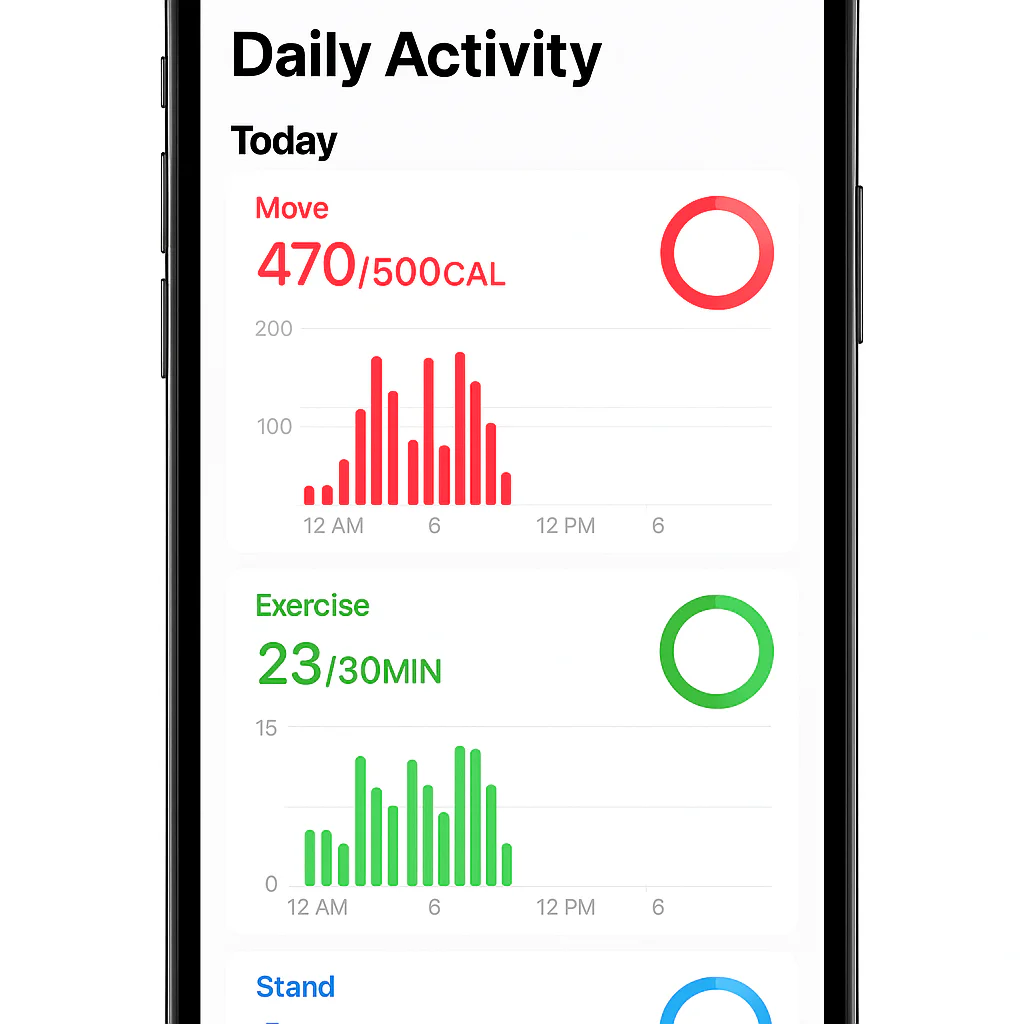
If you want to track daily activity on your iPhone, the quickest way is to use Apple’s built-in Fitness and Health apps — they automatically collect your steps, calories, and exercise minutes without any extra gadgets. Pairing with an Apple Watch boosts accuracy, but your iPhone alone can be a powerful activity tracker.
Wondering how do I track daily activity on my iPhone beyond just steps? You’ll find everything from setting up activity rings to syncing third-party apps, customizing reminders, and even unlocking motivational awards. Fun fact: Apple’s Fitness app awards badges for hitting goals, turning your daily movement into a game you actually want to play!
We’ve tested these features ourselves at Daily Checklist™ and uncovered the best ways to make your iPhone a personal fitness coach that fits right in your pocket.
Key Takeaways
- Use the Fitness and Health apps as your primary tools for tracking daily activity on iPhone.
- Activity rings (Move, Exercise, Stand) provide simple visual goals that keep you motivated.
- Pairing with an Apple Watch significantly improves tracking accuracy and adds heart rate monitoring.
- Third-party apps like Strava, MyFitnessPal, and Oura offer specialized insights and holistic wellness tracking.
- Customize notifications and widgets to stay motivated without getting overwhelmed.
- Regularly check weekly summaries, trends, and awards to celebrate progress and adjust goals.
- Keep your data private and secure with Apple’s built-in privacy controls.
Ready to turn your iPhone into your ultimate daily activity companion? Let’s get moving!
Table of Contents
- ⚡️ Quick Tips and Facts for Tracking Daily Activity on iPhone
- 📱 The Evolution of Activity Tracking on iPhone: A Brief History
- 🔍 How to Get Started with iPhone’s Built-in Activity Tracking Features
- 1. Exploring the Health App: Your Central Hub for Activity Data
- 2. Using the Fitness App to Monitor Workouts and Daily Movement
- 3. Setting Up and Understanding Activity Rings on Your iPhone
- 4. Leveraging Motion & Fitness Tracking Settings for Accurate Data
- 5. Syncing Your iPhone with Apple Watch for Enhanced Activity Insights
- 6. Top Third-Party Apps to Track Daily Activity on iPhone
- 7. Using Widgets and Notifications to Stay Motivated Daily
- 📊 How to Check Your Progress: Weekly Summaries and Trends
- 📅 Reviewing Your Activity History: Tips for Long-Term Tracking
- 🏆 Unlocking Awards and Achievements to Boost Your Motivation
- ⏰ Customizing Activity Reminders and Notifications on iPhone
- 🚫 How to Suspend or Adjust Daily Coaching and Activity Alerts
- 🔗 Syncing Activity Data Across Devices and Apps Seamlessly
- 🛠️ Troubleshooting Common Issues with iPhone Activity Tracking
- 🔒 Privacy and Security: Managing Your Activity Data on iPhone
- 💡 Pro Tips for Maximizing Accuracy and Getting the Most from Your iPhone’s Activity Tracker
- 📚 Recommended Links for Further Reading and Tools
- 🔗 Reference Links and Official Apple Resources
- 🎯 Conclusion: Mastering Daily Activity Tracking on Your iPhone
⚡️ Quick Tips and Facts for Tracking Daily Activity on iPhone
If you’ve ever wondered how do I track daily activity on my iPhone?, you’re in the right place! At Daily Checklist™, we’ve tested and lived with iPhone activity tracking for years, and here’s the skinny:
- ✅ Your iPhone’s Fitness app is the command center for all activity data.
- ✅ The Health app collects and organizes data from your iPhone and any connected devices.
- ✅ Activity rings (Move, Exercise, Stand) are your daily progress buddies.
- ✅ You don’t need an Apple Watch, but pairing one supercharges your tracking.
- ✅ Third-party apps like Strava, MyFitnessPal, and Oura can add layers of insight.
- ✅ Daily reminders and widgets keep you motivated without naging.
- ✅ You can check weekly summaries, trends, and awards to keep your streak alive.
Curious how to set it all up and get the most from your iPhone? Let’s break it down step-by-step and uncover some hidden gems along the way.
For a related deep dive on daily checklists, check out our guide on How do I make a daily checklist on my iPhone?.
📱 The Evolution of Activity Tracking on iPhone: A Brief History

Remember when tracking your steps meant counting on your fingers? Neither do we! Apple has transformed the iPhone from a simple phone into a fitness powerhouse over the last decade.
- 2014: Introduction of the M7 motion coprocessor in iPhone 5s, enabling step counting without draining your battery.
- 2015: Launch of the Health app with iOS 8, consolidating health and fitness data.
- 2018: Fitness app replaces the Activity app on iPhones, syncing with Apple Watch for richer data.
- Today: iPhone tracks steps, flights climbed, distance, and active calories, even without an Apple Watch.
This evolution means your iPhone is more than a communication device—it’s your personal health assistant, quietly collecting data as you move through your day.
🔍 How to Get Started with iPhone’s Built-in Activity Tracking Features
Getting started is easier than you think. Here’s your Daily Checklist™ starter pack:
- Open the Health app (pre-installed on all iPhones).
- Tap Browse > Activity to see what’s being tracked.
- Open the Fitness app to view your activity rings and workout summaries.
- Enable Motion & Fitness tracking in Settings > Privacy > Motion & Fitness.
- If you have an Apple Watch, pair it via the Watch app for seamless syncing.
Voilà! Your iPhone is now a daily activity detective.
1. Exploring the Health App: Your Central Hub for Activity Data
The Health app is like the Swiss Army knife of health tracking on your iPhone. It collects data from your iPhone’s sensors and any connected devices or apps.
Key Features
- Dashboard: Customize it to display steps, distance, flights climbed, and more.
- Data Sources: See which devices and apps contribute data.
- Health Records: Import medical records if you want a full health picture.
- Trends: View long-term patterns in your activity.
Pro Tip
Tap on any metric to see detailed graphs and daily breakdowns. Want to know how many steps you took last Thursday? It’s right there.
2. Using the Fitness App to Monitor Workouts and Daily Movement
The Fitness app is your activity rings HQ. It shows your daily progress with three colorful rings:
| Ring Color | What It Tracks | Goal Example |
|---|---|---|
| 🔴 Red | Active calories burned (Move) | Burn 500 active calories/day |
| 🟢 Green | Minutes of brisk exercise | 30 minutes of exercise |
| 🔵 Blue | Hours stood and moved | Stand at least 1 minute/hour |
How to Use
- Open the app to see your rings.
- Tap a ring for detailed stats.
- View your workout history and awards.
- Check trends over weeks and months.
Fun fact: Closing all three rings daily can feel like winning a mini gold medal 🏅.
3. Setting Up and Understanding Activity Rings on Your iPhone
Activity rings are simple but powerful motivators. Here’s how to set them up and make them work for you:
- Set realistic goals: The default Move goal is based on your age, weight, and height, but you can adjust it.
- Understand each ring: The Move ring counts active calories, not total calories burned.
- Exercise ring: Requires brisk activity, like a fast walk or cycling.
- Stand ring: Encourages you to stand and move for at least 1 minute every hour.
Why It Works
The rings create a visual checklist of your daily activity, nudging you to close them by the end of the day. It’s like having a coach in your pocket.
4. Leveraging Motion & Fitness Tracking Settings for Accurate Data
Accuracy is king when tracking activity. Here’s how to keep your iPhone honest:
- Go to Settings > Privacy > Motion & Fitness.
- Enable Fitness Tracking and Health.
- Keep your iPhone on you during the day (pocket, bag, or hand).
- Calibrate your iPhone by walking or running outdoors with GPS enabled.
Common Pitfalls
- Leaving your phone on a desk means missed steps.
- Poor calibration can skew distance and calorie estimates.
- Wearing an Apple Watch improves accuracy dramatically.
5. Syncing Your iPhone with Apple Watch for Enhanced Activity Insights
Pairing your iPhone with an Apple Watch is like upgrading from a bicycle to a sports car in activity tracking.
| Feature | iPhone Alone | iPhone + Apple Watch |
|---|---|---|
| Step Counting | ✅ | ✅ |
| Heart Rate Monitoring | ❌ | ✅ |
| Exercise Minutes | Limited | Accurate and automatic |
| Stand Reminders | ❌ | ✅ |
| Workout Detection | Manual | Automatic |
| Awards & Competitions | Basic | Social sharing & challenges |
How to Pair
- Open the Watch app on your iPhone.
- Follow the on-screen instructions.
- Sync your Health and Fitness data.
Personal story: One of our planners started hitting daily Move goals consistently only after pairing with an Apple Watch — the gentle buzz reminders made all the difference!
6. Top Third-Party Apps to Track Daily Activity on iPhone
Sometimes, the built-in apps don’t cut it. Here are some favorites from our team:
| App Name | Key Features | Best For | CHECK PRICE on: |
|---|---|---|---|
| Strava | GPS tracking, social challenges, workout logs | Runners, cyclists | Amazon | Strava Official |
| MyFitnessPal | Nutrition + activity tracking, barcode scanner | Weight management | Amazon | MyFitnessPal Official |
| Oura | Sleep, readiness, activity scores, biometrics | Holistic wellness | Amazon | Oura Official |
Why We Like Oura
The Oura Ring is a game-changer for those who want discreet, finger-based tracking with deep insights into recovery and activity balance. It’s not just about burning calories but understanding your body’s rhythms.
7. Using Widgets and Notifications to Stay Motivated Daily
Widgets and notifications are your daily nudges to keep moving.
Setting Up Widgets
- Long press your iPhone home screen.
- Tap the + icon.
- Search for Fitness or Health widgets.
- Choose your preferred size and add it.
Notifications
- Enable activity reminders in the Fitness app or Watch app.
- Customize alerts for goals, stand reminders, and coaching.
- Use Do Not Disturb or Focus modes to avoid overload.
Pro tip: Balance is key — too many notifications can cause alert fatigue, so tailor them to your lifestyle.
📊 How to Check Your Progress: Weekly Summaries and Trends
Tracking daily is great, but seeing the bigger picture is where the magic happens.
Weekly Summaries
- Open the Fitness app.
- Tap Summary.
- Scroll to see weekly totals for calories, exercise minutes, and steps.
Trends
- After about 180 days of data, the Fitness app shows trends.
- Upward arrows mean you’re improving.
- Downward arrows trigger coaching tips like “Walk an extra quarter mile a day.”
This feature is a motivational goldmine that helps you spot patterns and adjust your habits.
📅 Reviewing Your Activity History: Tips for Long-Term Tracking

Want to see how far you’ve come? Here’s how:
- In the Fitness app, tap Show More under your activity rings.
- Select a specific day or week.
- Export data via the Health app if you want to analyze it in spreadsheets.
Daily Checklist™ tip: Use this data to set monthly goals or identify days when you’re most active.
🏆 Unlocking Awards and Achievements to Boost Your Motivation
Apple’s Fitness app rewards you with badges for milestones like:
- Closing rings multiple days in a row.
- Reaching new personal bests.
- Completing special challenges (e.g., Earth Day, Thanksgiving).
These awards are more than digital trophies—they’re proof of your commitment.
⏰ Customizing Activity Reminders and Notifications on iPhone
Notifications can be your best friend or worst enemy.
How to Customize
- Open the Watch app on your iPhone.
- Tap Notifications > Activity.
- Choose which alerts to receive or mute.
- For iPhone-only users, adjust notifications in Settings > Notifications > Fitness.
Suspend Coaching
If you need a break:
- Open Settings > Activity.
- Toggle Suspend Daily Coaching.
This lets you pause reminders without losing your data.
🚫 How to Suspend or Adjust Daily Coaching and Activity Alerts
Sometimes life gets busy, and you need a pause.
- To suspend coaching, open the Fitness app.
- Tap your profile picture.
- Select Notifications.
- Toggle off Daily Coaching or specific alerts.
You can resume anytime without losing your streaks or data.
🔗 Syncing Activity Data Across Devices and Apps Seamlessly
Your iPhone can be the hub for all your health data if you sync it properly.
How to Sync
- Enable iCloud Health Sync in Settings > Your Name > iCloud > Health.
- Connect third-party apps like Strava, Nike Run Club, or MyFitnessPal via the Health app.
- Use Apple HealthKit compatible devices for seamless data flow.
This way, your data is unified, and you get a fuller picture of your activity.
🛠️ Troubleshooting Common Issues with iPhone Activity Tracking
Not seeing your steps or rings moving? Here’s what to check:
- ✅ Is Motion & Fitness enabled? (Settings > Privacy)
- ✅ Is your iPhone on you during activity?
- ✅ Is your Apple Watch paired and synced?
- ✅ Restart your iPhone and Apple Watch.
- ✅ Update iOS and watchOS to the latest versions.
- ✅ Check for app permissions for third-party apps.
If problems persist, resetting your Health data (Settings > Health > Data Access & Devices) can help but beware—it deletes all stored data.
🔒 Privacy and Security: Managing Your Activity Data on iPhone
Your activity data is personal, so Apple takes privacy seriously:
- Data is encrypted on your device and in iCloud if you enable Health syncing.
- You control which apps can access your Health data.
- Apple does not sell your data.
- You can delete any data anytime from the Health app.
For more on privacy, visit Apple’s Health Privacy page.
💡 Pro Tips for Maximizing Accuracy and Getting the Most from Your iPhone’s Activity Tracker
- Carry your iPhone on your body, not in a bag.
- Calibrate your iPhone by walking outdoors with GPS enabled.
- Pair with an Apple Watch for heart rate and workout detection.
- Use third-party apps for specialized tracking (cycling, swimming).
- Customize your activity goals seasonally to stay challenged.
- Use widgets for quick motivation.
- Regularly review trends and awards to celebrate progress.
📚 Recommended Links for Further Reading and Tools
- Apple Health User Guide
- Apple Fitness+
- Oura Ring Official Site
- Strava Official Site
- MyFitnessPal Official Site
- Daily Checklist™ Habit Formation
- Daily Checklist™ Life Hacks
- Daily Checklist™ Digital Detox
🔗 Reference Links and Official Apple Resources
- Apple Support: Track Daily Activity with Apple Watch
- Apple Support: See Your Activity Summary on iPhone
- Oura – App Store
- Apple Privacy Overview
- Apple HealthKit Developer Info