Support our educational content for free when you purchase through links on our site. Learn more

10 Automated Daily Planning Workflows That Work ⚙️
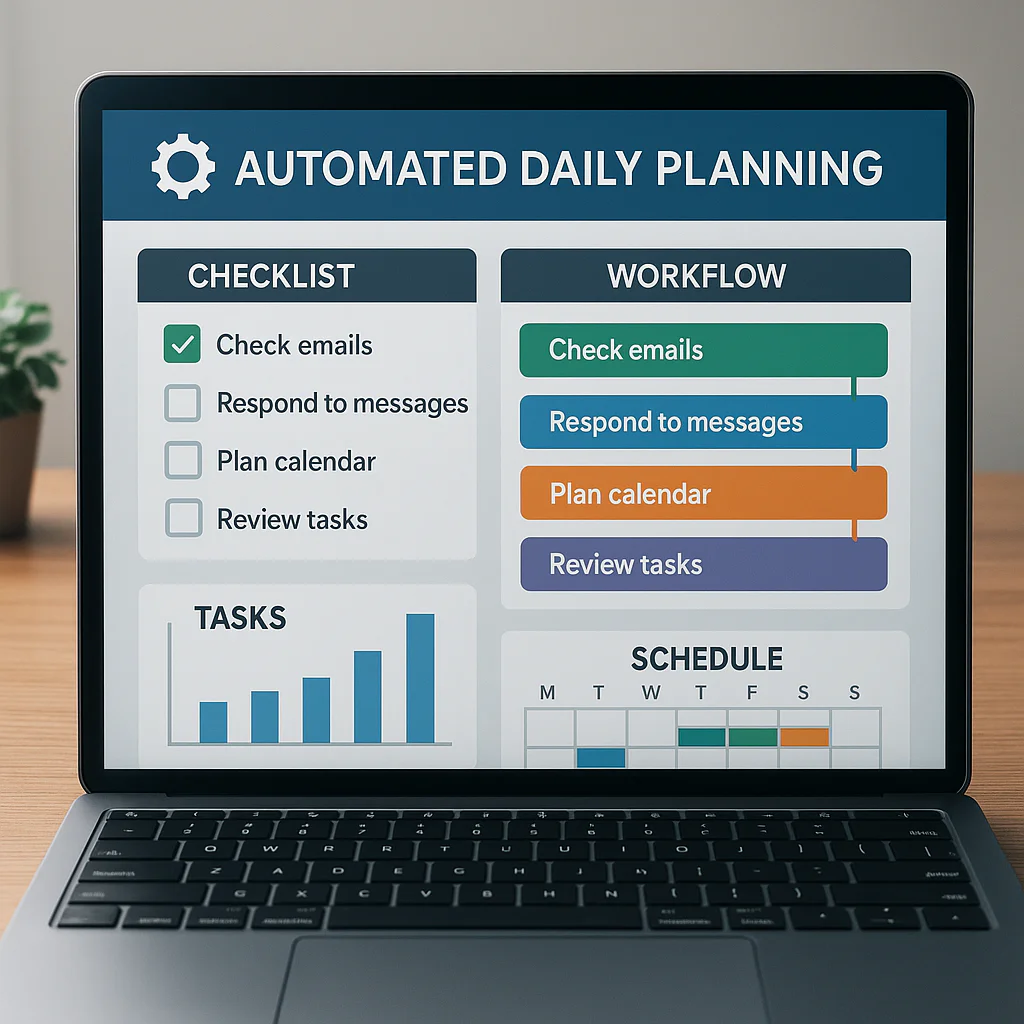
Automated daily planning workflows work best when they handle repetitive tasks—like reminders, recurring checklists, and morning summaries—while you stay in charge of priorities. Start with one clear workflow, connect a calendar and task manager, then add rules that leave room for real life.
We’ve seen a tidy-looking calendar turn into a wall of back-to-back blocks after every task gets auto-scheduled. The fix isn’t more automation; it’s better guardrails: sensible time estimates, buffers, review steps, and permission to move things around.
From morning briefings and email-to-task capture to weekly workload reviews, these 10 workflows show what to automate, which tools can help, and where human judgment still matters. Because the best system doesn’t just fill your day—it helps you decide what deserves a place in it.
Key Takeaways
- Automate the repeatable mechanics: recurring tasks, reminders, task capture, and daily summaries are strong places to start.
- Keep one source of truth: let your calendar own appointments and your task manager own action items.
- Use clear scheduling rules: account for deadlines, task duration, working hours, and buffer time.
- Keep people in control: review AI suggestions, task rollovers, and changes to shared calendars.
- Test and maintain workflows: check for duplicates, errors, notification overload, and outdated connections.
- Protect privacy and capacity: connect only necessary accounts, follow workplace policies, and don’t schedule every open minute.
Table of Contents
- ⚡️ Quick Tips and Facts
- 🧭 Automated Daily Planning Workflows: What They Are and Why They Help
- 📜 How Automated Daily Planning Evolved
- 🧩 Core Building Blocks of a Daily Planning Automation
- Tasks, calendars, and sources of truth
- Triggers, rules, and recurring schedules
- Priorities, time blocks, and buffers
- 🛠️ How to Build an Automated Daily Planning Workflow
- Choose your planning goals and constraints
- Connect your calendar, task manager, and automation tools
- Set rules for prioritizing and scheduling tasks
- Add reminders, review steps, and fallback rules
- Test, refine, and maintain your workflow
- 🔟 Automated Daily Planning Workflows Worth Trying
- 1. Morning task and calendar briefing
- 2. Automatic task prioritization
- 3. Calendar time-blocking for focused work
- 4. Deadline and overdue-task alerts
- 5. Meeting preparation and follow-up
- 6. Email-to-task capture
- 7. Recurring routine and habit planning
- 8. Schedule adjustments when plans change
- 9. End-of-day review and unfinished-task rollover
- 10. Weekly planning and workload balancing
- 📱 Best Tools for Automated Daily Scheduling and Task Management
- Calendar and task-management apps
- No-code automation platforms
- AI planning assistants
- Choosing tools that work well together
- 🔗 Integrations: Google Calendar, Outlook, Slack, and More
- 🏠 Automated Planning Workflows for Different Needs
- Personal productivity and household routines
- Remote teams and project management
- Students and study schedules
- Frelancers and client work
- 🔒 Privacy, Security, and Responsible Use of AI Planning Tools
- 🧯 Common Workflow Problems and How to Fix Them
- 📊 How to Measure Whether Your Planning Automation Works
- ✅ Quick Tips for More Reliable Daily Planning Automation
- 🏁 Conclusion
- 🔗 Recommended Links
- ❓ FAQ
- What is an automated daily planning workflow?
- Can I automate daily planning without using AI?
- Which apps are best for automatic task scheduling?
- How do I stop automation from overfilling my calendar?
- Are automated planning workflows safe for work data?
- How much time can daily planning automation save?
- 📚 Reference Links
Quick Tips and Facts
Our daily checklist guide starts with a simple rule: automate the repeatable parts of planning, but keep a human in charge of priorities. A workflow should make your day easier to see—not turn your calendar into a game of Tetris with no empty squares.
| Quick fact | What it means for your workflow |
|---|---|
| A workflow connects a trigger to an action. | A due date, new task, or morning schedule can trigger a briefing, reminder, or calendar block. |
| Automation works best with clear rules. | Define priorities, working hours, task durations, and what happens when a day is full. |
| One source of truth reduces confusion. | Decide where tasks live—such as Todoist, Microsoft To Do, or Microsoft Planner—and avoid maintaining competing copies. |
| Recurring tasks are ideal automation candidates. | Repeated chores, reviews, and routines can be created on a schedule instead of re-entered by hand. |
| Automated plans need room for reality. | Add buffers and allow manual overrides for urgent work, delays, and unexpected meetings. |
| Automation does not guarantee good judgment. | A workflow can sort tasks by rules; you still decide what deserves attention. |
✅ Start small: automate one recurring task or one morning summary before connecting every app you own.
❌ Avoid: automatically scheduling every task into every available minute. A calendar without breathing room is less a plan than a hostage note.
For practical routines and repeatable checklists, explore our habit formation resources and life hacks. And if notifications are multiplying faster than tasks are disappearing, a little digital detox may help.
Automated Daily Planning Workflows: What They Are and Why They Help
An automated daily planning workflow uses rules, schedules, and connected apps to collect tasks, organize priorities, create reminders, and sometimes place work into calendar time blocks. Think of it as a dependable assistant for the administrative side of planning—not a tiny executive hiding inside your laptop.
A basic workflow might look like this:
Trigger: It’s 8:00 a.m.
Action: Collect today’s tasks and calendar events.
Rule: Highlight overdue or high-priority tasks.
Output: Send you a daily briefing and suggest available focus time.
What can be automated?
- Creating recurring tasks and checklists
- Sending morning or end-of-day summaries
- Turning flagged emails or form submissions into tasks
- Adding due-date reminders
- Assigning tasks to people or project buckets
- Suggesting or reserving calendar blocks
- Rolling unfinished tasks forward for review
- Updating a project board when a task changes status
What should stay under human control?
- Deciding whether an urgent request should displace planned work
- Estimating the importance of ambiguous tasks
- Approving changes to shared calendars
- Handling sensitive, confidential, or high-stakes decisions
- Reviewing automatic task carryovers instead of blindly accepting them
The distinction matters. Automate the mechanics; keep ownership of the judgment. For example, a rule can flag a deadline due tomorrow, but it cannot reliably know whether that deadline outranks a client emergency or a promised family commitment.
How Automated Daily Planning Evolved
Daily planning automation grew from simple calendar reminders and recurring events into connected systems that can move information between email, task managers, calendars, and team tools. The basic idea has not changed: reduce repetitive administration so people can spend more attention on the work itself.
Today, tools such as Microsoft Power Automate, Zapier, and Make let users build rules that connect apps without writing much code. Planning apps such as Todoist, Microsoft Planner, and Google Calendar add recurring tasks, reminders, integrations, or scheduling features of their own.
Automation also appears in specialized fields where “daily workflow” means something much more consequential than a personal to-do list. A 2025 radiotherapy study describes an automated workflow that accumulated delivered radiation doses across daily treatment fractions. Its workflow “performs the entire image registration process automatically, without user involvement” and completed processing “in under a minute, for each treatment fraction.” Those results concern a clinical system—not ordinary productivity software—but they illustrate how automation can reduce repetitive processing while still requiring validation and expert oversight. Read the study in PubMed Central.
The lesson for everyday planning is smaller but useful: speed is valuable, yet a fast workflow is only helpful when its inputs, rules, and outputs are trustworthy.
Core Building Blocks of a Daily Planning Automation
Tasks, calendars, and sources of truth
A planning workflow usually draws information from one or more sources:
| Source | Usually contains | Common workflow use |
|---|---|---|
| Task manager | Task name, priority, due date, project, status | Build a prioritized daily list |
| Calendar | Meetings, appointments, unavailable time | Find open work periods |
| Email or messaging app | Requests, flags, follow-ups | Create tasks from incoming work |
| Project board | Owners, stages, deadlines, dependencies | Track team work and handoffs |
| Notes or forms | Ideas, requests, intake details | Capture information for later review |
Choose one source of truth for each type of information. Your calendar can own appointments while your task manager owns action items. Problems start when the same task is copied into three places and only two copies get updated.
For example, if you use Microsoft Planner for team tasks and Outlook Calendar for meetings, make the connection explicit: Planner owns task status; Outlook owns meeting times. Avoid treating a meeting entry as proof that the associated task is complete.
Triggers, rules, and recurring schedules
A trigger tells the automation when to start. A rule tells it what conditions matter. An action tells it what to do.
| Workflow element | Example |
|---|---|
| Trigger | Every weekday at 7:30 a.m. |
| Condition | Only include tasks that are open or due within two days |
| Action | Compile a morning summary and send it by email |
| Exception | Skip holidays or days marked as leave |
| Fallback | If the calendar connection fails, send the task list without time blocks |
Useful triggers include:
- A set time, such as every weekday morning
- A task being created, completed, or overdue
- A calendar event starting or ending
- An email receiving a label or flag
- A form being submitted
- A project status changing
Be precise with time zones, working days, and repeat intervals. A “daily” trigger may run on weekends unless you specify weekdays. A due date stored in one time zone may look like the previous day in another. Tiny settings; impressively large capacity for chaos.
Priorities, time blocks, and buffers
A useful plan does more than sort tasks. It accounts for importance, deadlines, effort, and available time.
A simple priority model could use:
- Must do: deadline-sensitive or blocking work
- Should do: valuable work that can move if needed
- Could do: optional tasks for spare capacity
- Waiting: dependent on someone or something else
Time blocks can help protect focus, but estimates are not facts. If you expect a report to take 45 minutes, reserve extra time for review or interruptions. Keep a visible buffer rather than scheduling back-to-back work from morning to evening.
The American Psychological Association discusses how stress can affect health and daily functioning. That is one reason we recommend designing a plan with reasonable slack: a schedule that assumes perfect concentration and zero interruptions is not ambitious; it is fictional.
How to Build an Automated Daily Planning Workflow
Choose your planning goals and constraints
Start with a specific friction point. “Automate my whole life” is not a useful first requirement. “Send me one weekday briefing of my open tasks and calendar” is.
Write down:
- The problem: What repetitive planning step do you want to reduce?
- The desired result: What should happen automatically?
- The boundaries: Which hours, projects, or people are included?
- The exceptions: What should happen on leave, holidays, or full-calendar days?
- The owner: Who checks that the workflow is still working?
A personal workflow might focus on remembering household routines. A team workflow might make sure new project tasks are assigned and have owners. For recurring routines, our habit formation resources can help you pair reminders with consistent cues.
Connect your calendar, task manager, and automation tools
Choose tools that already fit your routine. Common combinations include:
| Need | Example tool combination |
|---|---|
| Personal planning | Google Calendar + Todoist |
| Microsoft workplace | Outlook + Microsoft Planner + Power Automate |
| Flexible no-code integrations | Calendar or task app + Zapier or Make |
| Apple-centered routine | Apple Calendar + Reminders + Shortcuts |
Before connecting accounts, confirm which data will be shared and what permissions the automation requires. A tool that only needs to create a reminder should not need broad access to unrelated files or messages.
Practical setup sequence:
- Pick the calendar and task manager you will keep.
- Confirm that both use the same time zone and working days.
- Connect only the accounts needed for the workflow.
- Test with a non-sensitive task.
- Verify the task appears in the right list, with the correct owner and due date.
- Document how to pause or disable the automation.
Set rules for prioritizing and scheduling tasks
Good rules are understandable enough that you can explain them to another person. For example:
- Show overdue tasks first.
- Include tasks due today or tomorrow.
- Do not schedule focus work during meetings or personal calendar blocks.
- Leave at least one buffer block during the workday.
- Keep tasks without a duration on the task list instead of assigning them a guessed time.
- Ask for approval before changing shared calendars.
Avoid rules that pretend every task can be ranked by a single formula. A deadline score can help sort work, but dependencies, consequences, and human commitments often need context.
A simple daily selection rule might be:
- Include fixed appointments.
- Include tasks with a deadline today.
- Include tasks blocking another person.
- Add one high-value focus task.
- Stop when the day’s realistic capacity is reached.
- Leave the rest in the backlog for review.
Add reminders, review steps, and fallback rules
A reminder is useful only if it arrives where you will notice it and at a moment when you can act. Too many notifications train people to ignore them.
Set up:
- One morning briefing rather than a stream of individual alerts
- A short notice for genuinely time-sensitive tasks
- A completion or error notification for important workflows
- A daily review prompt for unfinished tasks
- A fallback for missing data or failed integrations
If a workflow creates tasks automatically, include a review step. For example, an email-to-task rule could put items in an Inbox to review list rather than assigning deadlines and calendar blocks immediately. That catches newsletters, duplicate messages, and “thanks!” emails before they become fake work.
Test, refine, and maintain your workflow
Test with a small set of tasks before relying on the system.
- Check the trigger: Does it run at the intended time and on the intended days?
- Check the output: Are task names, dates, owners, and links correct?
- Check exceptions: What happens on a holiday, a full day, or a missing due date?
- Check duplicates: Does the workflow create a second task every time it retries?
- Check permissions: Can you disconnect or limit access without breaking unrelated tools?
- Review after use: Is the workflow saving effort, or just producing more notifications?
Review automation rules when your schedule or apps change. Connectors can be updated, permissions can expire, and teams can rename project buckets. A quick monthly check is cheaper than discovering on Friday that your “daily” task has not appeared since Tuesday.
Automated Daily Planning Workflows Worth Trying
1. Morning task and calendar briefing
Purpose: See the day in one place before the first meeting takes over.
A weekday trigger can gather calendar events and open tasks, then send a concise summary to email, Slack, or a task dashboard. Include only:
- Meetings and appointments
- Tasks due today
- Overdue tasks
- One or two priority items
- A reminder of available focus time
Best for: People who use several apps and dislike assembling the day manually.
Watch out for: Duplicate or stale tasks. Include task links so you can check the source record.
2. Automatic task prioritization
Purpose: Make the important work easier to spot.
Use simple rules to label tasks by due date, project, owner, or priority. For instance, tasks due today can receive a “Today” label, while blocked tasks move to a waiting list.
Useful guardrail: Let automation suggest an order, but leave final selection to you. A task with a near deadline is not automatically more important than a safety issue or client commitment.
3. Calendar time-blocking for focused work
Purpose: Reserve time for tasks that otherwise get squeezed between meetings.
A workflow can look for open calendar slots and propose blocks for tasks with estimated durations. Tools such as Motion and Reclaim offer automated scheduling features, while calendar and task apps may support lighter-weight approaches.
Recommended rules:
- Schedule only tasks with realistic duration estimates.
- Protect existing appointments and personal blocks.
- Keep buffers between demanding tasks.
- Ask before moving events that involve other people.
Drawback: Automatic rescheduling can make a plan feel unstable if the tool moves blocks too often. Limit rescheduling or require approval for changes.
4. Deadline and overdue-task alerts
Purpose: Catch approaching deadlines without checking every project manually.
Set reminders for tasks due soon and create a separate report of overdue items. Send alerts to the task owner first; escalate to a manager only when the task affects a shared commitment.
A good alert includes the task, deadline, owner, and next action. “Task overdue” is an alarm bell. “Draft the report, due today, assigned to Sam; waiting on data from Finance” is useful information.
5. Meeting preparation and follow-up
Purpose: Turn meetings into manageable preparation and action items.
Before a meeting, a workflow can remind you to review the agenda or gather documents. Afterward, you can create follow-up tasks from notes, assign owners, and add due dates.
Keep a human review step: Automatically generated meeting notes or action items may miss nuance. Confirm assignments and deadlines before syncing them to a shared project board.
6. Email-to-task capture
Purpose: Turn actionable messages into trackable work.
Possible approaches include:
- Flaging an email to create a task
- Applying a label such as “To do”
- Forwarding a message to a task app’s capture address
- Using an automation platform to create a task from selected messages
Do not convert every incoming email into a task. Use a clear capture rule and review the resulting inbox once or twice a day. For ideas and low-urgency messages, a separate capture list helps prevent your task list from becoming a second inbox.
7. Recurring routine and habit planning
Purpose: Make regular tasks appear when they are useful, not merely when you remember them.
Examples include:
- Weekly meal planning
- Daily medication or water reminders
- A Friday project review
- Monthly household maintenance
- A recurring study or exercise block
For routines, pair a specific cue with a manageable action. The National Institute of Mental Health’s wellness guidance encourages practical self-care habits such as regular activity and sleep routines; reminders can support consistency, but they cannot substitute for professional advice or personal judgment.
Explore more ideas in our habit formation category. If a routine generates excessive screen time or alerts, check our digital detox resources.
8. Schedule adjustments when plans change
Purpose: Protect the rest of the day when a meeting runs long or an urgent request arrives.
A workflow can flag affected tasks and suggest moving flexible work into an open slot. Avoid moving fixed appointments automatically. Instead, label tasks as:
- Fixed-time
- Deadline-bound
- Flexible
- Waiting on someone else
That distinction lets the system adjust the flexible work first. You stay in charge of what moves.
9. End-of-day review and unfinished-task rollover
Purpose: Close the loop so unfinished tasks do not silently disappear—or roll over forever.
A short end-of-day workflow can list incomplete tasks and ask you to choose:
- Move tomorrow
- Set a new due date
- Delegate
- Mark as waiting
- Delete or archive
We recommend manual approval before rollover. Automatically copying every unfinished task tomorrow creates a daily parade of familiar disappointments. A review turns the list into a decision rather than a guilt machine.
10. Weekly planning and workload balancing
Purpose: Look beyond today’s urgent items and distribute work more realistically.
A weekly summary can show:
- Tasks due in the next seven days
- Work assigned to each person
- Projects with overdue or blocked tasks
- Calendar capacity
- Recurring commitments
For teams, use the summary to find overloaded schedules and unresolved dependencies. Do not equate a full task list with an accurate measure of effort: task size and complexity matter. A three-minute review and a three-day report should not count as equivalent units.
Best Tools for Automated Daily Scheduling and Task Management
Calendar and task-management apps
| Tool | Useful for | Strengths | Limitations to consider |
|---|---|---|---|
| Google Calendar | Meetings, reminders, shared calendars | Familiar calendar scheduling and integrations | Tasks and projects may need a separate task manager |
| Microsoft Planner | Team plans and shared task boards | Buckets, assignments, due dates, Microsoft 365 connections | Advanced automation may require Power Automate |
| Microsoft To Do | Personal and lightweight work lists | Lists, reminders, recurring tasks, Microsoft account integration | Less suited to complex project tracking |
| Todoist | Personal or shared task management | Projects, labels, filters, recurring due dates | Calendar time-blocking may rely on integrations or other tools |
| Notion | Flexible databases, notes, and project tracking | Customizable views and connected workspaces | Flexibility can lead to overbuilding |
| Apple Reminders | Apple users and personal reminders | Built into Apple devices, supports lists and reminders | Best fit is generally within the Apple ecosystem |
No-code automation platforms
| Platform | Good fit | What to check |
|---|---|---|
| Microsoft Power Automate | Microsoft 365 workflows and business processes | Connector availability, account permissions, flow ownership |
| Zapier | Connecting many common apps with triggers and actions | Data access, task limits, and duplicate prevention |
| Make | Visual, multi-step workflows | More complex scenarios may take time to debug |
| Apple Shortcuts | Personal automations across Apple devices | Device-specific behavior and permissions |
AI planning assistants
AI-enabled tools can summarize tasks, suggest priorities, or propose schedules. Treat those outputs as drafts, especially when the source data includes confidential work or when an incorrect schedule has real consequences.
Before enabling an AI assistant:
- Check what data the service processes and stores.
- Review workplace policies about approved AI tools.
- Confirm that suggested changes require approval when appropriate.
- Test whether summaries preserve important deadlines and names.
- Avoid using AI output as the sole record of a commitment.
Choosing tools that work well together
A good stack is not the one with the most integrations. It is the one that reliably moves the right information with minimal duplication.
Ask:
- Can the tools share the fields you need, such as due date, owner, and status?
- Can you control permissions and disconnect access?
- Can you inspect workflow history when something fails?
- Does the workflow handle duplicates and missing information?
- Can you pause it without losing task data?
- Will your team actually use the resulting task list?
Integrations: Google Calendar, Outlook, Slack, and More
Integrations let planning information move between services. For example, a flagged Outlook email might become a Microsoft To Do task, or a Slack message might create a project item. The convenience is real; so is the risk of creating a maze of overlapping notifications.
| Integration | Helpful use | Good practice |
|---|---|---|
| Google Calendar + task app | Show scheduled work beside appointments | Keep task details in the task manager |
| Outlook + Microsoft Planner | Connect meetings, messages, and team tasks | Confirm ownership and due dates before sharing |
| Slack + task manager | Capture assigned work from conversations | Require a clear “create task” action to avoid clutter |
| Email + task app | Turn selected requests into follow-ups | Use flags or labels rather than capturing every message |
| Forms + project board | Route requests to the right queue | Validate required fields before creating tasks |
A workflow should fail safely. If an integration cannot find a due date, it should ask for review rather than invent one. If a calendar event changes, it should not silently move another person’s meeting.
For workplace data, review the vendor’s security and privacy documentation and your organization’s rules before connecting accounts. Microsoft’s privacy statement and Google’s privacy policy explain how their services handle information; your employer’s policies may set additional requirements.
Automated Planning Workflows for Different Needs
Personal productivity and household routines
Personal planning benefits most from low-friction automations:
- Morning task summary
- Weekly groceries or meal-planning reminder
- Recurring chores by room or household member
- Renewal or maintenance reminders
- Evening checklist for tomorrow’s essentials
Keep shared household tasks visible to everyone who needs them. An automation that reminds only one person can quietly make that person the household’s unpaid project manager.
Remote teams and project management
Teams can automate intake, assignment, deadlines, and status summaries. Useful workflows include:
- Creating a task from an approved request form
- Assigning an owner based on project or category
- Sending reminders when a task is blocked
- Posting a daily or weekly project digest
- Creating meeting follow-ups after action items are reviewed
Set rules for ownership and escalation before launch. A message in Slack is not automatically an accepted commitment, and an automated assignment should not replace a conversation about workload.
Students and study schedules
Students can use recurring study blocks, assignment reminders, and exam countdowns. A practical workflow might:
- Add assignment due dates to a central task list.
- Split larger projects into milestones.
- Schedule study blocks around classes and personal commitments.
- Review upcoming deadlines once a week.
- Adjust the plan when workload changes.
The U.S. Department of Education’s student aid resources can help with education planning and support information. For study routines, start with realistic sessions and planned breaks rather than scheduling an entire semester as an uninterrupted marathon.
Freelancers and client work
Frelancers often benefit from workflows that connect client requests to project tasks while preserving boundaries.
- Capture requests from selected email labels or forms.
- Add a client and project tag to each task.
- Set follow-up reminders for unanswered questions.
- Keep billable work separate from personal routines.
- Review deadlines across clients before accepting new work.
Do not let automation promise a delivery date before you have reviewed scope and capacity. A neat, automatically generated deadline is still a commitment.
Privacy, Security, and Responsible Use of AI Planning Tools
Planning tools may contain meeting details, client names, private messages, personal routines, or health-related reminders. Treat them as sensitive data.
A practical privacy checklist
- Use only the account permissions the workflow needs.
- Check whether data is sent to a third-party automation or AI provider.
- Avoid putting sensitive details in notifications that appear on a locked screen.
- Use multifactor authentication where available.
- Remove access for apps or integrations you no longer use.
- Follow workplace rules for customer, employee, and confidential information.
- Keep a human review step for decisions with legal, financial, medical, or safety implications.
For health-related information, use a tool approved for the purpose and consult a qualified professional when needed. Personal productivity apps are not automatically appropriate for managing sensitive clinical information.
Automation can also create accessibility and workload problems if reminders are too frequent or if a workflow assumes everyone works the same hours. Ask team members what notification timing and task format work for them.
Common Workflow Problems and How to Fix Them
| Problem | Likely cause | Practical fix |
|---|---|---|
| Duplicate tasks appear | A trigger runs more than once or retries without checking existing records | Add a unique identifier or a duplicate check |
| Tasks have the wrong date | Time-zone mismatch or incorrect date formula | Test dates around midnight and confirm account time zones |
| Calendar looks impossibly full | Every task is being scheduled without capacity limits | Add buffers, maximum daily workload, and flexible-task rules |
| Reminders are ignored | Too many alerts or low-value notifications | Bundle routine updates into one digest |
| Tasks keep rolling over | No review of priority, duration, or relevance | Require a daily keep, reschedule, delegate, or delete decision |
| Workflow stops unexpectedly | Expired access, changed app settings, or connector error | Check run history and assign an owner to monitor failures |
| Team members resist the system | Rules were imposed without input or create extra admin | Pilot with users and remove unnecessary steps |
| AI summary misses important details | Incomplete data, ambiguous instructions, or summarization error | Verify against the source and keep key fields structured |
Some workflows need human verification by design. In the radiotherapy study cited earlier, automated dose accumulation showed strong agreement with manual processing in a small cohort, but the authors also emphasize that image registration and anatomical changes introduce uncertainty. They write, “The moderate differences observed between planned and accumulated doses emphasize the need for accurate dose accumulation for adaptive plans.” That is a specialized clinical context, but the broader planning principle applies: automation should make review easier, not make review disappear. Study details.
A note on the Microsoft Planner recurring-task demonstration
The featured video demonstrates using Power Automate to create recurring tasks in Microsoft Planner. The presenter explains that completed recurring tasks can reappear alongside in-progress tasks and says, “It’s a bit of a pain once the task is complete the newly dated task gets mixed in with the tasks I’m still working on.”
The tutorial’s scheduled flow sets a recurrence trigger, defines task details and dates using dynamic values such as utcNow() and addDays(), assigns a task to a Planner bucket and user, adds checklist items, and sets priority. It then tests the flow in Planner. That is a useful example of automating task creation, but it also shows why you should test views and lifecycle behavior: creating the next task is only half the job; keeping active work easy to distinguish matters too.
How to Measure Whether Your Planning Automation Works
Judge a workflow by whether it improves planning—not by how many integrations it contains.
Track a few simple measures:
| Measure | What to look for |
|---|---|
| Time spent on daily setup | Does the workflow reduce repeated manual sorting? |
| Missed deadlines | Are reminders arriving early enough to support action? |
| Duplicate or incorrect tasks | Are data quality problems increasing or falling? |
| Calendar overbooking | Is the plan leaving realistic open capacity? |
| Notification volume | Are you seeing fewer, more useful alerts? |
| User adoption | Do people trust and use the workflow? |
| Recovery time after errors | Can you detect and fix failures quickly? |
Compare a baseline week with a pilot period. Ask users whether the workflow saves effort, creates confusion, or shifts work onto someone else. A system can look efficient on a dashboard while quietly making a person spend every afternoon correcting its mistakes.
A practical review cadence
- After the first few days: Check triggers, dates, duplicates, and permissions.
- After two to four weeks: Ask whether the workflow changes behavior in a useful way.
- Whenever tools or responsibilities change: Recheck connectors, owners, and exceptions.
- Periodically: Remove automations no one uses.
Quick Tips for More Reliable Daily Planning Automation
- Start with one workflow. Make it reliable before adding another.
- Use plain-language rules. If you cannot explain the rule, it may be too complicated.
- Keep a source of truth. Avoid parallel lists that drift apart.
- Set capacity limits. Leave room for breaks and unexpected work.
- Review automatic task creation. Especially when tasks come from email, AI, or shared channels.
- Avoid alert overload. Bundle ordinary updates; reserve immediate notifications for urgent work.
- Make failures visible. Assign someone to check important workflows.
- Keep a manual override. People need to move, pause, or delete tasks without fighting the system.
- Protect personal time. Do not let a workflow schedule work across every open hour.
- Revisit the system as habits change. A useful checklist should support your routine, not fossilize it.
For more ways to keep routines manageable, browse Life Hacks, Habit Formation, and Digital Detox.