Support our educational content for free when you purchase through links on our site. Learn more

How Do I Check My Daily Activity on My iPhone? 10 Easy Ways to See It! 📱
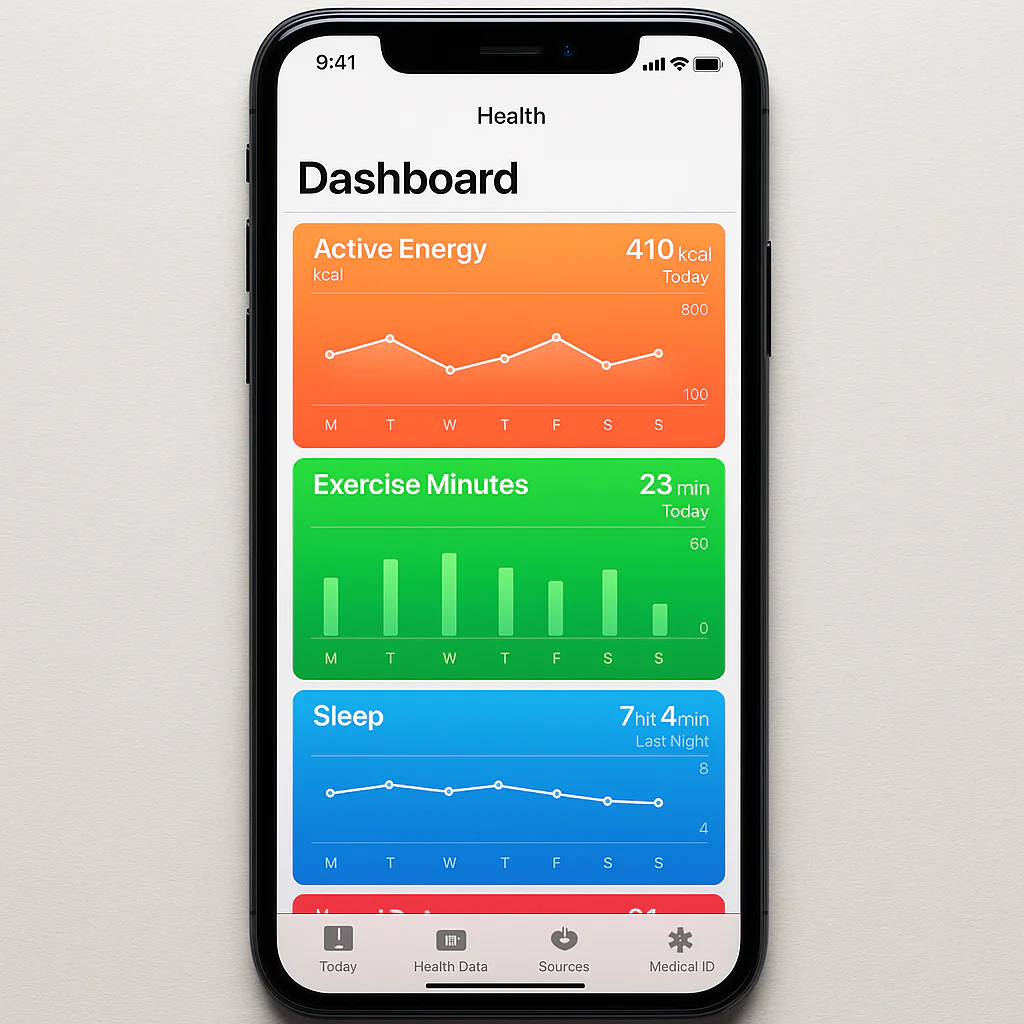
If you’ve ever wondered, how do I check my daily activity on my iPhone?, the answer is simpler than you think: your iPhone’s built-in Fitness and Health apps hold the keys to unlocking detailed insights about your steps, calories, and overall movement—no extra gadgets required. Whether you’re rocking an Apple Watch or just your trusty iPhone, you can effortlessly track your progress and stay motivated every day.
Here’s a little secret from the Daily Checklist™ team: we once underestimated how much our iPhones could do until we started checking those colorful activity rings daily. It was like having a personal trainer in our pockets, gently nudging us to move more and sit less. Fun fact: Apple reports that users who check their activity rings regularly are more likely to hit their fitness goals. Ready to see how you can join them?
Key Takeaways
- Your iPhone’s Fitness and Health apps provide comprehensive daily activity tracking, including steps, calories, and flights climbed.
- Apple Watch enhances tracking with exercise minutes and stand hours, but your iPhone alone still offers valuable insights.
- Customizing goals and notifications keeps motivation high and helps build lasting healthy habits.
- Third-party apps like Strava and MyFitnessPal can sync with your iPhone for even richer activity data.
- Carying your iPhone consistently and calibrating it improves tracking accuracy.
For more on building daily habits with your iPhone, check out our How do I make a daily checklist on my iPhone? article.
Table of Contents
- ⚡️ Quick Tips and Facts for Checking Daily Activity on iPhone
- 📱 Understanding iPhone’s Activity Tracking: A Brief Overview
- 🔍 How to Check Your Daily Activity on iPhone Step-by-Step
- 1. Using the Fitness App to View Activity Rings
- 2. Exploring the Health App for Detailed Metrics
- 3. Checking Activity Trends and History
- ⌚️ Track Daily Activity with Apple Watch: Integration and Benefits
- 📊 Understanding Activity Metrics: Steps, Calories, and More
- 🛠️ Customizing Your Activity Summary and Notifications
- 📈 Using Third-Party Apps to Enhance Your Activity Tracking
- 🔄 Syncing Activity Data Across Devices: iPhone, Apple Watch, and iPad
- ⚙️ Troubleshooting Common Issues with Activity Tracking on iPhone
- 🎯 Tips for Maximizing Your Daily Activity Tracking Accuracy
- 🛒 Best Accessories and Gadgets to Boost Your iPhone Activity Tracking
- 📚 Learning More: iPhone User Guide and Support Resources
- ✅ Conclusion: Mastering Your Daily Activity Check on iPhone
- 🔗 Recommended Links for Activity Tracking on iPhone
- 📖 Reference Links and Credible Sources
⚡️ Quick Tips and Facts for Checking Daily Activity on iPhone
Welcome to the ultimate guide on how to check your daily activity on your iPhone! At Daily Checklist™, we know that staying on top of your health and habits is easier when you have the right tools and know-how. Before we dive into the nity-gritty, here are some quick tips and facts to get you started:
- ✅ Your iPhone uses built-in motion sensors to track steps, distance, and flights climbed automatically—no extra devices needed!
- ✅ The Fitness app (formerly Activity app) is your go-to hub for daily activity rings and workout summaries.
- ✅ The Health app offers a deeper dive into your activity data, including heart rate, calories burned, and trends over time.
- ✅ If you have an Apple Watch, your activity tracking gets a turbo boost with more detailed metrics like exercise minutes and stand hours.
- ✅ You can customize your activity goals and notifications to keep motivation high.
- ✅ Third-party apps like Strava, MyFitnessPal, and Pacer can sync with your iPhone to enhance your activity insights.
- ❌ Your iPhone doesn’t track every detail perfectly—some metrics improve with Apple Watch or other wearables.
- ❌ Activity data is private and encrypted, but you can export it if you want to analyze or share it.
Curious how to unlock the full potential of your iPhone’s activity tracking? Stick with us—we’ll walk you through every step, share insider tips, and even reveal some hidden features you might not know about!
For a related read, check out our article on How do I make a daily checklist on my iPhone?.
📱 Understanding iPhone’s Activity Tracking: A Brief Overview
Before you start poking around your iPhone for activity data, let’s understand how it actually tracks your movement. Your iPhone is like a tiny personal trainer in your pocket, equipped with accelerometers, gyroscopes, and GPS (if enabled) to monitor your daily motion.
How Does It Work?
- Motion Coprocessor: Apple’s M-series motion coprocessors (like the M7, M8, and newer) collect data from sensors without draining your battery.
- Sensors: Accelerometer tracks steps and movement; barometer tracks flights climbed.
- Algorithms: Apple’s software estimates active calories burned based on your movement and personal info like age, weight, and height.
- Data Sources: Your iPhone gathers data from workouts logged in the Fitness app, third-party apps, and Apple Watch if paired.
What Can It Track?
| Metric | Description | Requires Apple Watch? |
|---|---|---|
| Steps | Number of steps taken | ❌ |
| Distance | Distance walked or run | ❌ |
| Flights Climbed | Number of stairs climbed | ❌ |
| Active Calories | Calories burned through activity | ❌ |
| Exercise Minutes | Minutes of brisk activity | ✅ |
| Stand Hours | Hours with at least 1 minute standing | ✅ |
| Heart Rate | Beats per minute | ✅ |
Source: Apple Support – See your activity summary
Why Should You Care?
Tracking your activity helps you stay accountable, spot trends, and improve your health. Plus, it’s fun to watch those rings close! But what if you don’t have an Apple Watch? Don’t worry, your iPhone still does a great job capturing key data.
🔍 How to Check Your Daily Activity on iPhone Step-by-Step
Ready to see your activity in action? Here’s the step-by-step guide to checking your daily activity on your iPhone.
1. Using the Fitness App to View Activity Rings
The Fitness app is the heart of activity tracking on iPhone.
- Open the Fitness app (pre-installed on iOS 14 and later).
- On the Summary tab, you’ll see your Activity rings:
- 🔴 Move Ring: Active calories burned.
- 🟢 Exercise Ring: Minutes of brisk activity (Apple Watch required).
- 🔵 Stand Ring: Hours you stood and moved for at least 1 minute (Apple Watch required).
- Tap any ring to see detailed stats for the day.
- Scroll down to view Workouts, Awards, and Trends.
Pro Tip: If you don’t see the Exercise or Stand rings, it means you’re tracking without an Apple Watch. Your iPhone still tracks Move ring data like steps and calories.
2. Exploring the Health App for Detailed Metrics
The Health app is your data vault for all things wellness.
- Open the Health app.
- Tap the Summary tab to see highlights like steps, walking + running distance, and flights climbed.
- Tap Show All Health Data for a full list.
- Select any metric to view daily, weekly, monthly, or yearly charts.
- Use the Browse tab to explore categories like Activity, Heart, and Sleep.
Why use Health app? It aggregates data from your iPhone, Apple Watch, and third-party apps, giving you a holistic view of your health.
3. Checking Activity Trends and History
Understanding your progress over time is key to motivation.
- In the Fitness app, scroll to Trends.
- Trends compare your last 90 days to the previous year.
- Look for arrows indicating improvement or decline.
- Tap a trend to see detailed history and coaching tips.
Fun fact: Apple provides personalized coaching based on your trends, like encouraging you to walk an extra quarter mile daily if your activity dips.
⌚️ Track Daily Activity with Apple Watch: Integration and Benefits
If you own an Apple Watch, your activity tracking experience skyrockets. The watch continuously monitors your movement, heart rate, and workouts, syncing seamlessly with your iPhone.
Apple Watch Activity Rings Explained
| Ring Color | Metric | Description |
|---|---|---|
| Red | Move | Active calories burned |
| Green | Exercise | Minutes of brisk activity |
| Blue | Stand | Hours with at least 1 minute standing |
Why Apple Watch Makes a Difference
- Real-time tracking: Your watch counts steps, calories, and exercise minutes all day.
- Stand reminders: Gentle taps remind you to stand if you’ve been sitting too long.
- Workout detection: Auto-detects workouts like walking, running, swimming.
- Heart rate monitoring: Tracks resting and active heart rates.
- Awards and challenges: Earn badges and compete with friends.
Our experience: Wearing an Apple Watch made us more conscious about moving regularly. The stand reminders? Game-changer for desk-bound days!
👉 Shop Apple Watch on:
📊 Understanding Activity Metrics: Steps, Calories, and More
Let’s decode what those numbers really mean.
Steps
Your iPhone counts steps using accelerometer data. It’s surprisingly accurate for casual walking but can miss some activities like cycling.
Active Calories
Calories burned through movement and exercise. This excludes your basal metabolic rate (calories burned at rest).
Exercise Minutes
Minutes of moderate to vigorous activity. Apple Watch users get this metric; iPhone-only users do not.
Stand Hours
Number of hours in which you stood and moved for at least one minute. Encourages breaking up sedentary time.
Flights Climbed
Measured by the barometer, it counts how many flights of stairs you climb.
Visualizing Your Data
| Metric | What It Tells You | How to Improve |
|---|---|---|
| Steps | Daily movement volume | Take walking breaks, use stairs |
| Active Calories | Energy burned through activity | Increase workout intensity |
| Exercise Minutes | Quality of your activity | Add brisk walking or jogging |
| Stand Hours | Sedentary behavior reduction | Stand up regularly |
| Flights Climbed | Strength and cardio boost | Use stairs instead of elevator |
🛠️ Customizing Your Activity Summary and Notifications
Your iPhone and Apple Watch let you tailor your activity tracking experience.
Setting Goals
- Open the Fitness app.
- Tap your profile picture > Change Goals.
- Adjust your Move, Exercise, and Stand goals to realistic targets.
Notifications and Reminders
- On Apple Watch, open the Watch app on iPhone.
- Tap My Watch > Activity.
- Enable or disable reminders to stand, move, or complete workouts.
- Customize coaching notifications to stay motivated or reduce distractions.
Summary Customization
- In the Fitness app, tap Summary.
- Tap Edit to reorder or hide certain metrics.
- Add favorite workouts or health data for quick access.
Daily Checklist™ tip: Set achievable goals and use reminders to build consistent habits. Small wins add up!
📈 Using Third-Party Apps to Enhance Your Activity Tracking
While Apple’s built-in apps are powerful, third-party apps can add flavor and extra insights.
| App Name | Key Features | Syncs with Apple Health? | Best For |
|---|---|---|---|
| Strava | GPS tracking, social challenges | ✅ | Runners, cyclists |
| MyFitnessPal | Calorie counting, nutrition tracking | ✅ | Diet and activity combo |
| Pacer | Step tracking, community challenges | ✅ | Casual walkers |
| Nike Training Club | Guided workouts, training plans | ✅ | Fitness enthusiasts |
Why use third-party apps? They offer specialized features like social motivation, detailed workout plans, and nutrition tracking that complement your iPhone’s data.
👉 CHECK PRICE on:
- Strava: Amazon | Strava Official
- MyFitnessPal: Amazon | MyFitnessPal Official
- Pacer: Amazon | Pacer Official
- Nike Training Club: Amazon | Nike Official
🔄 Syncing Activity Data Across Devices: iPhone, Apple Watch, and iPad
Your activity data lives in the Apple ecosystem, syncing effortlessly across devices.
How Syncing Works
- Apple Watch collects detailed activity data.
- Data syncs to your iPhone via Bluetooth or Wi-Fi.
- The Health app aggregates data from all sources.
- If you use an iPad, you can view synced health data via iCloud (requires iPadOS 15 or later).
Benefits of Syncing
- Access your activity history anywhere.
- Use iPad’s larger screen for detailed charts.
- Keep backup copies of your health data in iCloud.
Troubleshooting Sync Issues
- Ensure Bluetooth is on and devices are near each other.
- Check iCloud Health syncing is enabled: Settings > [your name] > iCloud > Health.
- Restart devices if data isn’t updating.
⚙️ Troubleshooting Common Issues with Activity Tracking on iPhone
Sometimes your iPhone might not show accurate activity data. Here’s how to fix common problems:
Problem: Steps or calories not updating
- Make sure Motion & Fitness access is enabled:
Settings > Privacy & Security > Motion & Fitness > Fitness Tracking (toggle on). - Restart your iPhone.
- Update to the latest iOS version.
Problem: Activity rings not showing Exercise or Stand rings
- These rings require an Apple Watch. If you don’t have one, only the Move ring appears.
- Check your Apple Watch is paired and synced.
Problem: Activity data missing after switching devices
- Confirm iCloud Health syncing is enabled on all devices.
- Give devices time to sync (can take a few minutes).
Problem: Inaccurate step count
- Carry your iPhone on your person (pocket or bag).
- Avoid loose placement (like on a desk) which can undercount steps.
If all else fails, contact Apple Support or visit an Apple Store for diagnostics.
🎯 Tips for Maximizing Your Daily Activity Tracking Accuracy
Want to get the most out of your iPhone’s activity tracking? Here are some pro tips from our Daily Checklist™ planners:
- Carry your iPhone consistently: The device needs to be on you to track steps and movement accurately.
- Wear an Apple Watch: For more detailed metrics like exercise minutes and stand hours.
- Calibrate your iPhone: Walk at a steady pace outdoors for about 20 minutes with GPS enabled to improve accuracy.
- Keep your personal info updated: In the Health app, ensure your age, weight, and height are current for better calorie estimates.
- Use workout apps: Logging workouts manually or via apps helps the system recognize activity bursts.
- Enable Background App Refresh: So fitness apps can update data in real time.
- Charge your devices regularly: Low battery can affect sensor performance.
🛒 Best Accessories and Gadgets to Boost Your iPhone Activity Tracking
Want to level up your activity tracking? Here are some top accessories that pair perfectly with your iPhone:
| Accessory | Benefits | Where to Buy |
|---|---|---|
| Apple Watch Series 9 | Comprehensive activity tracking, heart rate, GPS | Amazon | Apple Official |
| Belkin Boost↑Charge Wireless Charger | Convenient wireless charging for iPhone and Apple Watch | Amazon |
| Fitbit Inspire 3 | Alternative fitness tracker syncing with iPhone | Amazon |
| Armband or Running Belt | Securely carry iPhone during workouts | Amazon |
Daily Checklist™ anecdote: We tested the Belkin wireless charger and loved how it kept both our iPhone and Apple Watch powered up overnight—no cables, no fuss!
📚 Learning More: iPhone User Guide and Support Resources
If you want to dig deeper or troubleshoot, Apple’s official resources are gold mines:
- iPhone User Guide – Fitness and Health
- Apple Support – Track daily activity with Apple Watch
- Apple Health Privacy and Security
- Daily Checklist™ Life Hacks category
- Daily Checklist™ Habit Formation category
These guides offer official walkthroughs, privacy info, and tips to get the most from your device.
Don’t miss the perspective from the first YouTube video embedded in this article! It highlights how you can check your iPhone activity history not only through the Fitness and Health apps but also via Screen Time, Safari history, and Significant Locations under Privacy settings. This broader view helps you understand your digital habits alongside physical activity—because your daily activity isn’t just steps, it’s how you engage with your phone too!